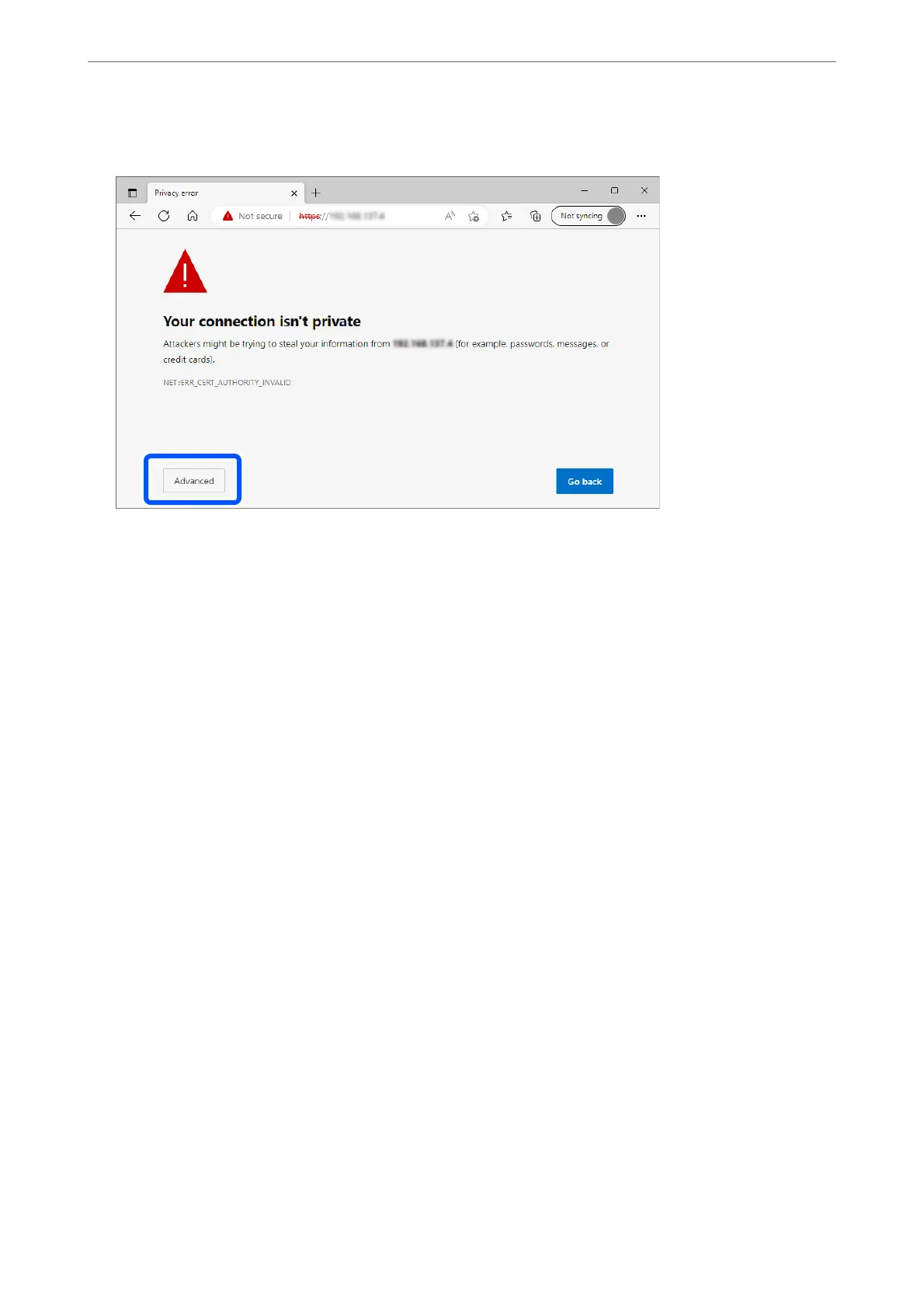
Example: For Microso Edge
Note:
❏ If a warning screen is not displayed, go to the next step.
❏ For IPv6 addresses, use the following format.
Format: http://[scanner’s IP address]/
Example: http://[2001:db8::1000:1]/
3. To change scanner settings, you need to log in as a Web Cong administrator.
Click Log in at the top-right of the screen. Enter the User Name and Current password, and then click OK.
e following provides the initial values for the Web Cong administrator information.
·User name: none (blank)
·Password: Depends on the label attached to product.
If there is a "PASSWORD" label attached to the back, enter the 8-digit number shown on the label. If there is
no "PASSWORD" label attached, enter the serial number on the label attached to the base of the product for
the initial administrator password.
Note:
If Log out is displayed at the top-right of the screen, you are already logged in as an administrator.
Related Information
& “Registering a Destination (Email)” on page 150
& “Registering a Destination (Network Folder (SMB))” on page 151
& “Registering a Destination (FTP)” on page 152
& “Registering a Destination (SharePoint(WebDAV))” on page 153
How to Run Web
Cong
on Windows
When connecting a computer to the scanner using WSD, follow the steps below to run Web Cong.
Scanner Basics
>
Information on Applications
>
Application for Conguring Scanner Operations (Web Cong)
37



 To Next Page