22 Sensor+ CEM+ User/Config Manual
Sensor+ Connect uses a navigation layout where the various main areas are selected on the left side of
the page presenting sub-options. The right side of the page is used to view or edit the selected
information.
You must set an IP address for any personal computer you plan to use on an ETCNet2 network. ETC
recommends that the personal computer used on an ETCNet2 network is dedicated to that network so
changes to network settings are kept to a minimum.
Group
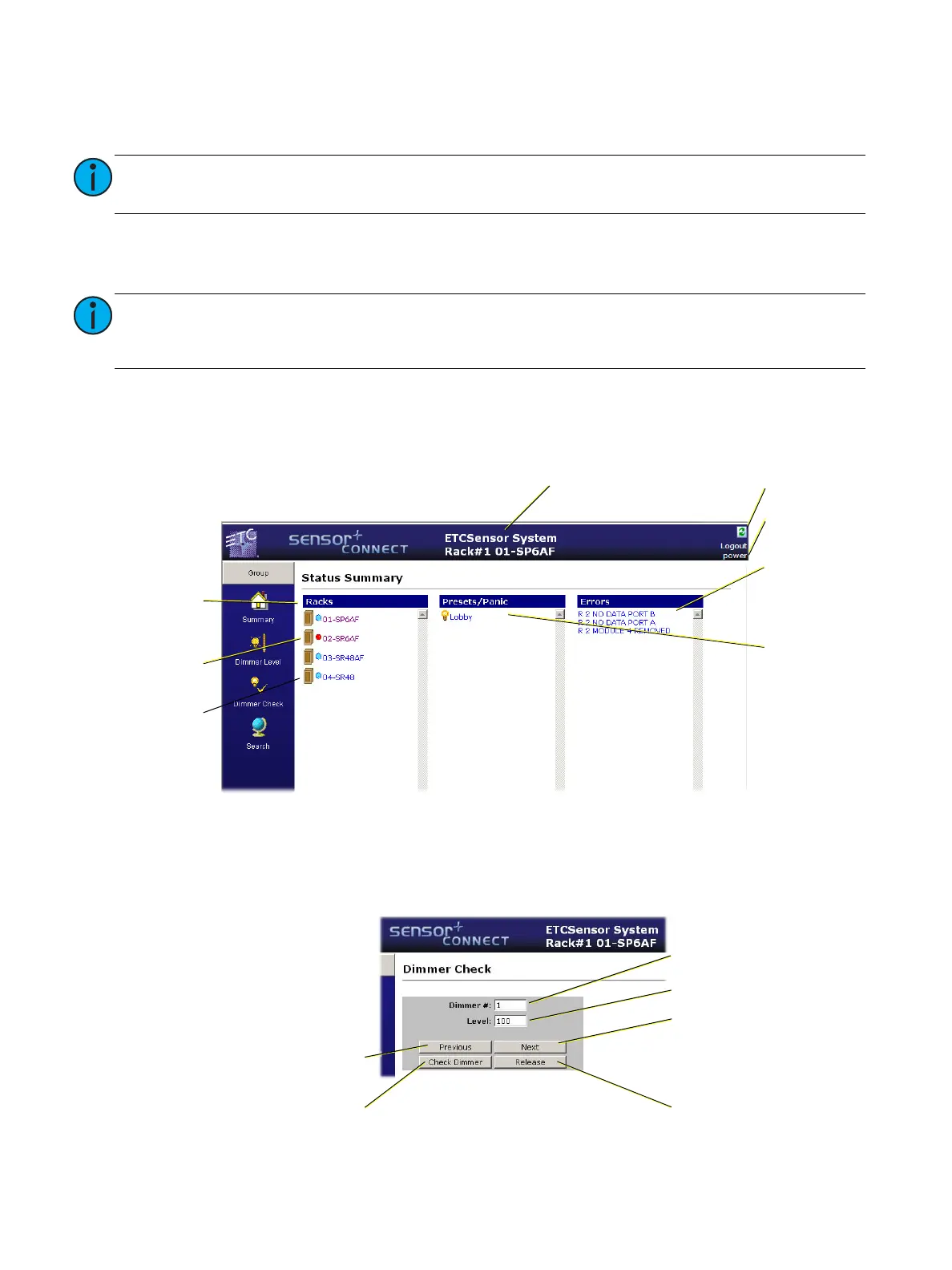
Summary Status
This is the Status Summary page. It’s the first page after you login to a CEM+.
Dimmer Check
Also from the Group section is the Dimmer Check page. This page provides a quick and easy method
to step through individual dimmers to do a dimmer check.
Note:
The Emphasis Server network settings are the default ETC values and ready for
immediate use. No configuration is required.
Note:
If the computer you wish to use is currently being used on a non-ETCNet2 network,
consult your Network Administrator before changing the IP address, Subnet Mask or
Gateway IP addresses.
List of errors
within the
Group
Rack with an
error
Rack okay
List of active
presets & panic
List of racks
in the Group
Refresh page
button
Group name
Rack # & Rack name which
you are logged into
Current user
level
Set dimmer number
Set dimmer level
Release current dimmer
& apply level to next
dimmer
Release current dimmer
Release current dimmer
& apply level to previous
dimmer
Start dimmer check



 To Next Page