48 Sensor+ CEM+ User/Config Manual
Load Management
Load management can be used after your system is setup and your loads (lights) are connected to
dimmers. For load management to work properly, Load Errors must be enabled for each dimmer you
want to monitor under dimmer properties. See
Configure Dimmers
on
page 25
. Load Errors is not
enabled on any dimmers by default.
Record Loads
When you record loads, the CEM+ steps through a series of dimmer intensities and monitors the
wattage as it proceeds. Only dimmers that have an initial intensity level greater than zero (0) and above
25 VAC output are included in the process.
Once loads have been recorded, load changes and missing loads (if “No Load Alarm” is enabled) are
reported at the face panel menu and in the web interface.
Delete Loads (Web Only)
Deleting loads will delete all previously recorded loads. Deleting loads is only available via the web
interface.
Clear Errors
Errors will appear on both the face panel and in the web interface.
When viewing errors on the face panel at an access level of User or higher, pressing will clear that
error. Continuing to press will cycle through the remaining errors and clear any that are capable of
being cleared. Errors that are still current will quickly reappear in the list (such as No Data Port B or
Module Removed).
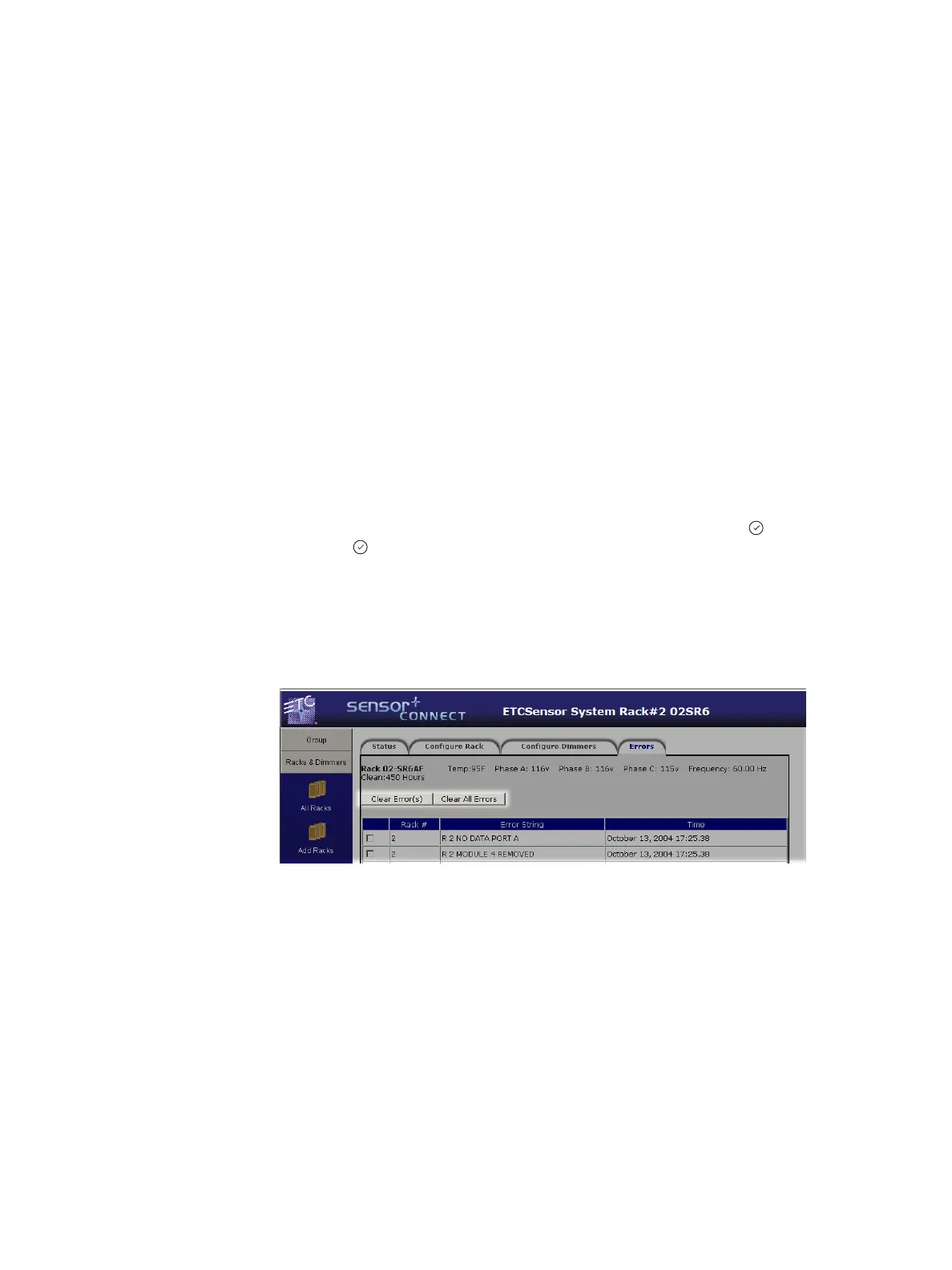
From the web interface, you can view the errors present from a couple of locations, however you can
only clear errors from the individual rack’s errors tab webpage. From this page you will have the option
to checkmark and clear individual errors or to clear all errors.



 To Next Page