CEM+ Procedures 39
• After transfer is complete, the software will be installed on the CEM+. The following
screens will be seen on the face panel display during software installation:
6. Repeat steps 1-5 for any remaining CEM+ modules in the system.
• Allow these messages to complete before attempting to use the CEM+ or enter any
menus. This process may take 5-10 minutes to complete.
Delete All Racks [Power]
1. Login as a Power User
2. Delete the config from the local rack (the one you are logged into).
• [Web] Racks & Dimmers>Add Racks>Delete All Racks
• [FP] Rack>Delete All Racks
3. Send the local rack’s configuration to the other racks. This will send the “noconfig”
configuration to the other CEM+s in the group and effectively delete their configuration as well.
• [Web] Configuration>File Transfer>Backup
• [FP] Rack>Send Config to All
This operation clears the rack configuration from the local rack (the one you are logged into), but does
not clear everything from the CEM+. The network settings, and custom PIN for the face panel remain
intact.
Note:
The file transfer process may take a few minutes, during which Internet Explorer may
be unresponsive.
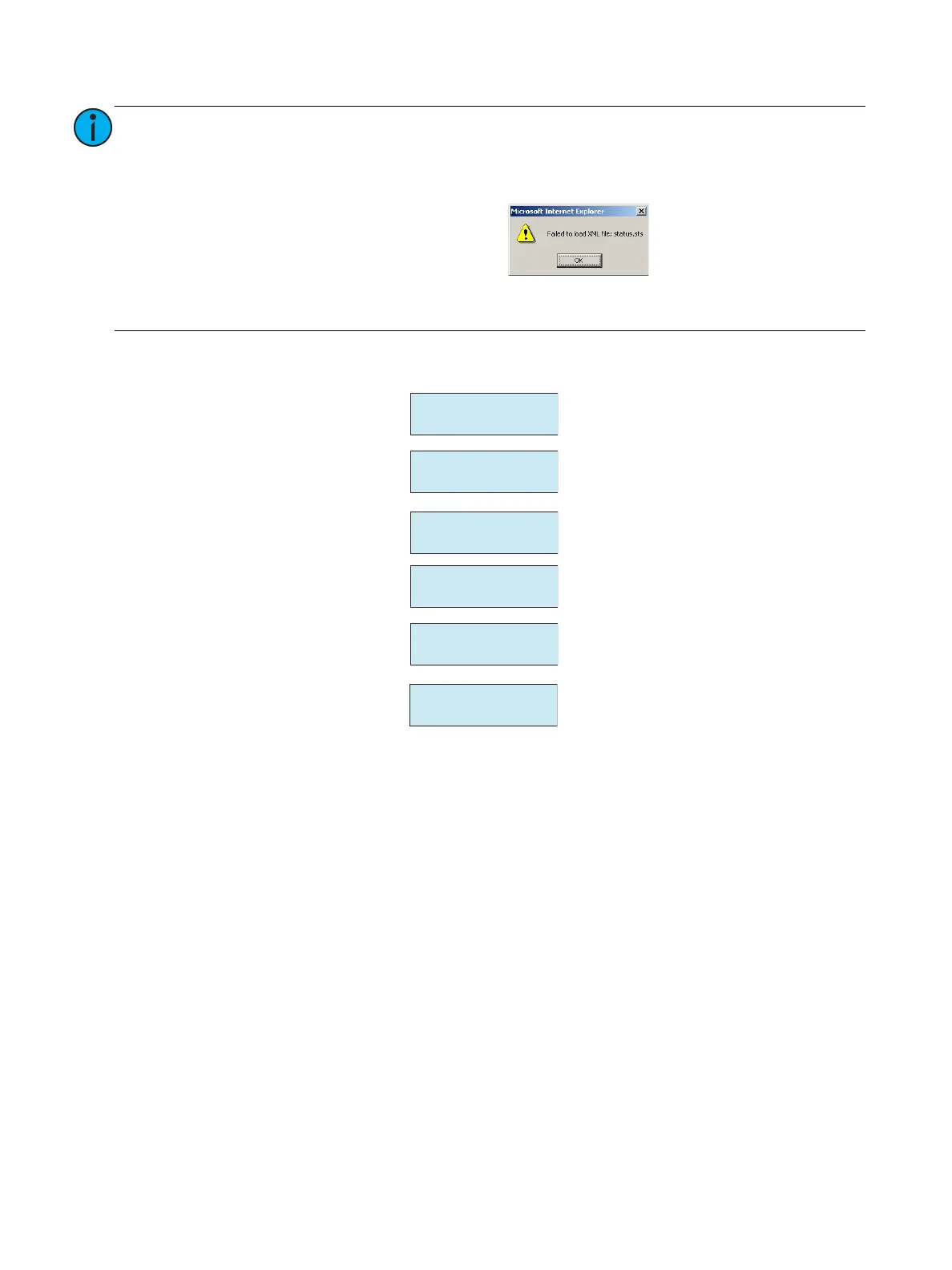
Depending on the version you are upgrading from, you may encounter the following
error.
If you do, you may dismiss the error (click “OK”) as it indicates the software has
successfully been transferred.
Loading SW For
AF Card
CEM+
2.2.0
Loading SW For
Dimming Processor
Installing Software
<various messages>
Loading New SW
Please Wait...
While the software is being
downloaded.
While the individual components
are being decompressed and
installed.
While the CEM+ reboots with the
new software.
While theCEM+ transfers some
software to the dimming engine.
While the CEM+ transfers some
software to the Advanced
Features (AF) cards (if installed).
Installation is complete. The
CEM+ returns to its normal
resting display.



 To Next Page