34 Sensor+ CEM+ User/Config Manual
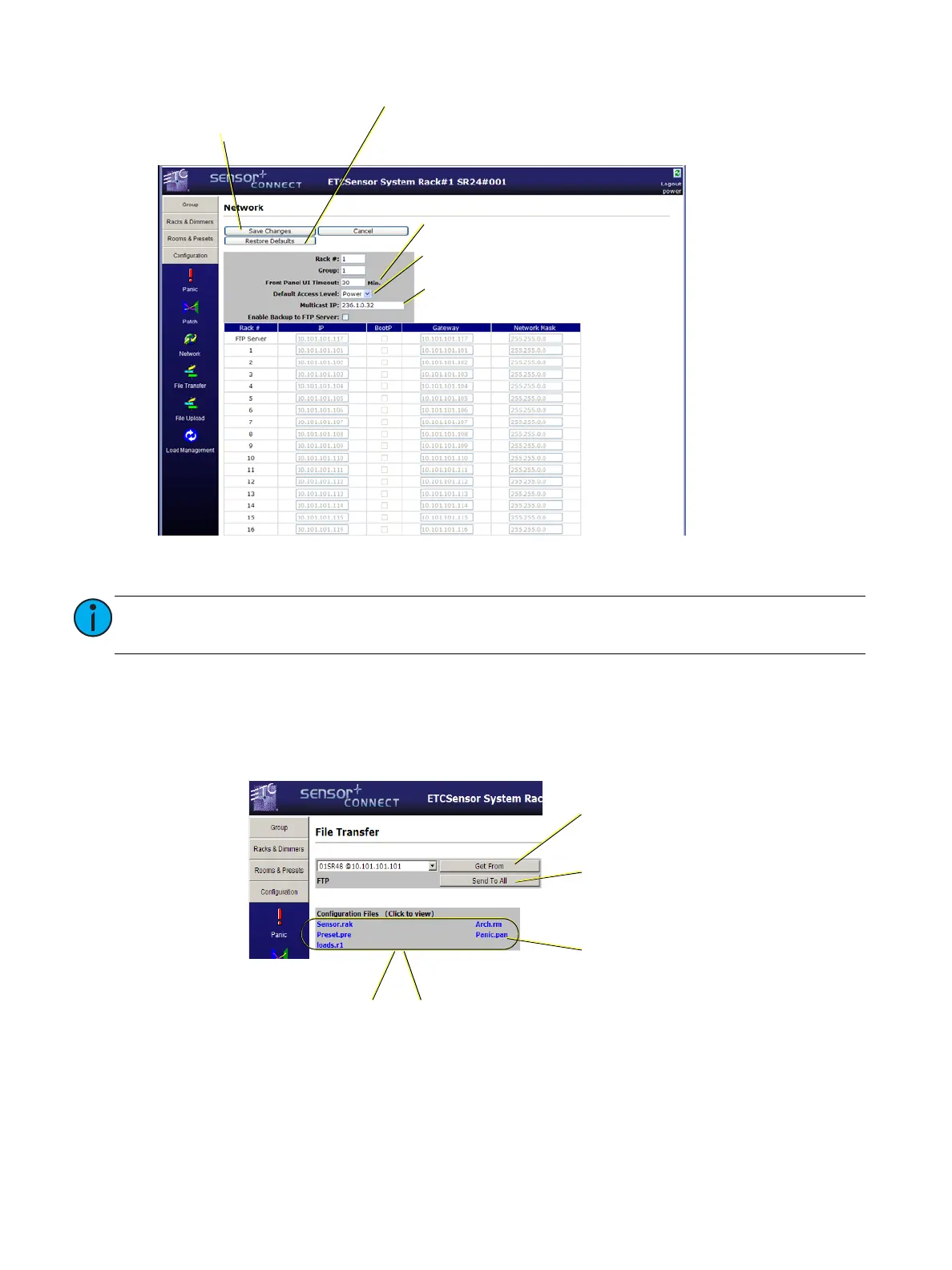
To change the entire network table at once from the web interface, set the Group and Rack numbers
and click Restore Defaults. This will repopulate the network table with the default addresses.
File Transfer
This webpage is used to initiate configuration transfers between the CEM+ module and an FTP server
if one is configured and available. See the section
FTP Server
on
page 51
for more information about
setting up an FTP server for use with CEM+.
Note:
To edit the IP addresses directly from the web interface, you need to contact ETC
Technical Services.
Set the face panel / LCD inactivity time-
out in minutes.
Set the default login user level. (when
logging in with no password)
The multicast IP address. Do not change this
unless told to do so by Technical Services.
Save Changes must be clicked to
send your changes to the CEM+
Restore Defaults resets the network table IP
information to a default state based on the
filled in Rack and Group settings.
“Get from” retrieves the configuration
from selected device IP address
“Send to All” sends the configuration to
all other devices in the group.
The five files that make up the group
configuration.
Left-click file
name to view
Right-click & “Save Target
as...” to save the file to disk.



 To Next Page