50 Sensor+ CEM+ User/Config Manual
View a Configuration
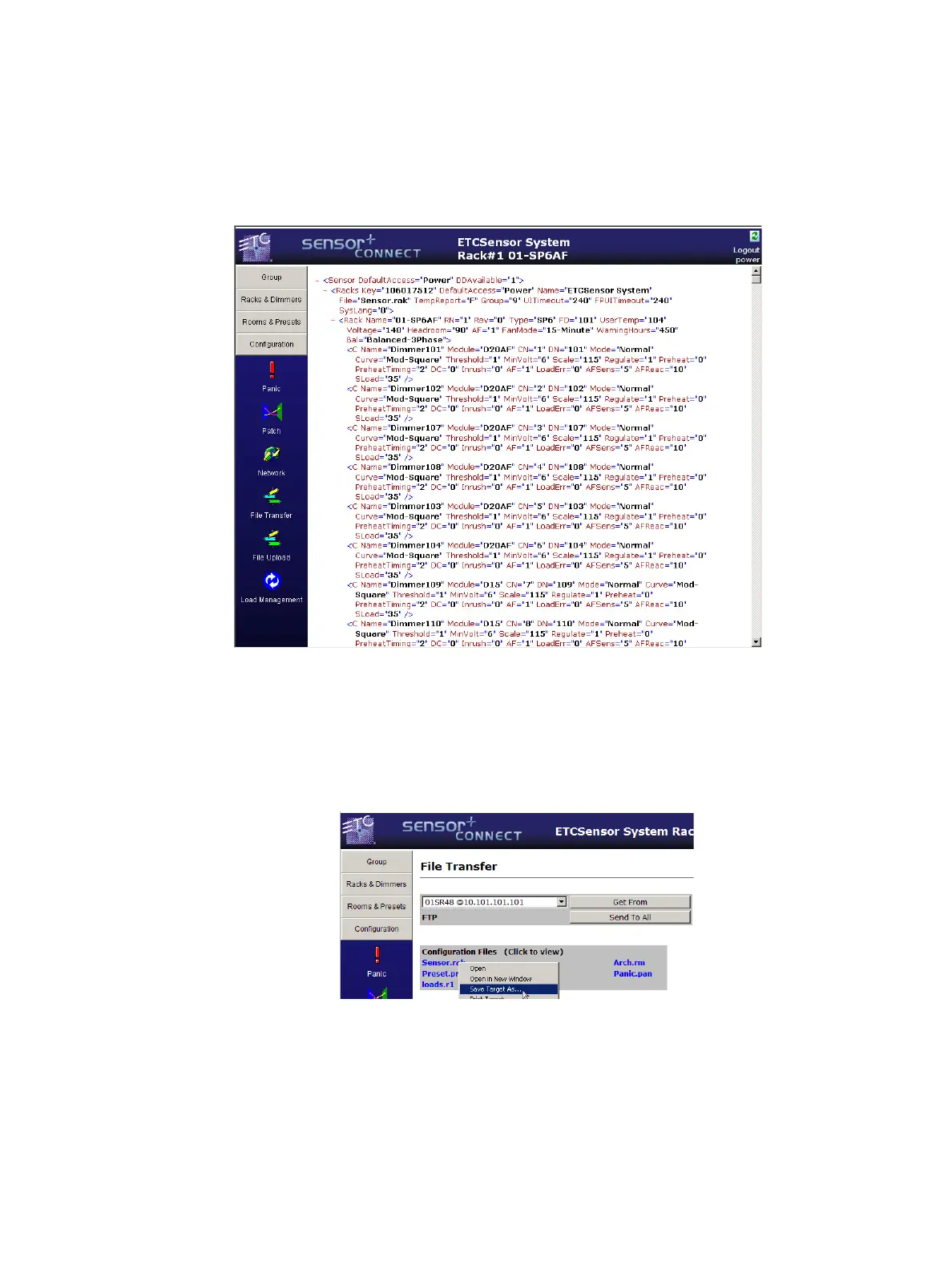
To view a configuration file’s raw XML content on screen, just left-click on the configuration file name
you want to see. Once you are viewing the configuration, click back in your browser to get back to the
File Transfer page. (You can not make any edits to the configuration file while viewing it like this.)
Below is what the sensor.rak file looks like viewed in this manner.
Download a Configuration
To download a configuration file to disk, just right-click on the file name and select “Save Target As...”.
This will bring up a standard dialog box asking you to name the file and to pick a location to save it. It
will append the file name with “.xml” instead of the file extension listed on the web page. This will not
prevent you from uploading the configuration file to a CEM+ later.



 To Next Page