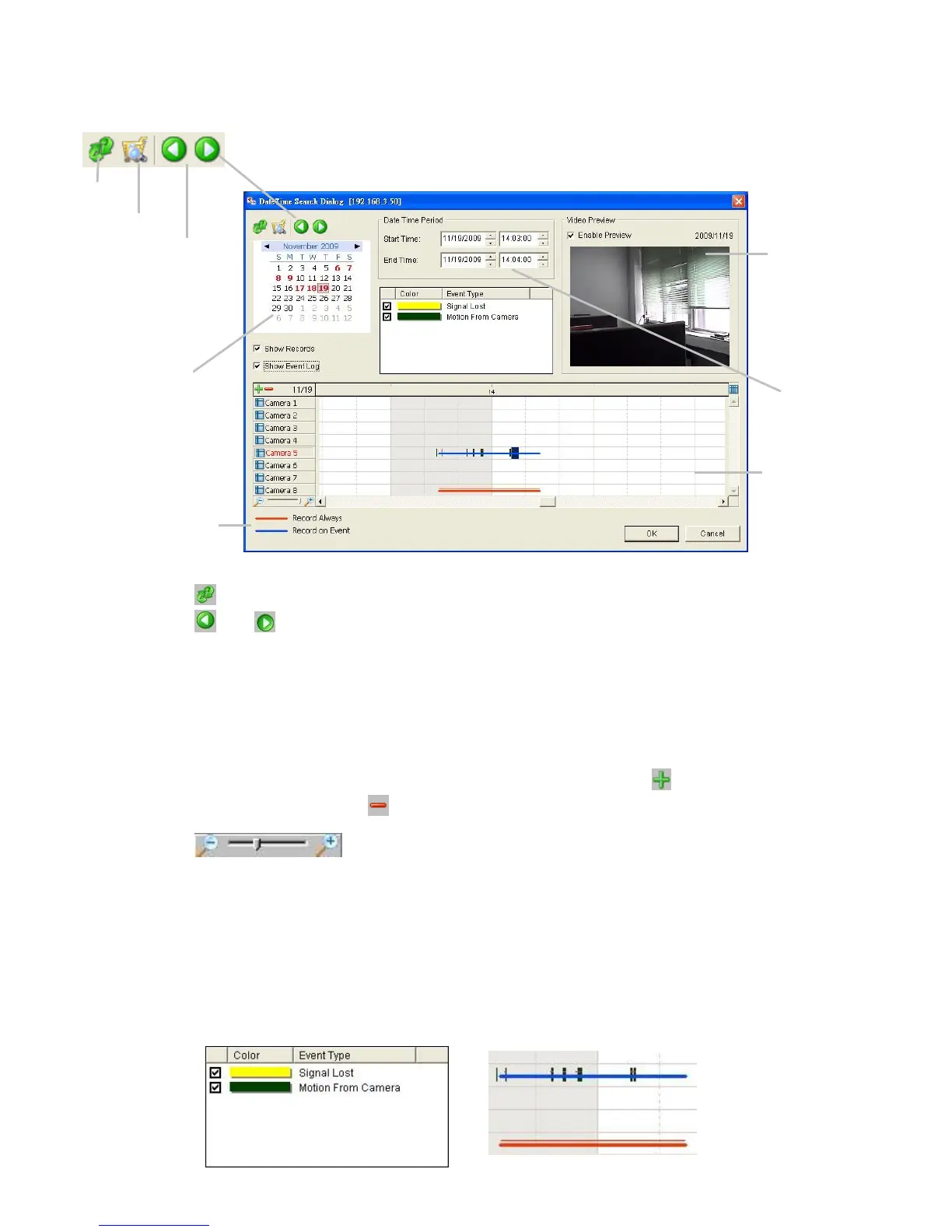
7.1.2 Search the Recorded Video
: refresh the Record Display Window.
or : go to previous or next recording date.
Record Display Window: Display the available recorded video records.
Date Time Period: Select the start and end time points that indicate the
time period you would like to view after choosing cameras.
Video Preview: Check the Enable Preview option to view the selected
video.
Time Table (preset recording schedule): Click the icon to select all
channels; click the icon to deselect all channels. Finally, use the
scale bar to modify the scale of the time table. There
are two recording modes: Record Always and Record on Event. The
Time Table will display these two modes in different colors.
Show Records: Show the period of recording data in the Time Table.
Show Event Log: Show Event Log makes Time Table show the time of
event detection. Color of event type can be defined by preference.




 To Next Page