Port: The transmission port of SCB-C31.
ID: The ID of the I/O box.
4. Click the Create button, and the information will be updated in I/O Box
List.
5. Repeat steps 3 and 4 to add more I/O boxes in the list.
6. Click the Save button to activate the settings. Meanwhile, system will
distribute an unique ID to each device.
4.2.2 Modify I/O Box Information
1. Open Internet Explorer and log in to the unit.
2. Click POS & I/O / I/O Settings / I/O Box Settings.
3. Click the I/O box which you want to modify from the list.
4. Modify the information of this I/O box, and click the Modify button.
5. Click the Save button to activate the settings.
4.2.3 I/O Pin Setting
1. Open Internet Explorer and log in to the unit.
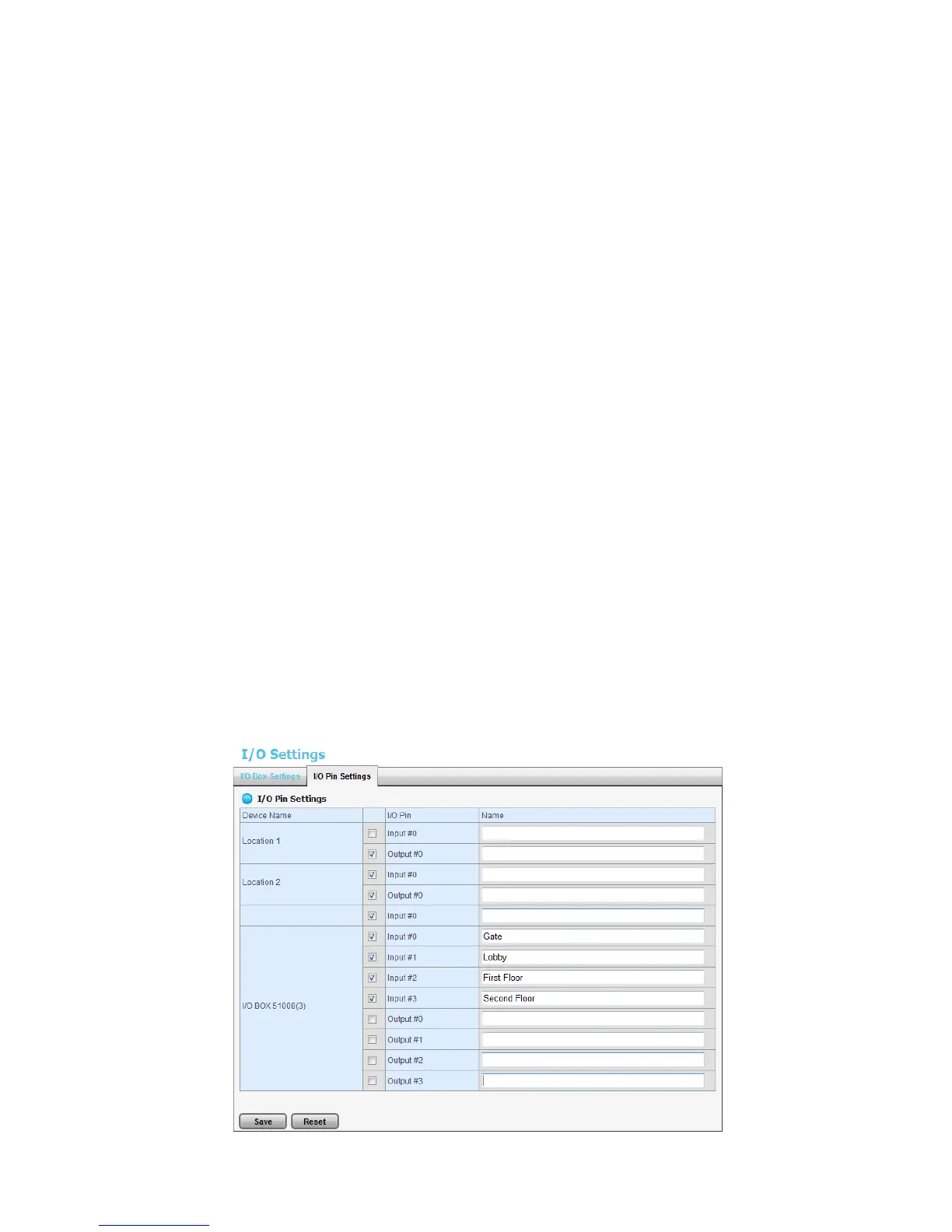
2. Click POS & I/O / I/O Settings / I/O Pin Settings.
3. All input and output pins are shown in this page, including the ones from
cameras and I/O boxes. Check the box to enable a pin (defaulted), and type
a name in the field for each I/O pin.




 To Next Page