Passive Ports: The data transmission port of passive mode.
2.4 Auto Backup
This feature enables you to automatically backup the recorded video of the
previous date to FTP site. There are two steps to enable the function, one is
Set up Backup Schedule, another is Set up Backup Server.
2.4.1 Set up Backup Schedule
1. Open Internet Explorer and log in to the unit.
2. Click RAID & File System / Auto Backup Management.
3. Click the Backup Schedule tab.
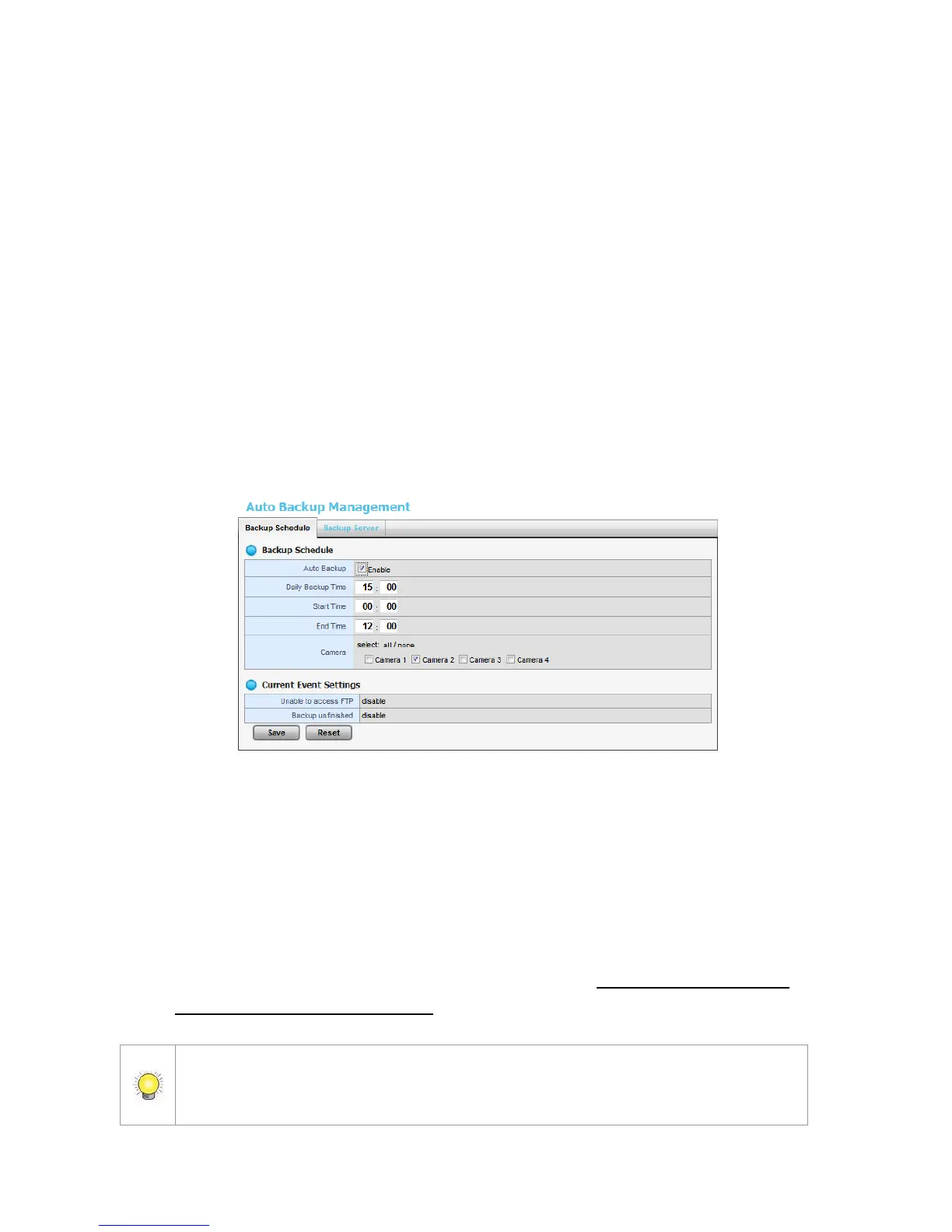
4. Set up backup schedule, select the backup channels, and check the Enable
option to enable Auto Backup.
Auto Backup: Check the Enable option to enable this function.
Daily Backup Time: The daily scheduled time to start backup process.
Start Time: The start time of recorded video of the previous date.
End Time: The end time of recorded video of the previous date.
Camera: Select the channel(s) to backup.
5. Current Event Settings shows the condition of the events of auto
backup – enable or disable. Follow the steps of System Events and
Responding Actions Setup to configure the event & action.
The system backups recorded video files one by one. If the connection between the
unit and FTP server is normal, but some problems of FTP causes the system unable to
write files on FTP, the system would try each file three times before starting to backup




 To Next Page