7.1.5 Recorded Video Enhancement
1. Open Internet Explorer and log in to the unit.
2. Click the Playback button on the top of the page.
3. Click the Open Record button.
4. The Record Display Window will show the information of the available
video clips. Select the date you want to search the record from.
5. Highlight the video clip you want to review, and then click the OK button.
6. Click the Enhancement button.
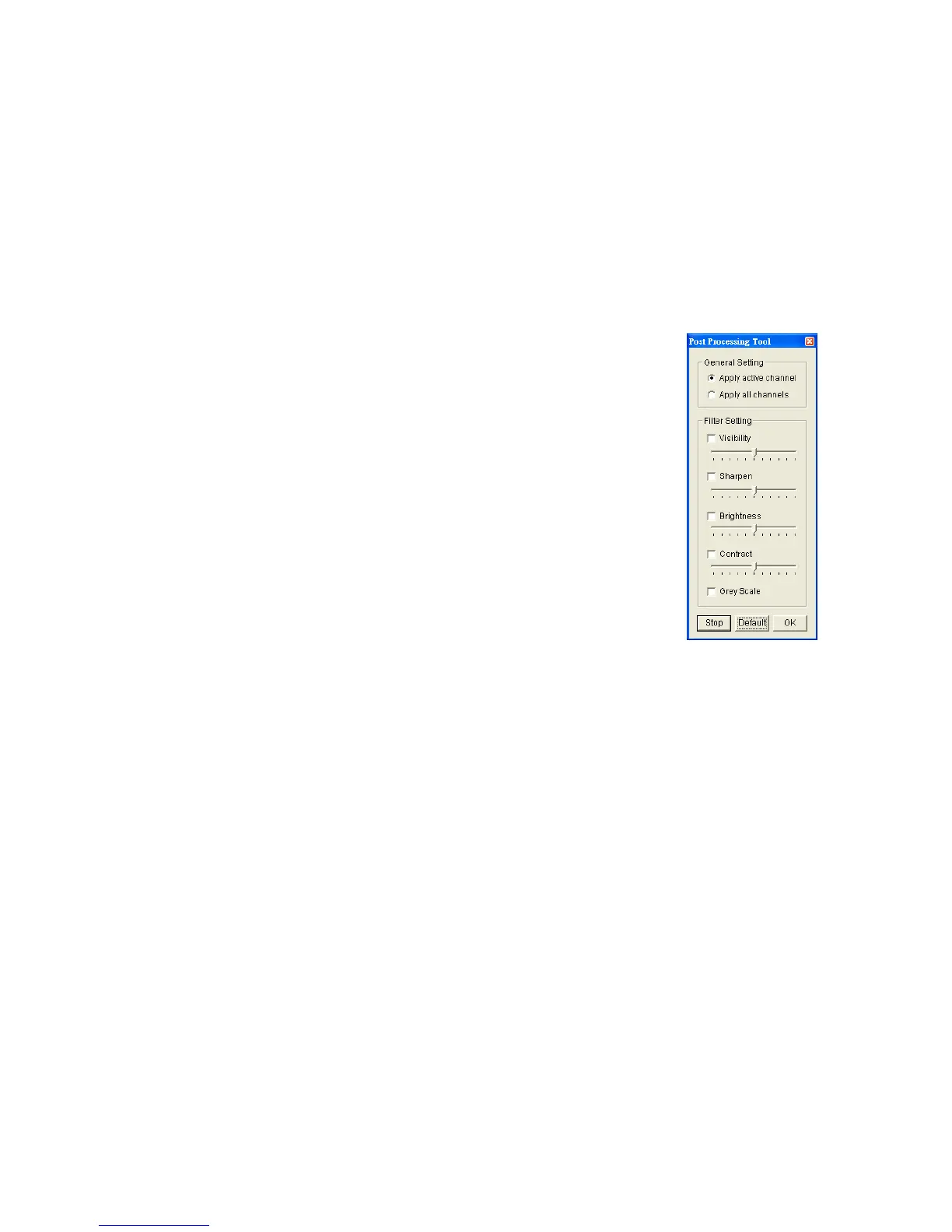
7. Check the General Setting.
Apply active channel: The settings will only be
applied to the selected channel.
Apply all channels: The settings will be applied to
those currently shown on the screen.
8. Set the Filter Setting.
Visibility: Check the option and adjust the gamma
value of the image to enhance the image and make it
cleaner.
Sharpen: Check the option to activate the function. Move the slider
control to the right to sharpen the image, to the left to soften it.
Brightness: Check the option to activate the function. Move the slider
control to the right to make the image brighter.
Contrast: Check the option to activate the function. Move the slider
control to the right to increase contrast.
Grey Scale: Check the option to show the record in gray-scale mode so
the image displays in black and white.
9. Click the OK button.
Stop: Stop the enhancement function and close the enhancement tool.
(The system will automatically back to the default settings.)
Default: Back to the default settings, however, the enhancement tool
still works.
OK: Apply the modifications of the settings.









 To Next Page