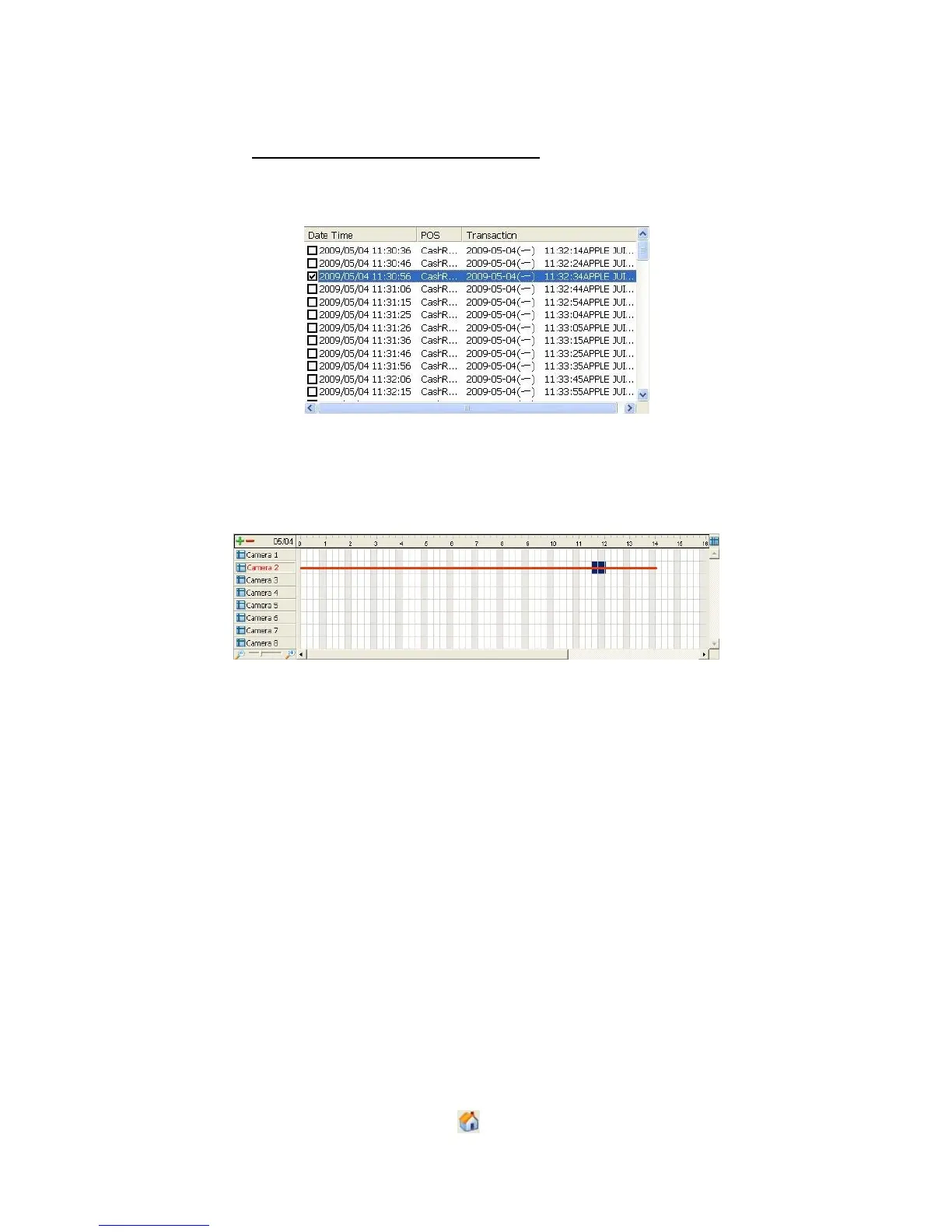
3.6.1 Select Period by POS Search
1. Refer to POS Transaction Data Search.
2. Select the transaction data from the result list, and click OK.
3. The period you select from POS search results will be selected
automatically.
4. Click OK to playback videos.
3.6.2 Select Period by Data & Time through Playback
1. Open Internet Explorer and log in to the unit.
2. Click the Playback button.
3. Click the Open Record button to open Data Time Search Dialog window.
4. Highlight the video clip you want to review by left-clicking and dragging the
time period. You may also utilize the Start Time and End Time in Date
Time Period section after choosing cameras.
5. Click OK to playback videos.
3.6.3 Select Period by Data & Time through Playback System
1. Startup > NVR > Playback System.
2. Click the Open Record button to open Data Time Search Dialog window.
3. Click the Remote Server Site icon on the top of the window to select




 To Next Page