l (4) Name of operator
l (5) Any other machine relevant notes
l (6) Date is set automatically
l (7) In this case, "Results as found" has been activated
Tap to save the asset measurement report as PDF to the ruggedized tablet.
Note
The report as a PDF may be accessed by connecting the tablet device to a PC. The report
is located in the folder "Reports" which is accessed via 'ROTALIGNtouch
EX'/'Media'/'Reports'.
The generated PDF report saved together with the asset may also be accessed via the
software platform ARC 4.0 in "Asset Attachments".
Tapping saves the machine alignment information, then returns the user to the Results
screen.
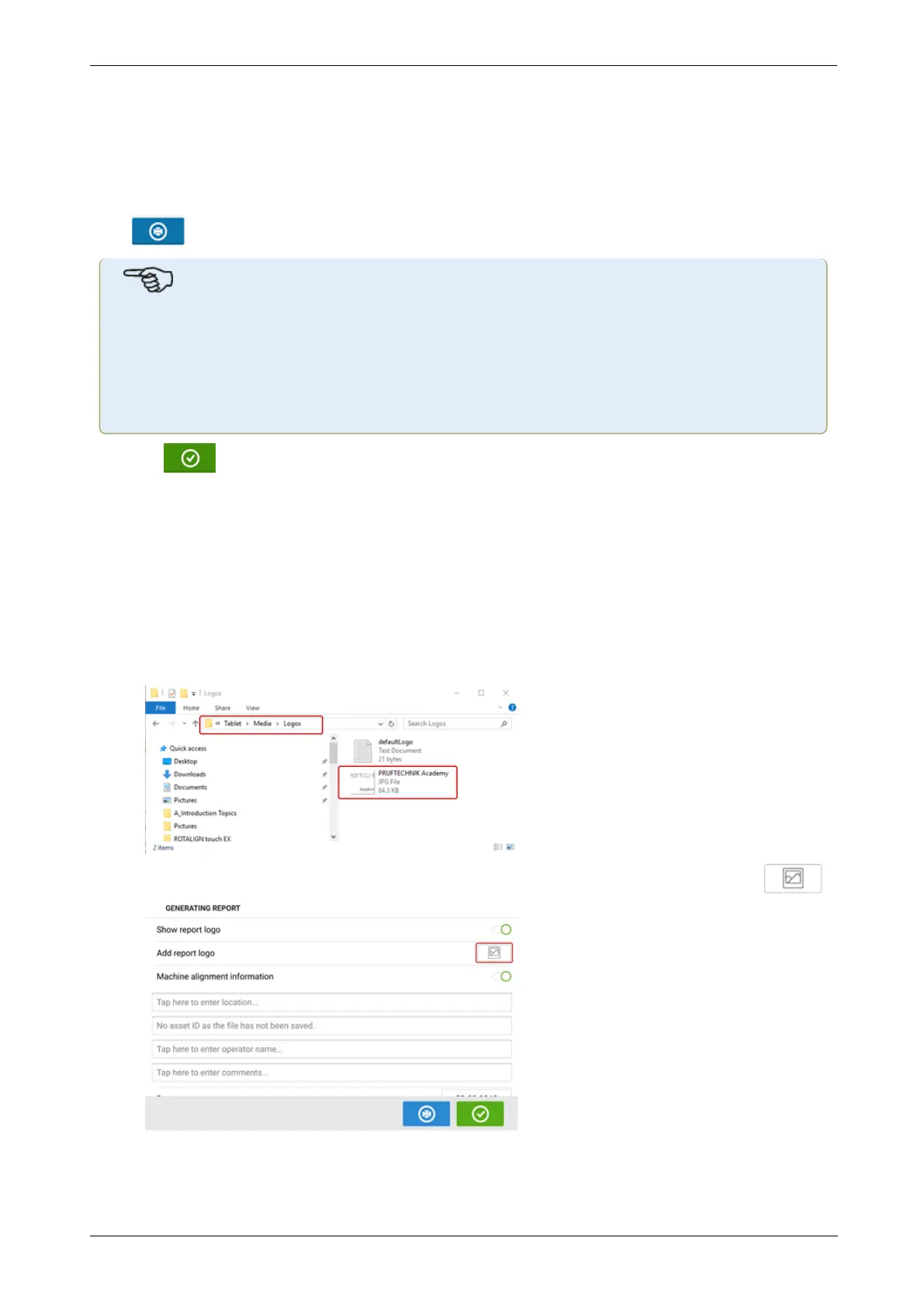
Report logo
The desired report logo must initially be saved within the touch device before it can be added
to the measurement report.
Note: Adding a new logo to the report logo gallery is only possible if the item "Show report
logo" is activated.
l With the tablet device connected to a PC and access allowed, save the desired logo in
the folder "Logos" which is accessed via 'ROTALIGNtouch EX'/'Media'/'Logos'.
l
Disconnect the tablet device from the PC and then tap the "Add report logo" icon .
The report logo gallery opens.
88 Version:2.3
On-board help


 To Next Page