l
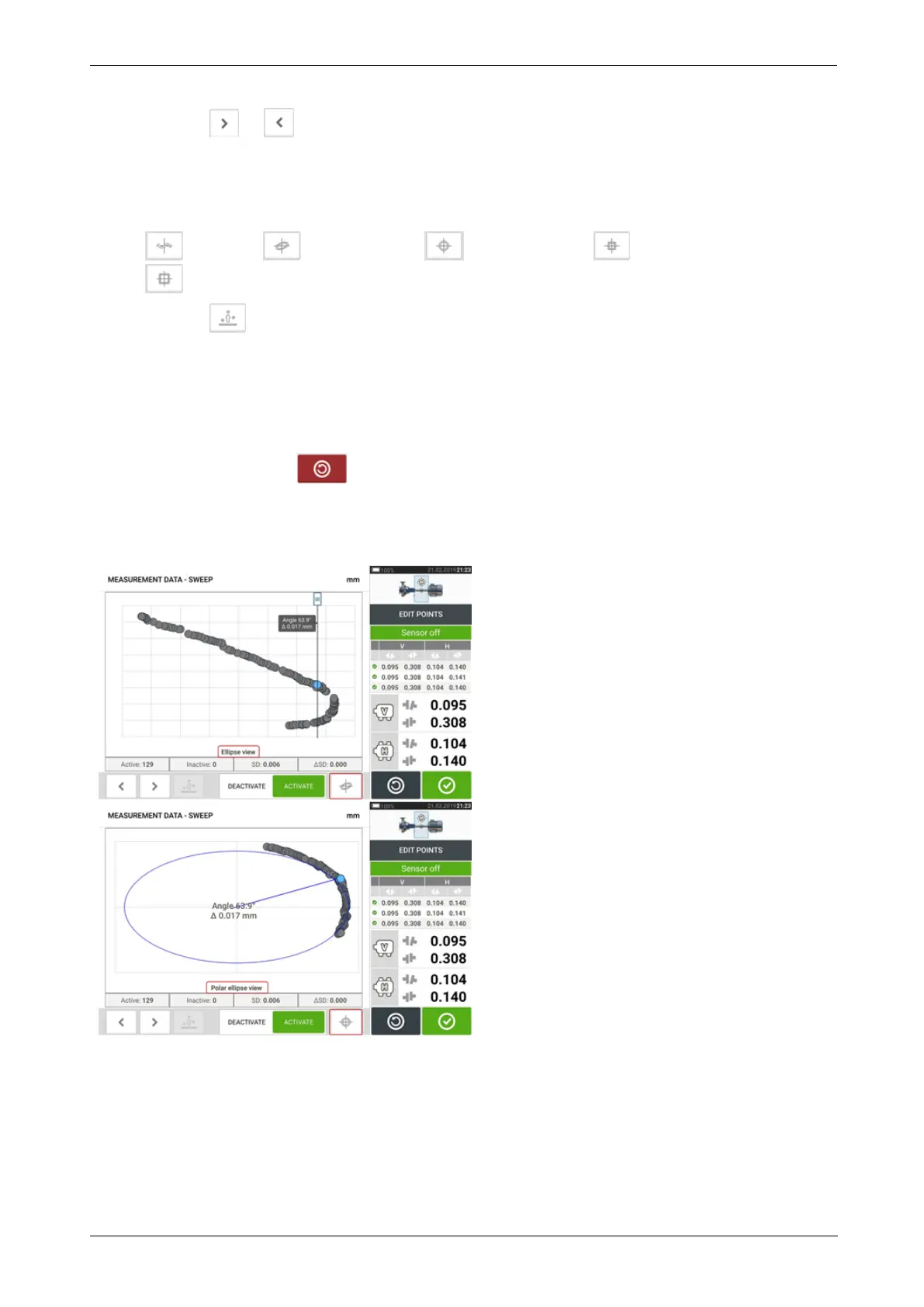
(1) Tap or to cycle through the points.
l (2) Currently selected point is active. The point is made inactive by tapping 'Deactiv-
ate'.
l (3) Shows currently displayed deviation diagram or sensor plane. Tap icon to cycle
through available deviation diagrams and sensor planes. These include: Broken ellipse [
]; Ellipse [ ]; Polar ellipse [ ]; Sensor plane [ ]; Sensor plane zoomed [
]
l
(4) Tap to automatically select the point with the highest deviation within the dia-
gram. The cursor (5) springs automatically to this point. Note that the icon is inactive
when the currently highlighted point has the highest deviation within the group.
l (5) The cursor is used to highlight any point in the diagram. The selected point is high-
lighted blue.
l (6) Currently selected point is inactive. The point is made active by tapping 'Activate'.
l
(7) The 'undo' icon is used to reverse all changes made before saving the asset
measurement.
Other deviation diagrams
94 Version:2.3
On-board help


 To Next Page