Click the main menu you require. The corresponding sub-menu then opens.
If you click the sub-menu you want, the entry selected will be displayed in red. All the other
sub-menus will be closed. You can see at a glance the sub-menu you are in.
Status page
If you call the Funkwerk Configuration Interface , after you log in the status page of your
device is displayed. The most important data of your device can be seen on this at a
glance.
Main configuration window
The sub-menus generally contain several pages. These are called using the buttons at the
top of the main window. If you click a button, the window is opened with the basic paramet-
ers. You can extend this by clicking the Advanced Settings tab, which displays the addi-
tional options.
Configuration elements
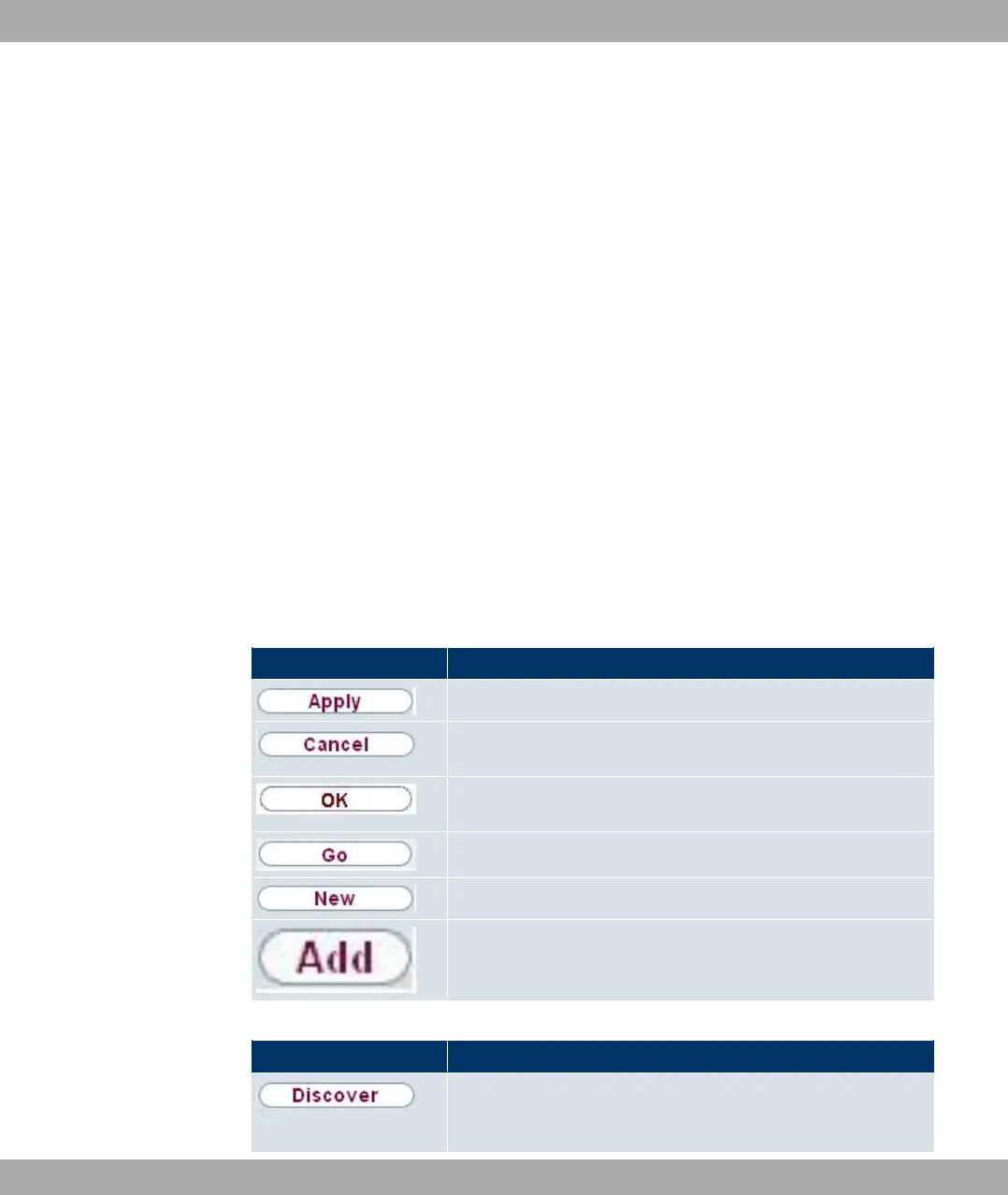
The various actions that you can perform when configuring your device in the Funkwerk
Configuration are triggered by means of the following buttons:
Funkwerk Configuration Interface buttons
Button Function
Updates the view.
If you do not want to save a newly configured list entry, cancel
this and any settings made by pressing Cancel.
Confirms the settings of a new entry and the parameter
changes in a list.
Immediately starts the configured action.
Calls the sub-menu to create a new entry.
Inserts an entry in an internal list.
Funkwerk Configuration Interface buttons for special functions
Button Function
In the Access Point Discoverymenu, with this button you start
the automatic recognition of all access points available in the
network and connected by Ethernet.
8 Access and configuration Funkwerk Enterprise Communications GmbH
62 bintec Rxxx2/RTxxx2



 To Next Page