14
IIDTool
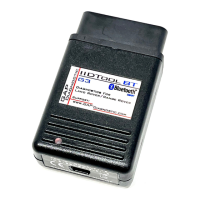
Figure 1. IIDTool BT generations ............................................................................................ 19
Figure 2. IIDTool Pro generations ........................................................................................... 19
Figure 3. Micro or Mini USB socket for USB cable used to connect the IIDTool to a computer 20
Figure 4. OBDII connector allowing connection of the IIDTool to a vehicle ............................ 20
Figure 5. Menu overview ........................................................................................................ 28
Figure 6. Menu overview ........................................................................................................ 29
Figure 7. Parameters .............................................................................................................. 30
Figure 8. Settings denition .................................................................................................... 31
Figure 9. Demonstration mode ............................................................................................... 32
Figure 10. Example of live values, demonstration mode ........................................................ 32
Figure 11. Login ...................................................................................................................... 33
Figure 12. Tool Binding ........................................................................................................... 34
Figure 13. Register using the mobile App, 1 ........................................................................... 36
Figure 14. Register using the mobile App, 2 ........................................................................... 37
Figure 15. Register using the mobile App, 3 ........................................................................... 37
Figure 16. Register on the GAP Diagnostic website ............................................................... 38
Figure 17. Updater software download ................................................................................... 40
Figure 18. Updater software overview .................................................................................... 43
Figure 19. Overview, “ Program Flash File Only ” button ......................................................... 43
Figure 20. File download or synchronization .......................................................................... 46
Figure 21. OBDII Connector, All except L322 2002-2006 and L316 ....................................... 49
Figure 22. OBDII Connector L322 2002-2006 ........................................................................ 50
Figure 23. OBDII Connector L316 .......................................................................................... 50
Figure 24. Mobile App representation ..................................................................................... 52
Figure 25. Activation -
>
tool selection ..................................................................................... 55
Figure 26. Activation when connected to the Internet ............................................................. 56
Figure 27. Activation -
>
tool selection ..................................................................................... 57
Figure 28. Activation when connected to the Internet ............................................................. 58
Figure 29. Steps to get an unlock code from the website ....................................................... 59
Figure 30. Activation form ....................................................................................................... 59
Figure 31. Unlock code shown on the website ....................................................................... 60
Figure 32. Pro, additional activation steps, 1 ......................................................................... 61
Figure 33. Pro, additional activation steps, 2 ......................................................................... 62
Figure 34. mobile device connected to the Internet. Steps for pre-unlocking the tool ............ 63
Figure 35. Viewing permission example ................................................................................. 65
Figure 36. Permissions, tool not activated .............................................................................. 66
Figure 37. Permissions, tool activated and connected on an unlocked vehicle ..................... 66
Figure 38. Permissions, tool activated and connected on a vehicle not unlocked ................. 66
Figure 39. Version number, Build............................................................................................ 75
Figure 40. Faults by ECUs...................................................................................................... 77
Figure list


 To Next Page
 Loading...