PiP GigaBlue Box
PiP Picture in Picture
You can enable PiP when
pressing 2x
BLUE button.
PiP Picture in Picture
If you press 1x
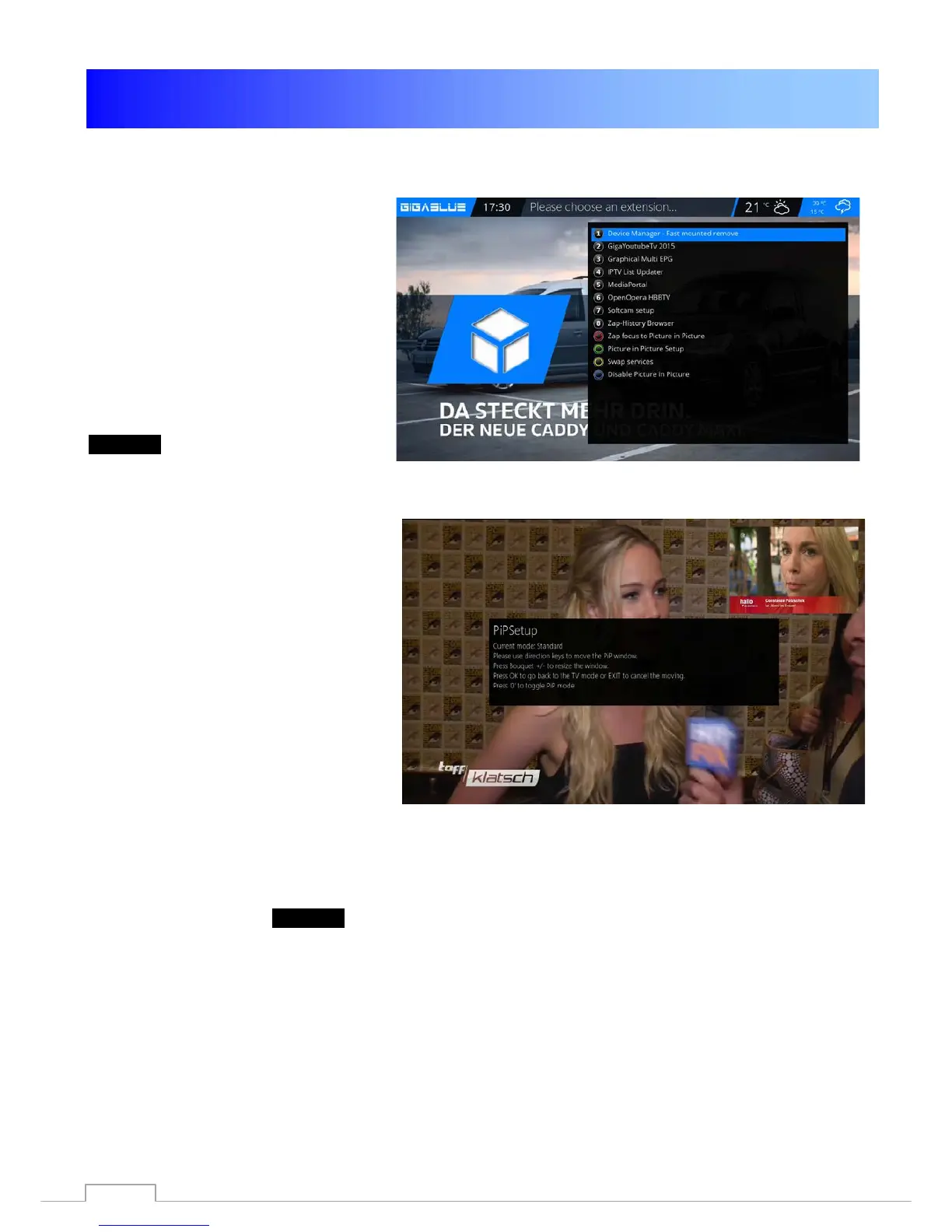
BLUE button. Fig.1
The following options are available
RED Button: Put focus on the main
screen
GREEN Button: Move Picture in Picture
YELLOW Button: exchange channels
BLUE Button: Picture in Picture disable
Fig.1
• Put focus on the main screen
When PiP is activated, you can
enable zap with the
RED button.
For the main Window. You can
switch program in the channel list
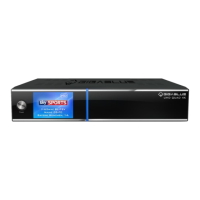
• Move Picture in Picture
You can use the GREEN button to
move the PIP window and resize.
You can PiP window move with
the arrow keys ◄► ▼ ▲ on the
remote control. The size of the
window can be changed with the
channel button ▲ ▼.
Fig.2
• Exchange Channels
You can use the YELLOW button When PiP is
activated, you can PiP swap main channel
• Picture in Picture disable F.1.
You can use the BLUE Button: Picture in Picture
disable
76


 To Next Page