If no Administrator or User password is used, all available settings are configurable and can be set by
anyone with access to the BIOS Setup.
System settings that are not configurable, because of security settings or configuration limits, will be
grayed out and are not accessible.
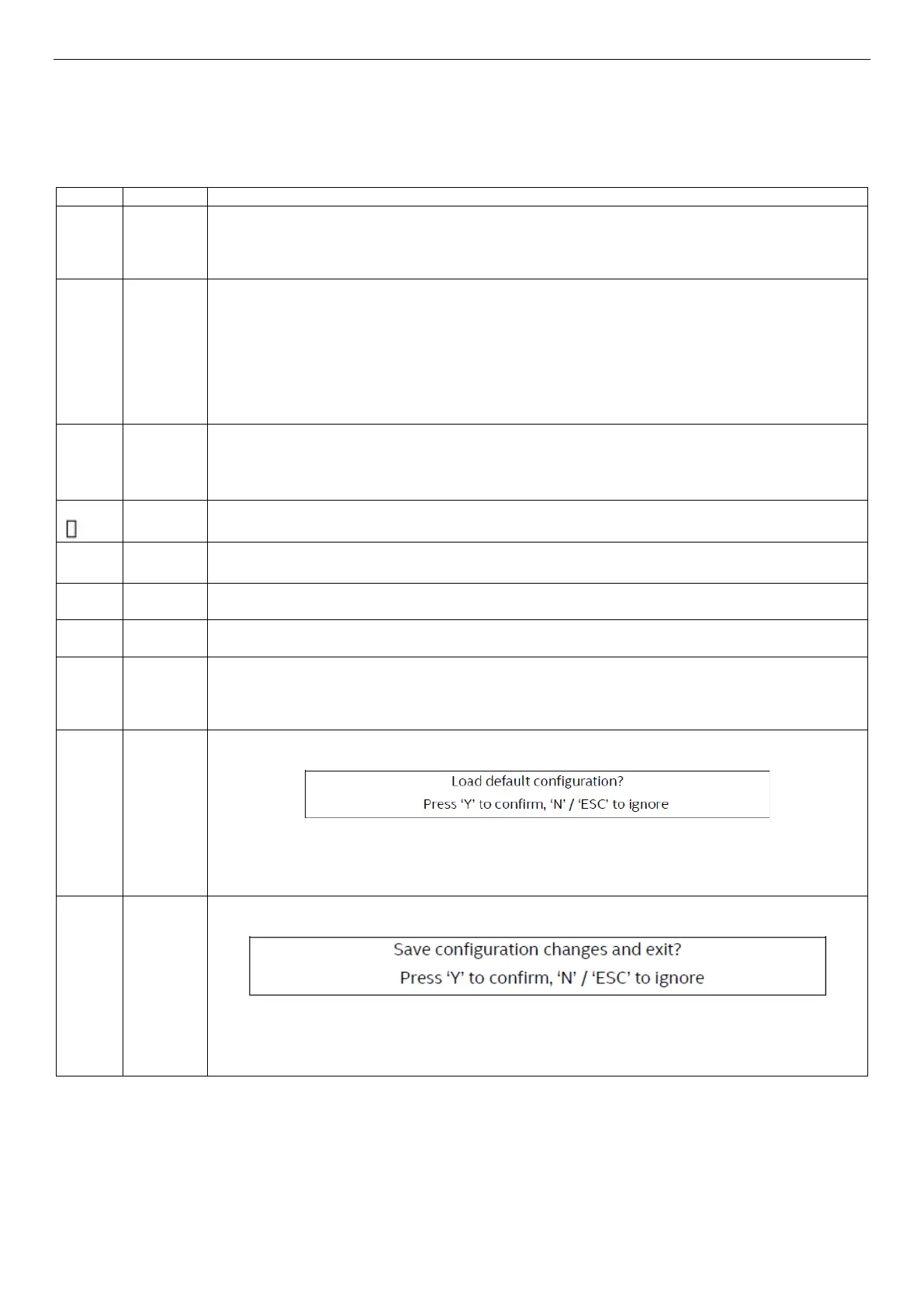
Table 7. BIOS Setup: Keyboard Command Bar
Command
The <Enter> key is used to activate submenus when the selected feature is a submenu, or to display a
pick list if a selected option has a value field, or to select a subfield for multi-valued features like time
and date. If a pick list is displayed, the <Enter> key selects the currently highlighted item, undoes the
pick list, and returns the focus to the parent menu.
The <Esc> key provides a mechanism for backing out of any field. When the <Esc> key is pressed
while editing any field or selecting features of a menu, the parent menu is re-entered.
When the <Esc> key is pressed in any submenu, the parent menu is re-entered. When the <Esc> key is
pressed in any major menu, the exit confirmation window is displayed and the user is asked whether
changes can be discarded. If “No” is selected and the <Enter> key is pressed, or if the <Esc> key is
pressed, the user is returned to where they were before <Esc> was pressed, without affecting any
existing settings. If “Yes” is selected and the <Enter> key is pressed, the setup is exited and the BIOS
returns to the main System Options Menu screen.
↑
Item
The up arrow is used to select the previous value in a pick list, or the previous option in a menu item's
option list. The selected item must then be activated by pressing the <Enter> key.
Item
The down arrow is used to select the next value in a menu item’s option list, or a value field’s pick list.
The selected item must then be activated by pressing the <Enter> key.
Menu
The left and right arrow keys are used to move between the major menu pages. The keys have no
effect if a submenu or pick list is displayed.
The <Tab> key is used to move between fields. For example, <Tab> can be used to move from hours
to minutes in the time item in the main menu.
The minus key on the keypad is used to change the value of the current item to the previous value.
This key scrolls through the values in the associated pick list without displaying the full list.
Value
The plus key on the keypad is used to change the value of the current menu item to the next value.
This key scrolls through the values in the associated pick list without displaying the full list. On 106-
key Japanese keyboards, the plus key has a different scan code than the plus key on the other
keyboards, but has the same effect.
Defaults
Pressing the <F9> key causes the following to display:
If “Yes” is highlighted and <Enter> is pressed, all Setup fields are set to their default values. If “No” is
highlighted and <Enter> is pressed, or if the <Esc> key is pressed, the user is returned to where they
were before <F9> was pressed without affecting any existing field values.
Exit
Pressing the <F10> key causes the following message to display:
If “Yes” is highlighted and <Enter> is pressed, all changes are saved and the Setup is exited. If “No” is
highlighted and <Enter> is pressed, or the <Esc> key is pressed, the user is returned to where they
were before <F10> was pressed without affecting any existing values.


 To Next Page