2-10
2.2 Job Printing
Step 2: Send Print Data
Send a print job to the HDD of the main body using the printer driver to temporarily save it as a hold job. Saving a job
temporarily allows test printing or fine adjustment on the machine.
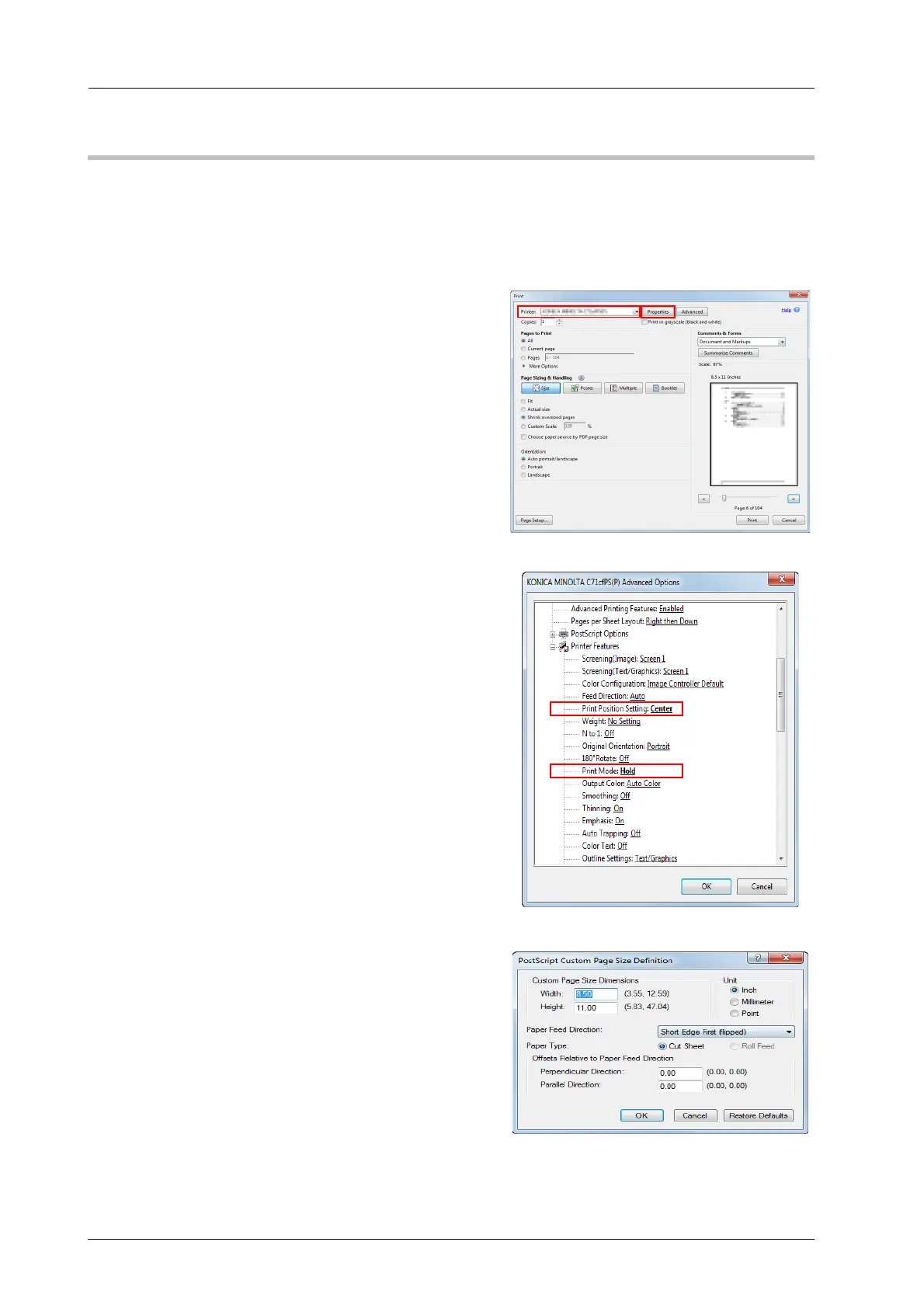
A Open the file menu of the application software, then click [Print] to display the print
window.
B Select the installed printer driver from
[Printer], then click [Properties].
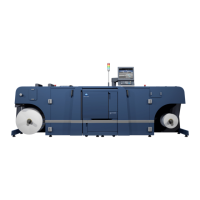
C Click [Advanced] on the setting window of
the printer driver, then specify [Paper Size],
[Print Position Setting], and [Print Mode].
- Print Position Setting: [Center] is recommended.
- Print Mode: [Hold] is selected.
D In Paper Size, select [PostScript Custom
Page Size], then enter the width and height
(length) of the paper size to be printed in
[Custom Page Size Dimensions]. Check
settings, then click [OK].



 To Next Page