User Guide
Leviton D4200 LCD Ver 2.0 Architectural Lighting Controller Page 64 of 80
If you activate the station lock code or the station lockout
switch, the remote control will override the locks and be
able to recall preset Scenes; even though, the station is
locked.
Viewing Scheduled Events
To view currently scheduled Events:
Step 1: Press the Menu/Cancel button.
Step 2: Press the Up and Down buttons until VIEW
SCHEDULE? flashes on the LCD display.
Step 3: Press the Select/Save button.
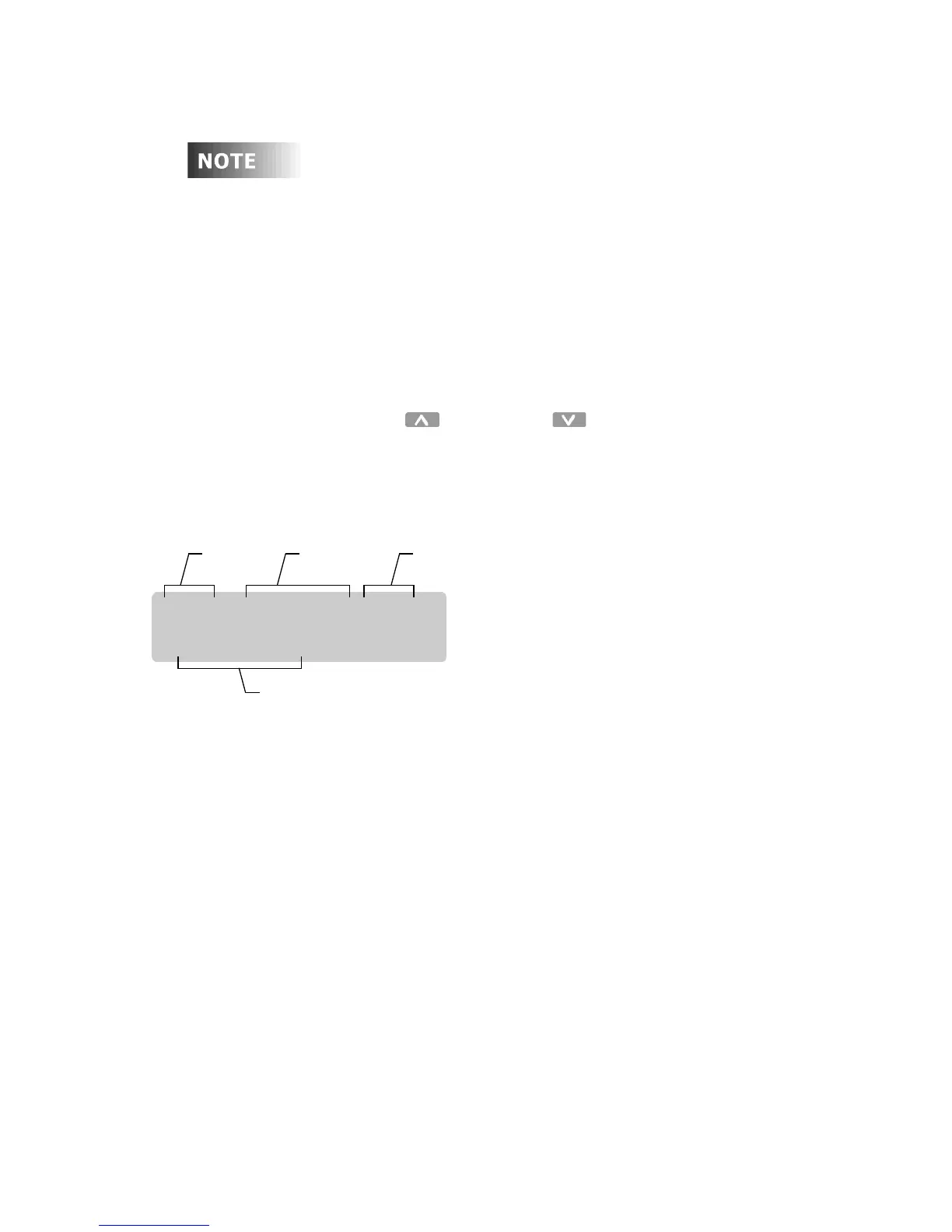
Scheduled Events are displayed in the following format:
A dash replaces the day of the week when the schedule is
disabled on that day. Sunrise and sunset for astronomical
time are displayed as
SR +-
(offset time) or
SS +-
(offset
time). Offset time is displayed in 15-minute increments. You
must enter the latitude of your location to use astronomical
time, which controls the lighting according to season,
adjusting the lights in relation to sunrise and sunset.
Astronomical time is displayed when Time is scrolled past
midnight.
Step 4: Press the Menu/Cancel button when you are finished.
You return to the
VIEW SCHEDULE?
menu command.
Viewing the Sequence
The sequencer causes Scenes to be activated in a timed sequence.
The sequence may be programmed to run once or continuously in a
loop. The sequence can be activated manually (preset/scene buttons)
E01: 12:00a S01
SMTWTFS
Scene to
activate
Scheduled
time
Event
number
Days of week



 To Next Page