L-DALI User Manual 183 LOYTEC
Version 5.2 LOYTEC electronics GmbH
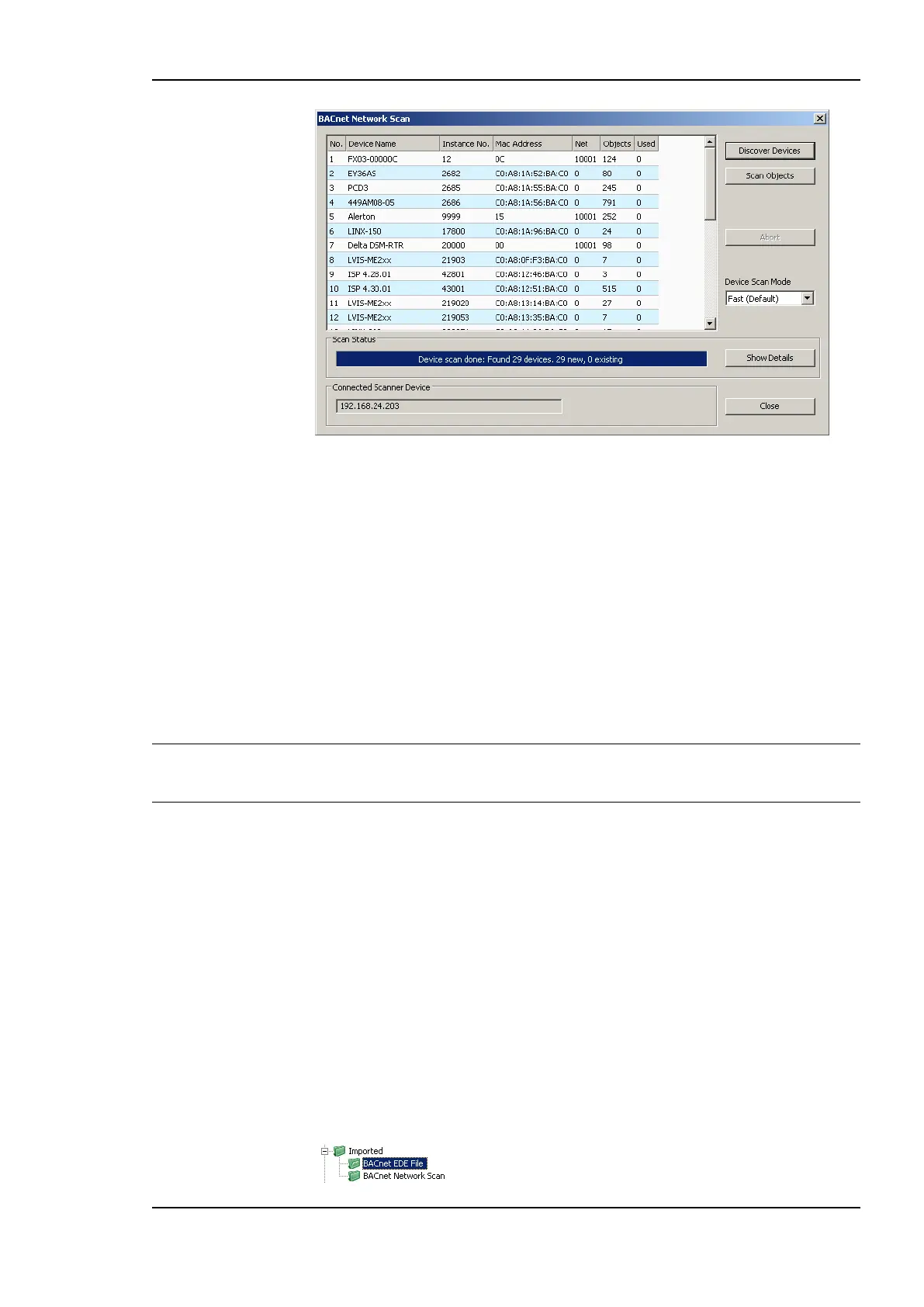
Figure 167: BACnet network scan dialog.
4. Click on the button Discover Devices. This starts a network scan. The results are put in
the device list box. A progress bar below indicates how many devices are being
scanned.
5. Select a device in the device list and click the button Scan Objects. This scans the
BACnet objects on the selected device and adds them to the BACnet Network Scan
folder as a separate sub-folder for the device.
6. If the scan does not give the expected results, change the Device Scan Mode to normal
or slow and try again. With this setting the scanner uses simpler but slower protocol
features.
7. Click Close when all devices needed have been scanned.
Note: If proprietary properties access on a remote device is required, support for proprietary
properties must be enabled in the BACnet tab of the Project Settings dialog (see Section
7.16.5).
7.8.2 Import from EDE File
If the device is engineered offline or some of the required BACnet devices are not yet
online in the network, the engineering process can be done by importing a device and object
list from a set of EDE files. These objects also appear in the import folder and can be later
used on the device as client mappings.
There are a set of EDE files. Select the main EDE file, e.g. device.csv. The EDE import will
also search for the other components, which must be named device-states.csv. Which
components are expected, please refer to Section 8.3.9. Example EDE files can be found in
the ‘examples’ directory of the LOYTEC Configurator software installation directory.
To Import BACnet Objects from an EDE File
1. Go to the Datapoints tab.
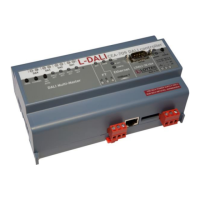
2. Select the folder BACnet EDE File


 To Next Page