L-DALI User Manual 201 LOYTEC
Version 5.2 LOYTEC electronics GmbH
6. If the selected target technology offers choices on the direction to create, choose one of
the offered directions.
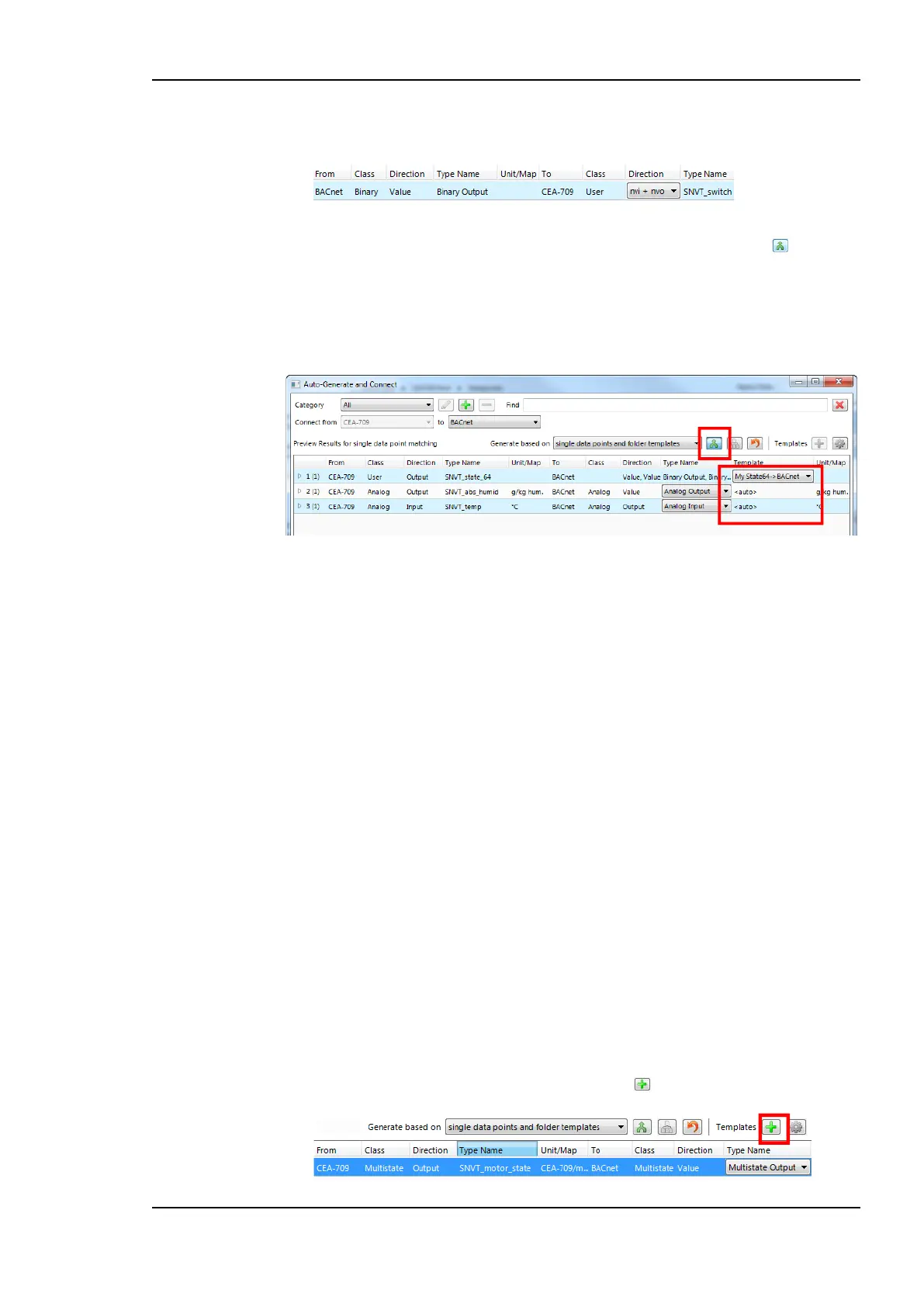
7. Structured data points will be flattened in some target technologies. To prevent this
from happening, click the Don’t expand structured data points button . Note, that
this may require an auto-generate template, which defines how to map this structured
data point.
8. Select an auto-generate template in the drop-down box of the Template column as
shown in Figure 188.
Figure 188: Auto-generate and connect with auto-generate template.
9. After having reviewed all types, click the Generate button.
Note, when auto-creating the target data points, the Configurator initializes their properties
with default values derived from the properties of the source data points. In particular, the
data point name, description, minimum and maximum value, and engineering units are
generated. If the default properties do not have the desired values, the user can edit them in
the target folder. The user can also craft an auto-generate template where those properties
are pre-set.
7.9.9 Create an Auto-Generate Template
If the implicit options for generating target types are not sufficient for the envisioned task, a
specialized auto-generate template can be crafted. This template contains copies of the
source data points as a starting point. The user can then create instances of the desired target
data points and use one or more connections (e.g., a multi-slot connection for sub-data
points of a structured source). The target data point name and description can contain
variable placeholders, which expand to the name and description of the actual sources,
which the auto-generate template will be applied on. If required, one can add conversion
adaptors including math blocks. The entire configuration serves as a template on how to
generate the target data points and apply the appropriate connections. Once saved in the
template library, it will be available for selection in the preview dialog.
To Create an Auto-Generate Template
1. Select the source data points and invoke auto-generation as described in Section 7.9.8.
2. In the preview dialog select the source type for which a new template shall be created
and click the Create template for selected source button.


 To Next Page