L-DALI User Manual 228 LOYTEC
Version 5.2 LOYTEC electronics GmbH
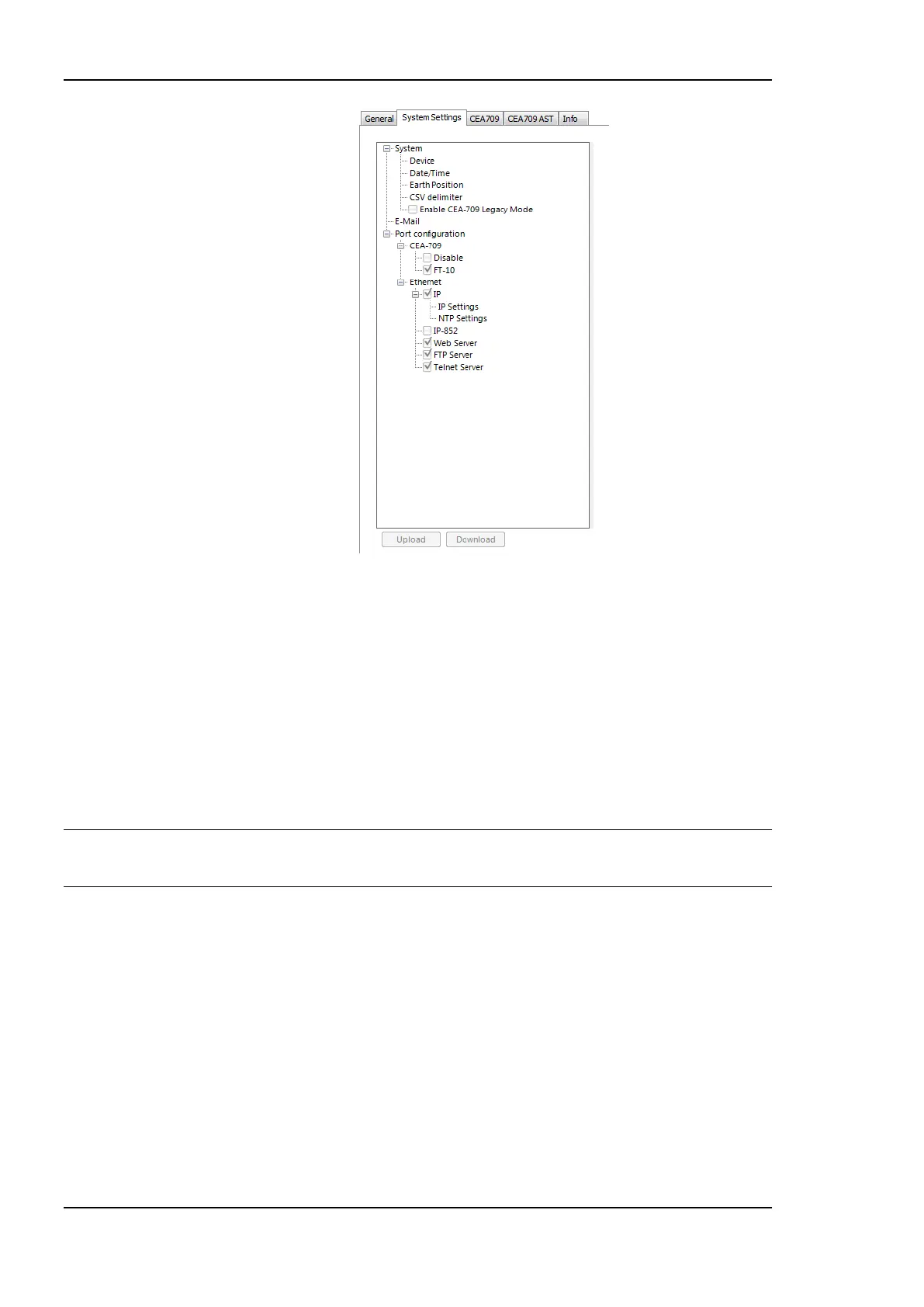
Figure 202: Device Configuration Settings
7.16.3 CEA-709 Settings (LDALI-10X only)
The CEA-709 configuration tab as shown in Figure 203 allows configuring properties of the
device’s CEA-709 port. The options are:
Interface: This section allows changing the static LONMARK interface of the CEA-709
nodes. On the one hand parts of the interface, which are not required for a specific
project (e.g. Constant Light Controller, Sunblind Controller, etc.) can be disabled. On
the other hand additional functionality can be enabled (e.g. for emergency light
applications or DALI buttons support). When enabling Button objects a template for
the LONMARK Button objects created can be selected in the drop down box below. For
more information on the LONMARK interface see Section 8.2.
Important! Downloading the data point configuration after changing the interface, will result in a
new static interface! Thus, it is highly recommended to change this option only if
connected via LNS to allow the Configurator to update the LNS database accordingly!
If using a non-standard interface a XIF-File must be created to be able to add the
device in a network management tool (e.g. LonMaker) in case of an offline workflow
(see Section 7.7.12).
Constant Light Controller automatic bindings: This section allows enabling and
disabling the automatic bindings feature for each channel. See Section 8.2.8.1 for
details on the automatic internal binding algorithm.
Configuration Download: This group box contains self-configuration settings for the
CEA-709 ports. This is necessary if the device shall be used without being
commissioned by a network management tool. For each CEA-709 node the subnet/node
and domain information can be configured. Set the check mark and enter the CEA-709
domain and subnet/node information. Note, that the domain must match the nodes’
domain on the network and the subnet/node address must not be used by another
device.


 To Next Page