L-DALI User Manual 222 LOYTEC
Version 5.2 LOYTEC electronics GmbH
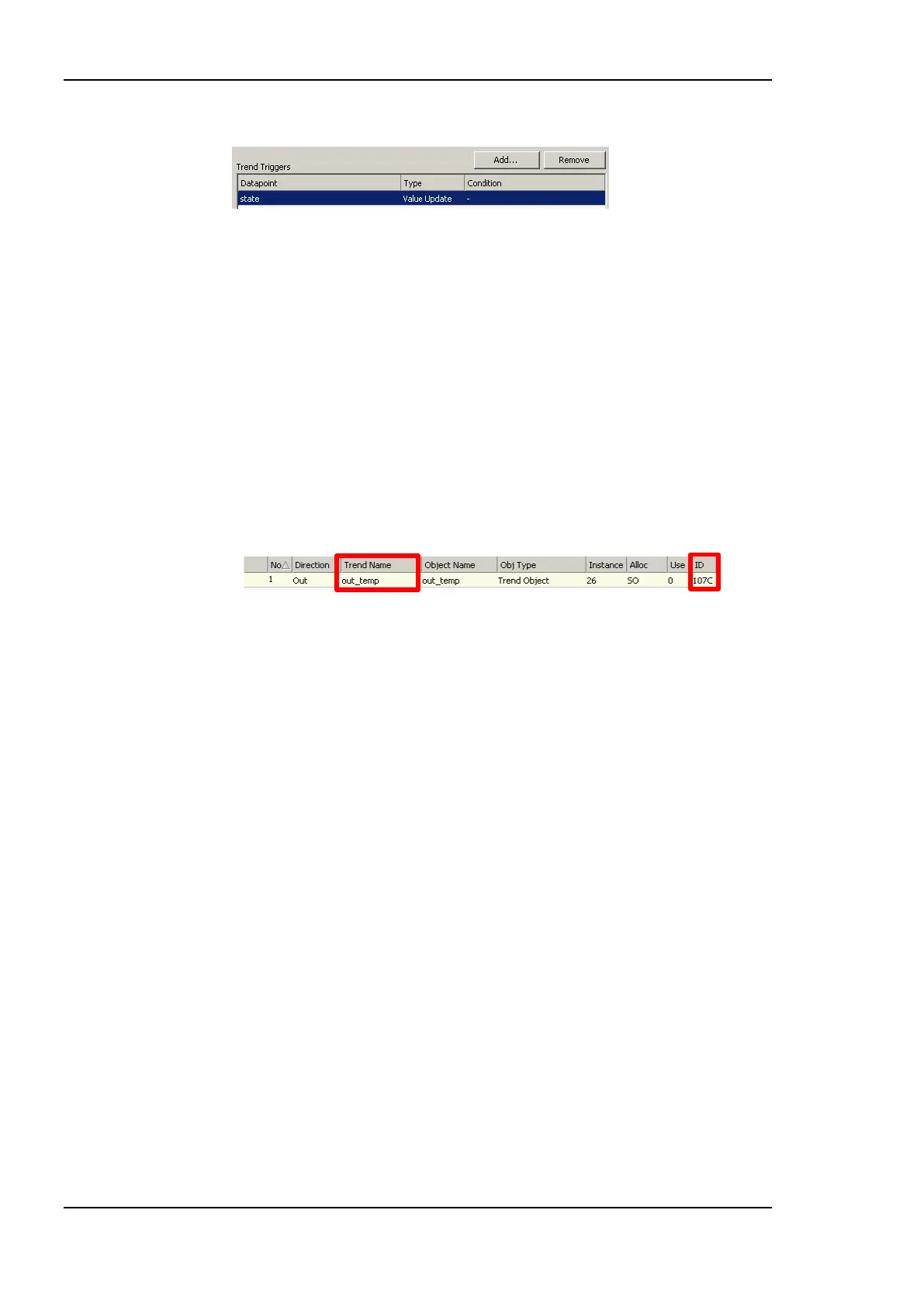
6. The triggers appear now in the Trend Triggers list.
7. In the Manage Trigger Conditions you can refine the trigger condition depending on
the trigger data point class.
8. When done with the data point setup, click Save Changes to leave the dialog.
7.13.4 Download Trend Data in CSV Format
Trend logs can be downloaded from the device via FTP in CSV format (see Section 8.1.2).
The CSV contents are generated on-the-fly from the internal binary storage when accessing
the file. Each trend log point has one CSV file. The files are located in
/data/trend/TrendLogName_UID.csv
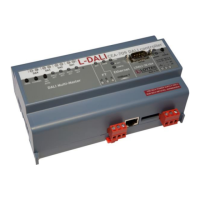
Where TrendLogName is the data point name of the trend (Trend Name). The UID is the
unique ID of the trend log object. The UID can be obtained from the ID column in the data
point list of trend log data points as shown in Figure 200. This would result in the trend
CSV file ‘/data/trend/out_temp_107C.csv’.
Figure 200: UID of data points.
Because the contents are generated on-the-fly, the file size in the FTP client will appear as 0
Bytes. The decimal point and CSV column separator can be configured in the system
configuration of the Web UI (see Section 5.2.1). Note, that for a comma “,” as the
separator, the decimal point is a point. This is useful for English/U.S. applications. For
countries that use the comma as the decimal point, select the semicolon as the CSV
separator.
7.13.5 Deliver Trend Data via E-mail
Trend logs can be downloaded from the device via FTP. This requires an active action by
the user. Alternatively, trend data can be sent as an e-mail attachment. For doing that, an
e-mail template has to be setup for the trend log to be transmitted. The fill-level condition in
the trend object can be used as a trigger to send an e-mail with the trend’s data logger CSV
file as an attachment.
For setting up e-mails, the account information has to be configured on the device, e.g., on
the Web UI (see Section 5.2.10). Then an e-mail template can be created and the trend
object attached as a trigger.
To Create an E-mail Template for Trends
1. Create or configure an e-mail template as described in Section 7.10.1.
2. Change to the Mail Triggers tab.
3. Click the Add… button and select a trend object.
4. In the Mail Triggers list, the added trigger data point appears with the Fill Level
condition.


 To Next Page