L-DALI User Manual 384 LOYTEC
Version 5.2 LOYTEC electronics GmbH
Destination address (Example: “s03”): Destination address of the frame. Possible
address types are:
o sXX: DALI short address, where XX is the short address (00-63).
o gXX: DALI group address, where XX is the group number (00-15).
o b*: DALI broadcast address.
Message type & data (Example: “QUERY STATUS”): Shows the DALI message type
and the corresponding data (argument).
11.6 Packet Capture
11.6.1 Configure Remote Packet Capture
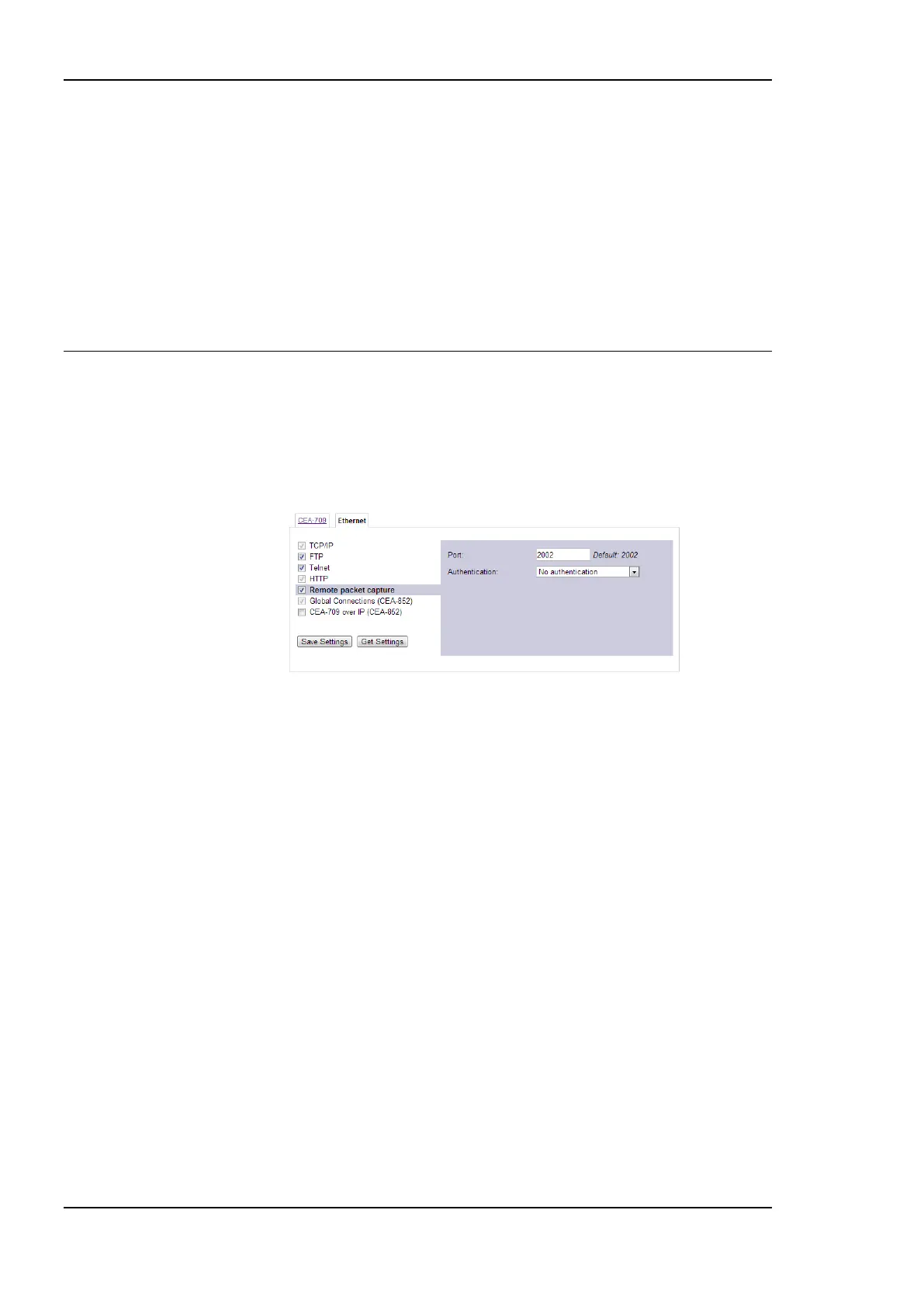
Remote packet capture is able to capture packets on the Ethernet. To enable the remote
packet capture feature, go to the Ethernet port configuration and enable Remote packet
capture as shown in Figure 265.
Figure 265: Remote packet capture port configuration.
The default Port setting may be changed to the desired port. Normally, this can be left at its
default. If No authentication is selected, the device will allow incoming capture
connections without requiring any credentials. If Username and Password is selected as
authentication method, the client Wireshark will be required to provide valid credentials
before the capture session can be started. Note, that only the users admin and operator are
allowed to connect if this authentication method is selected.
Click the Save Settings button to save the configuration. The changes take effect and do not
require to reboot the device. The remote capture can also be disabled again without a
reboot.
11.6.2 Run Wireshark Remote Capture
The remote packet capture requires the use of Wireshark 1.6.11 with WinPCAP 4.1.2.
Please update your Wireshark installation to this version or use a newer Wireshark version.
To add a remote capture port
1. Open Wireshark and choose the menu Capture Options… . This opens the
Capture Options dialog as shown in Figure 266.


 To Next Page