L-DALI User Manual 211 LOYTEC
Version 5.2 LOYTEC electronics GmbH
To Use Exception Days from a Calendar
1. For letting a scheduled event occur on exception days from a calendar, create a new
scheduled event.
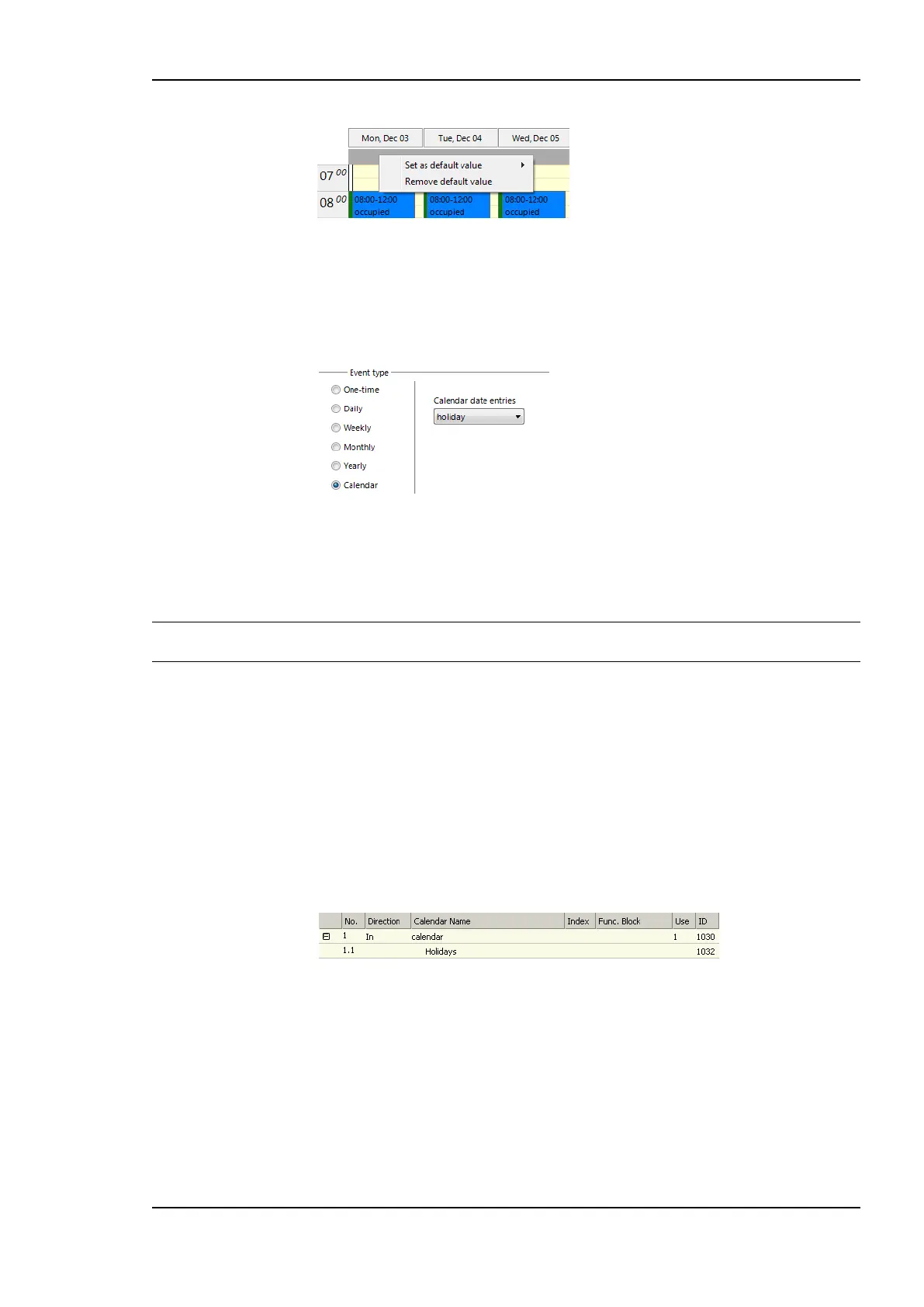
2. Select the event type Calendar. and choose one of the defined calendar date entries.
3. Note, that if the scheduled event may overlap with other events. In this case edit the
priorities of the scheduled events. For example, if a given calendar day falls in both
categories, “Holidays” and “Maintenance”, the scheduled event with the higher priority
becomes effective. The highest available priority is marked highest. Note that the
actual priority values depend on the technology (see Section 6.5.1).
Important! Choose different priorities for different scheduled event. If two scheduled events overlap
and their priorities are equal, it is not determined, which value is in effect.
7.11.5 Configure Exception Days
When a local calendar is used, its calendar patterns need to be configured with exception
days (pattern entries). The calendar patterns can be configured in the Configurator software,
modified at run-time over the Web UI or over the network. When configuring in the
software, the current exception days should be uploaded from the device, to work on the
current configuration (see Section 7.4.3).
To Configure Exception Days in a Calendar Pattern
1. Select the Calendar sub-folder and select the calendar pattern, which shall be
configured
2. Right-click and select Configure Pattern … in the context menu.
3. The Configure Pattern dialog appears as shown in Figure 191. Add dates to the
calendar pattern by entering a Date Configuration. Then click Add Entry. The date
appears in the Pattern Entries list on the right-hand side.
4. Edit an exception by selecting the pattern entry in the Pattern Entries list. Then
modify the date configuration in the Date Configuration group box.


 To Next Page