V. 1.0 | LPKF Laser & Electronics AG
Multiplying the layout (optional)
The layout can be copied and placed freely for panel production depending on the size
of the layout and the size of the base material.
1. Select the whole layout.
For all layers that contain data, the option Selectable has to be active. This option is in
the pane Layers between the columns Visible and Colors.
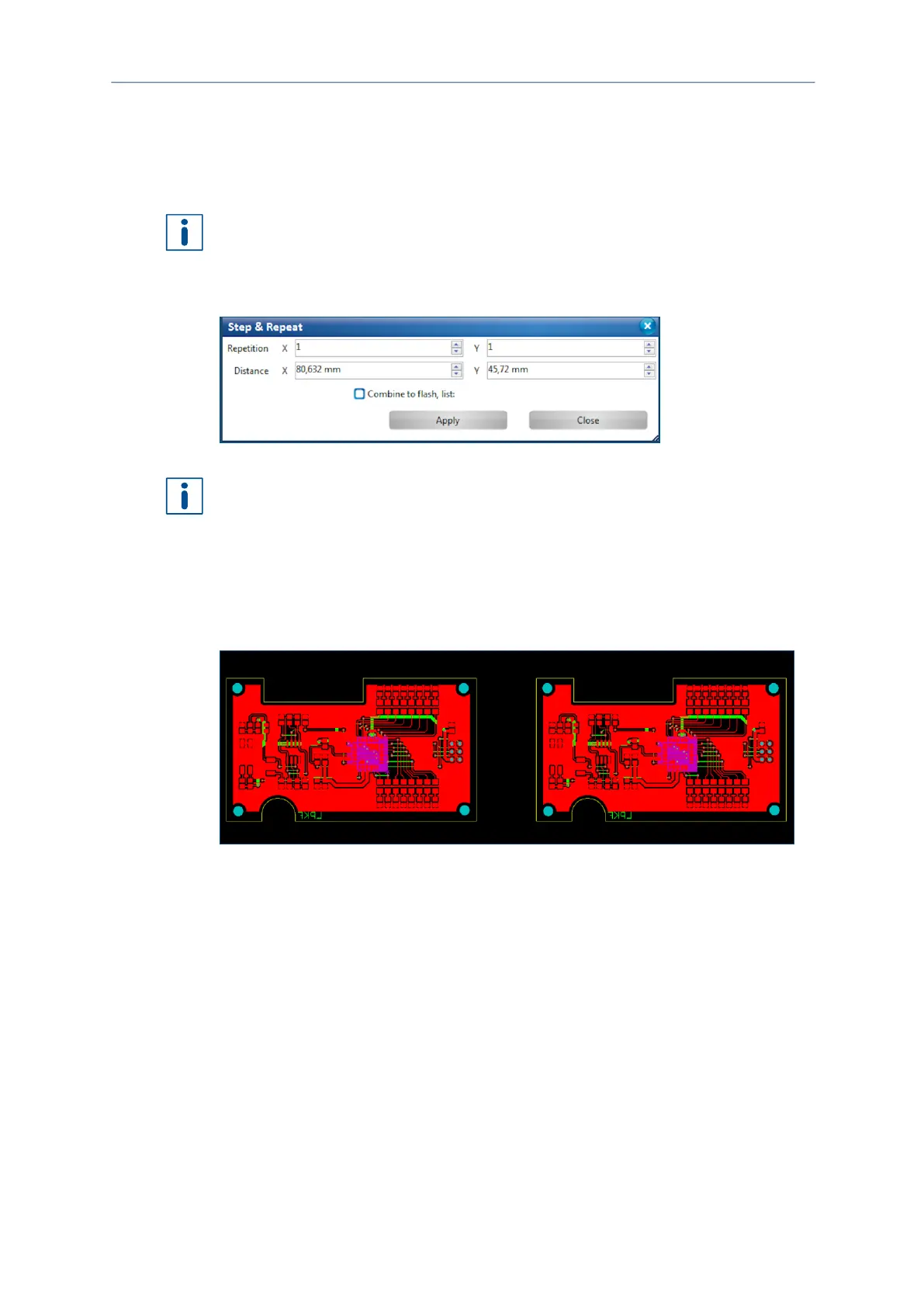
2. Click on Modify > Step and Repeat…
The following dialog is displayed:
Fig. 72: Dialog Step and Repeat
The fields Distance X and Distance Y display the current value for the layout width.
The new desired spacing between the layouts has to be added to these values.
3. In the field Repetition X, enter the value 2 to copy the layout once in x direction.
4. In the field Distance X, enter the value 100.
5. In the field Distance Y, enter the value 55.
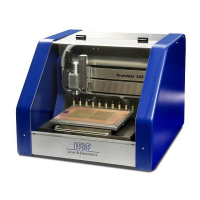
6. Click on [Apply].
The layout is copied in x direction:
Fig. 73: Layout copied in x direction
7. Click on [Close].
The dialog is closed.
The layout has been multiplied.


 To Next Page