Select and Print Multiple Jobs from the DocBox
Introduction
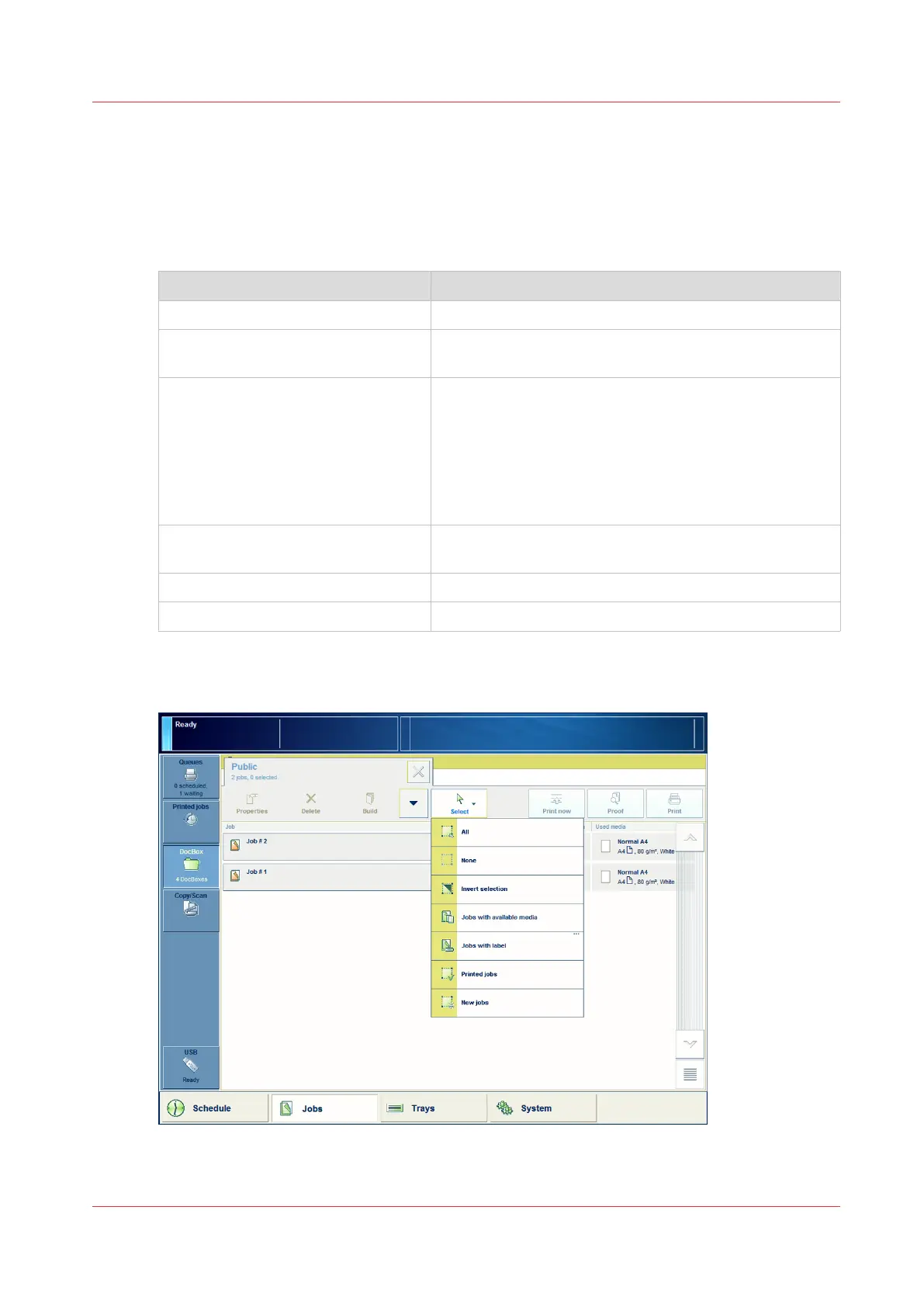
When you want to print one job in a DocBox, select and print that job. However, you can also
select multiple jobs at a time. The table below shows the available options.
Select multiple jobs
Jobs Description
[All] Select all the jobs from the active DocBox.
[Jobs with available media] These are the jobs for which the required media are cur-
rently available in the paper trays.
[Jobs with label] These are the jobs that have a label. A label is a name
that helps you to identify certain jobs on the control pan-
el, for example the name of a customer. The label can be
defined in the printer driver, in a job ticket or via an au-
tomated workflow. For example, the label ‘Customer
XYZ’ can be added to jobs. Then you can select and print
all the jobs for 'Customer XYZ' at once.
[Printed jobs] These are the jobs that have already been printed be-
fore.
[New jobs] These are the jobs that have not been printed yet.
Manually Touch the required jobs one by one
Illustration
[32] Select multiple jobs
Select and Print Multiple Jobs from the DocBox
Chapter 8 - Plan the jobs
127
Océ VarioPrint 6000 line













 To Next Page