Change the Print Job Settings on the Control Panel
Description of the print job settings that you can change on the
control panel
Introduction
Usually, the settings for a print job is defined in PDLs, applications, printer drivers, automated
workflows, or hotfolder default tickets. However, when a job has arrived on the PRISMAsync
controller, you can change a number of job settings for all jobs that are currently not being
printed. This section gives an overview of the print job settings that you can change on the
control panel.
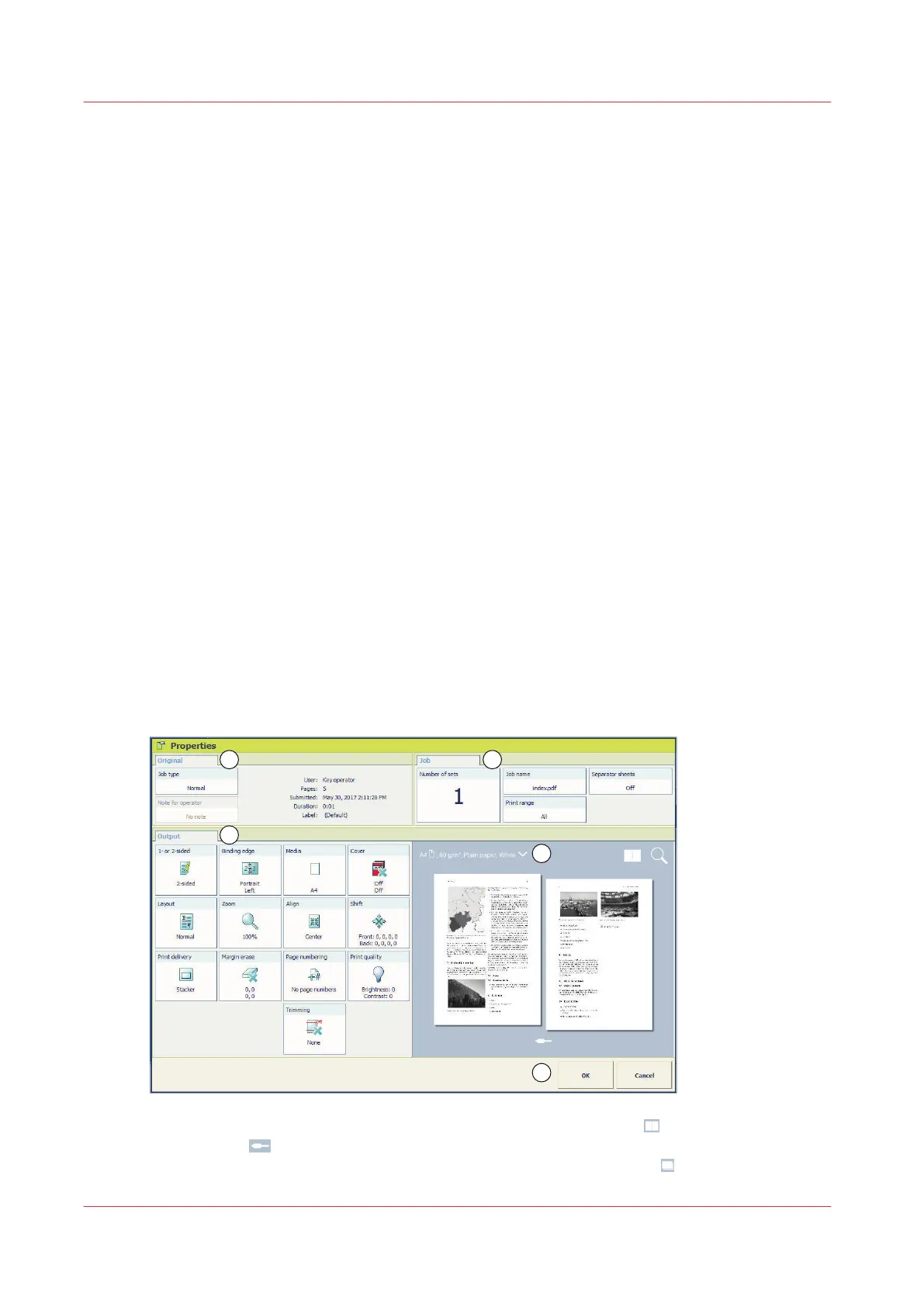
With the [Properties] button you view and partly change the job settings of the jobs in the
following queues.
• [Waiting jobs]
• [Scheduled jobs]
You cannot change the settings of an active job.
• [Printed jobs] (view settings only)
You can partly define the following settings for the jobs in the list of [Waiting jobs] and the list of
[Scheduled jobs].
• The characteristics of the output
• Generic settings that apply to the whole job.
Preview the job settings for PDF print jobs
For PDF print jobs a realistic preview is displayed in the job properties. For other jobs a general
preview is displayed indicating most of the settings.
1. View the result of the job and imposition settings in the sheet view .
2. Touch the icon and browse the document.
3. View how the document will look after printing in the document view .
Change the Print Job Settings on the Control Panel
130
Chapter 9 - Carry out print jobs
Océ VarioPrint 6000 line













 To Next Page