Use the Schedule
Introduction to the [Schedule] view
Introduction
The [Schedule] is your daily planning board for print jobs. The [Schedule] helps you to keep the
machine running.
This section shows and describes the main parts of the [Schedule].
NOTE
The descriptions of the colors of the bars and the indication of the required amount of sheets are
only valid for document printing. For streaming jobs
, all the bars remain grey until the paper
trays are empty or the output locations are full. Then the machine stops and the bars become
red. Furthermore, the media toolbar does not indicate the required amount of sheets.
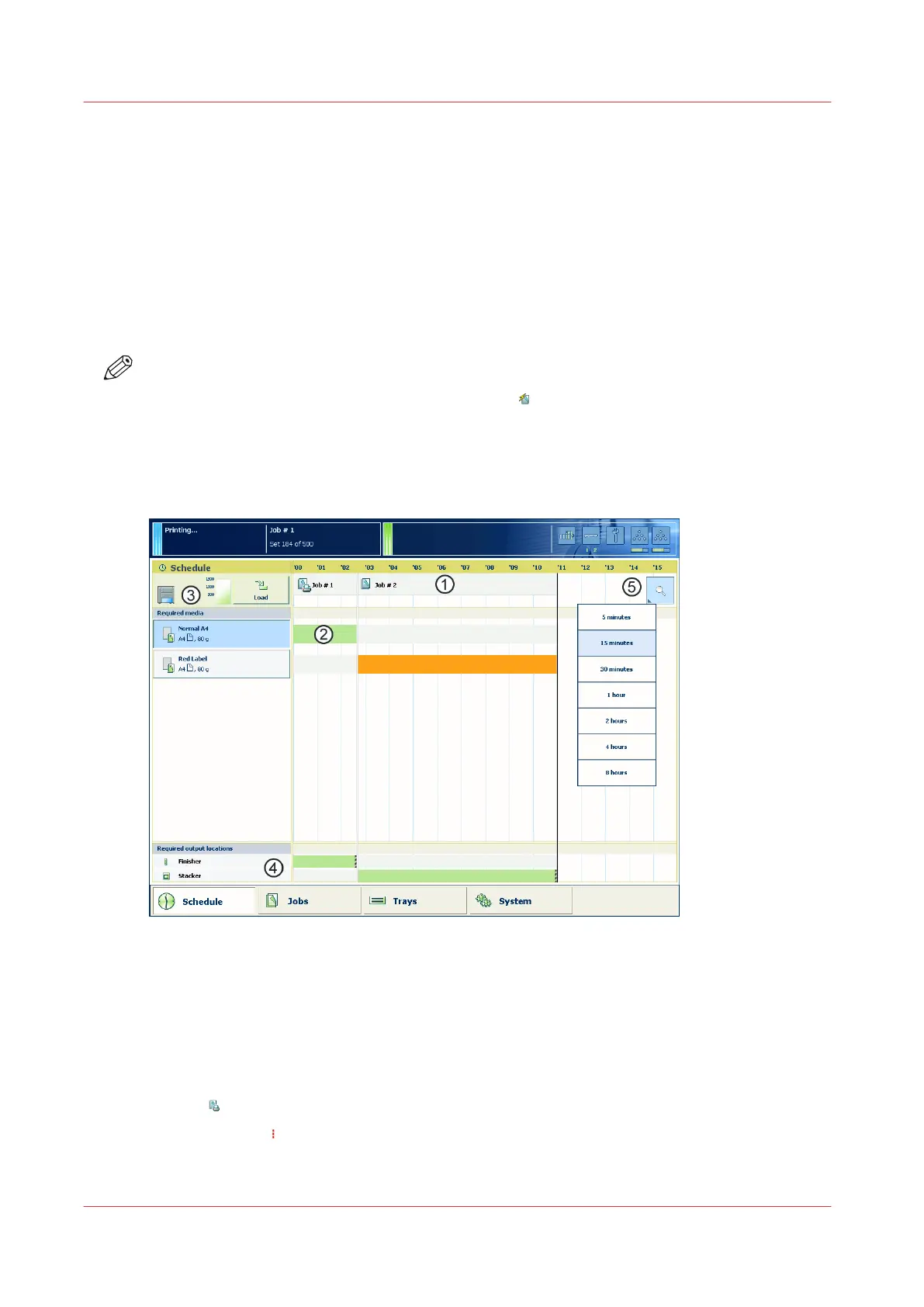
The [Schedule] view
[42] The [Schedule] view
1. The Jobs Pane
The jobs pane shows the jobs on a timeline. The width of the job corresponds to the (remaining)
print time. A vertical line separates the jobs. The vertical line moves to the left as the printing of a
job progresses.
An icon and the job name represent a job. The icon indicates the state of the job, for example
printing
.
Furthermore, the icon indicates the stop moments of the machine. For example, when the
setting [Confirm start of job] in the workflow profiles (see list of references below) is set to [On] or
when you use the [Stop after job] function.
Use the Schedule
194
Chapter 10 - Keep the system printing
Océ VarioPrint 6000 line













 To Next Page