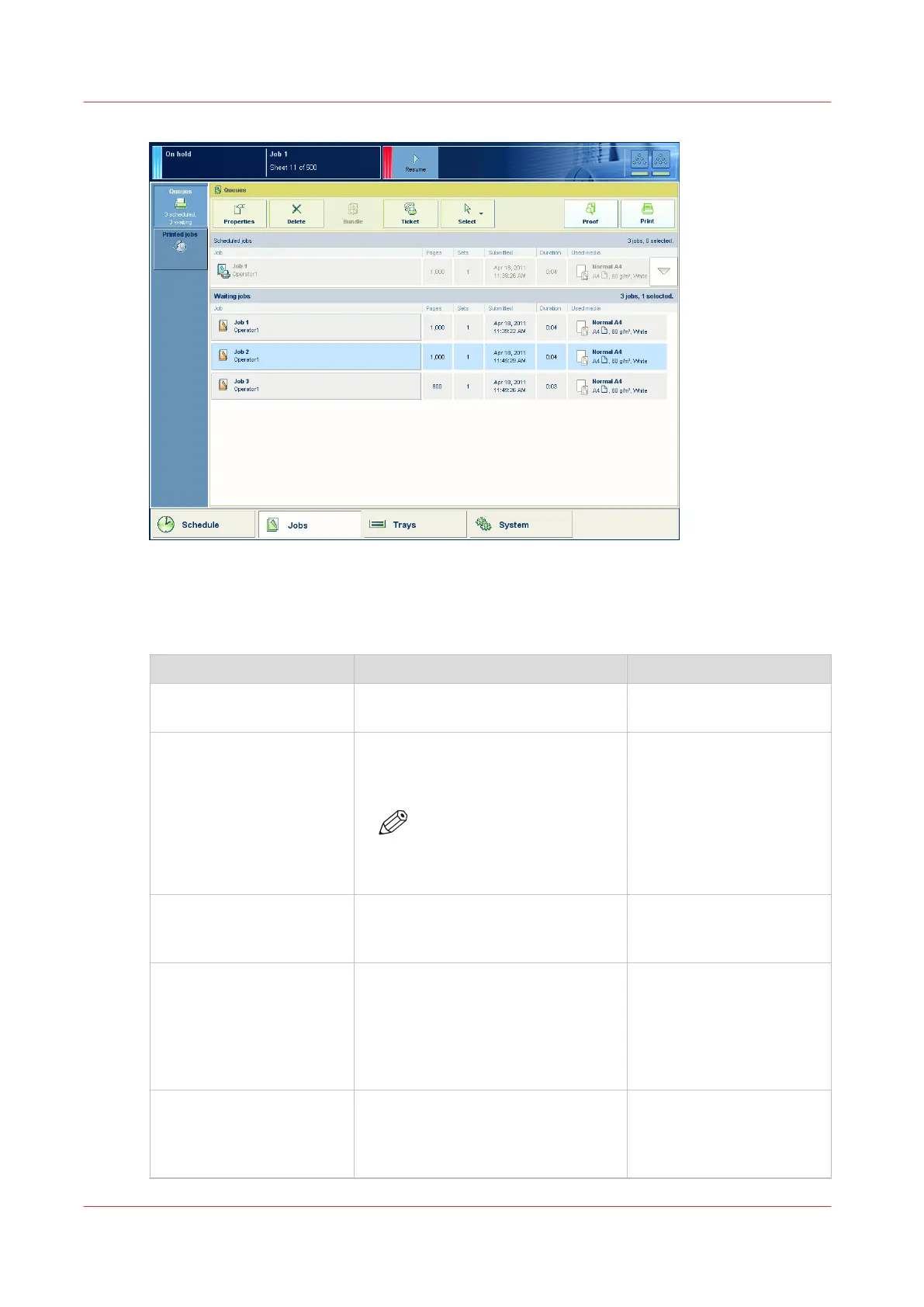
[36] The [Waiting jobs] view
The items of the [Waiting jobs] view of the [Jobs] view
Description of the [Waiting jobs] view
Item Function More information
[Waiting jobs] Display the jobs that are not yet
scheduled for printing.
[Properties] button Check or change the properties of a
job. The button is only enabled when
you select 1 job.
NOTE
You can also press a job 2
times to check or change
the properties of that job.
[Delete] button Delete the selected job or jobs . The
button is enabled when you select 1
or more jobs.
Delete a job
on page 163
[Bundle] or [Split] button Bundle: Combine a number of jobs
into 1 job, for example to create a set
of documents that are required for a
meeting.
Split: Split a bundle job into the orig-
inal jobs.
Bundle jobs in the list of
Waiting jobs
on page 99
[Ticket] button Print an overview of the main job
settings and job parameters. The
button is only enabled when you se-
lect 1 job.
Print the job parameters
on
page 172
4
Introduction to the [Jobs] view
166
Chapter 9 - Carry out print jobs
Océ VarioPrint 6000 line













 To Next Page