EasyManua.ls Logo

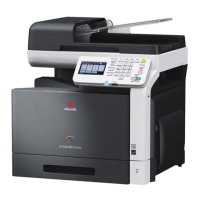
Olivetti d-COLORMF3000 - User Manual

Olivetti d-COLORMF3000
388 pages
Print Icon
To Next Page IconTo Next Page
Loading...
USER'S GUIDE
d-COLORMF3000
Code: 559911en
GB

Table of Contents

Other manuals for Olivetti d-COLORMF3000

Questions and Answers

  • T
    Tammy GregorySep 12, 2025
    What to do if my Olivetti All in One Printer's power is not on?
    • A
      Allen MendozaSep 12, 2025
      If the machine power is not on, first, turn off the machine and confirm that the power cord is correctly plugged into the outlet, and then turn on the machine again. If it still doesn't work, plug another electrical appliance into the outlet to see whether it operates properly. Also, check that the power switch is correctly turned on (I position). If the issue persists, ensure the machine is connected to an outlet with a voltage and frequency that matches the machine specifications, as listed in Appendix A, 'Technical Specifications.'
  • J
    Jennifer ThomasSep 13, 2025
    Why does my Olivetti All in One Printer feed several sheets at once?
    • R
      Randy EllisonSep 13, 2025
      If several sheets go through the machine together, it might be because the front edges of the media are not even. Remove the media, even up the front edges, and then reload it. Alternatively, the media may be moist from humidity. Remove the moist media and replace it with new, dry media.
  • J
    Justin OwensSep 15, 2025
    Why can't I print the machine status list from my Olivetti All in One Printer?
    • B
      Brittany KhanSep 15, 2025
      If you cannot print the machine status list, ensure that at least Tray 1 is loaded with media, in place, and secure. Also, check for and clear any media mis-feeds.
  • I
    Isaiah AndersonSep 17, 2025
    Why is printing from a USB memory device not possible on my Olivetti d-COLORMF3000 All in One Printer?
    • R
      Rose StewartSep 18, 2025
      Printing from a USB memory device may not be possible if [External Memory Print] is set to [Disable]. Press the [Utility/Counter] key, and then set [Admin Settings] - [External Memory Print] to [Enable]. Ensure that the file format (file extension) is JPEG, TIFF, XPS, or PDF. If a public user is not specified for user authentication, contact the administrator of this unit.
  • A
    alecsmithDec 3, 2025
    What to do if my Olivetti d-COLORMF3000 All in One Printer is mis-feeding media?

    Summary

    1 Introduction

    Getting Acquainted with Your Machine

    Covers machine layout, space requirements, and control panel adjustment.

    Printer and Application Drivers

    Details the types of drivers and applications provided on the CD/DVD.

    System Requirements

    Lists the necessary hardware and operating system specifications for the machine.

    2 Control Panel and Touch Panel Screens

    Control Panel Overview

    Details the function of each key and indicator on the machine's control panel.

    Touch Panel Screen Operations

    Explains the navigation and functionality of the touch screen interface.

    Screen Keys and Icons Explained

    Explains the meaning of various icons and keys displayed on the machine's screens.

    User Authentication and Account Track

    Details how to log in using user authentication and account track features.

    3 Utility Settings

    Accessibility Settings

    Allows configuration of sound, key repeat, and display settings for user convenience.

    Meter Count

    Displays the total page count for each machine function.

    Address Registration

    Enables registration and viewing of E-mail and fax destinations.

    User Settings Configuration

    Allows users to configure machine settings like language and paper tray.

    Administrator Settings

    Settings configurable only by administrators for machine management.

    Change Administrator Password

    Procedure for changing the administrator password.

    Restore Defaults and HDD Format

    Options for resetting settings and formatting the hard disk.

    4 Media Handling

    Print Media Specifications

    Lists supported media types, sizes, and their capabilities for printing.

    Paper Types and Usage

    Describes various paper types and their usage guidelines.

    Printable Area and Margins

    Defines the guaranteed imageable area and margin settings on media.

    Loading Media

    General instructions for loading paper and other media into trays.

    Tray 2 Media Loading

    Specific instructions for loading paper into Tray 2.

    Tray 3;4 Media Loading

    Instructions for loading media into optional lower feeder units.

    Duplex Printing Configuration

    Configuration options for double-sided printing and binding positions.

    Output Tray and Media Storage

    Handling of output media and guidelines for proper media storage.

    Loading Documents into ADF

    Step-by-step instructions for placing documents in the automatic document feeder.

    5 Using the Printer Driver

    Windows Printer Driver Options

    Guides on verifying and setting default driver options for Windows.

    Uninstall Windows Printer Driver

    Step-by-step instructions for removing the printer driver from Windows.

    Display Windows Printer Settings

    How to view and access current printer driver settings in Windows.

    Printer Driver Tabs and Features

    Overview of Postscript, PCL, and XPS driver options and common buttons.

    Point and Print Driver Limitations

    Discusses limitations of driver functions with Point and Print installations.

    6 Proof;Print, External Memory, and ID & Print Functions

    Proof;Print Operations

    Procedures for printing and deleting jobs saved on the machine's hard disk.

    External Memory Printing

    Instructions for printing files directly from a USB memory device.

    ID & Print Functionality

    Options for filtering displayed files and using ID & Print jobs.

    7 Performing Copy Mode Operations

    Basic Copy Operation

    General procedure for making copies using the machine.

    Original Size and Paper Settings

    Specifies document size and paper selection for copying.

    Zoom and Duplex;Combine Options

    Adjusts image size, layout, and duplexing for copies.

    Density, Original Type, and Color Mode

    Adjusts image quality and color settings for copied output.

    Finishing and Proof Copy Options

    Settings for output finishing and printing a proof copy for review.

    Separate Scan and ID Copy

    Advanced scanning features for multi-batch documents and card copying.

    Image Quality Adjustments

    Adjusts background removal, contrast, and sharpness for scanned documents.

    8 Additional Copy Operations

    Interrupting Copy Jobs

    Temporarily stops a current copy job for new settings or quick copies.

    Copy Programs

    Stores and recalls frequently used copy settings as reusable programs.

    9 Scanning From a Computer Application

    Basic Computer Scanning

    Steps for scanning documents from a computer via network or TWAIN/WIA applications.

    Windows TWAIN Driver Settings

    Explains mode settings and parameters for TWAIN driver scanning in Windows.

    Windows WIA Driver Settings

    Details settings for scanning using the Windows WIA driver.

    Web Service Scanning

    Instructions for setting up and using network scanning via Web Service.

    Specifying Scan Commands via Web Service

    How to send scan commands from a computer using Web Service.

    10 Scanning with the Machine

    Initial Scanning Settings

    Overviews network scanning capabilities and initial setup requirements.

    Scan to E-mail Operations

    Procedures for scanning documents and sending them via email.

    Document Settings for E-mail Scan

    Configures scan parameters like simplex/duplex and original size for E-mail.

    Scan Settings for E-mail

    Adjusts background, density, sharpness, and resolution for E-mail scans.

    Communication Settings for E-mail

    Configures binary division, encryption, and signature settings for email transmission.

    Specifying Scan Destinations

    Methods to select scan destinations like registered, favorites, or index search.

    Scan to Folder Operations

    Procedures for scanning documents and saving them to folders.

    Document Settings for Folder Scan

    Configures scan parameters for saving to folders.

    Scan Settings for Folder

    Adjusts resolution and file type for saving scans to folders.

    Registering Scan Destinations

    Adding and managing E-mail, FTP, SMB, WebDAV, and network destinations.

    Registering Address Book Destinations

    Steps to register E-mail and SMB destinations in the address book.

    Registering Program Destinations

    Creating and managing scan profiles with pre-defined settings and destinations.

    11 Replacing Consumables

    Consumables Replacement Guidelines

    Important notes and precautions before replacing machine consumables.

    Toner Cartridge Handling and Replacement

    Information about handling, storage, and replacing toner cartridges.

    Imaging Unit Replacement

    Step-by-step guide for replacing the imaging unit.

    Waste Toner Bottle Replacement

    Procedure for replacing the waste toner bottle when full.

    Transfer Roller Replacement

    Steps for replacing the transfer roller when prompted.

    Transfer Belt Unit Replacement

    Instructions for replacing the transfer belt unit when its lifespan is reached.

    Backup Battery Replacement

    Procedure for replacing the machine's internal backup battery.

    Fuser Unit Replacement

    Instructions for replacing the fuser unit due to wear or error.

    Antistatic Protection Precautions

    Safety measures to prevent electrostatic damage when handling internal machine components.

    12 Maintenance

    General Machine Maintenance

    General guidelines and cautions for keeping the machine in good condition.

    Cleaning the Machine Exterior

    Instructions for cleaning the external surfaces of the machine.

    Cleaning Media Rollers

    Procedures for cleaning paper feed rollers in various trays to prevent misfeeds.

    Cleaning the Laser Lens

    Instructions for cleaning the laser lens using a specialized tool for optimal scan quality.

    13 Troubleshooting

    Troubleshooting Introduction

    Information to help resolve machine problems and locate proper help sources.

    Unlocking the Scanner

    Steps to release the scanner lock mechanism for access.

    Preventing and Clearing Media Misfeeds

    Guidelines and steps to avoid paper jams and resolve them when they occur.

    Understanding the Media Path

    Visual guide to the paper path to help locate misfeeds.

    Solving Media Misfeed Problems

    Common causes and solutions for repeated paper jams.

    Solving Other Problems

    Addresses various issues not related to media misfeeds or printing quality.

    Solving Printing Quality Problems

    Diagnoses and resolves issues affecting print quality, such as streaks or light images.

    Machine Status, Error, and Service Messages

    Interpreting and responding to messages displayed on the control panel.

    Error and Warning Messages

    Lists common error and warning messages with their causes and solutions.

    Operator Messages

    Explains messages related to operational status and user actions.

    Service Messages

    Indicates critical issues requiring intervention by a service representative.

    14 Installing Accessories

    Accessory Information

    Information about available accessories and warranty implications.

    Lower Feeder Unit PF-P08 Installation

    Details and step-by-step guide for installing the optional lower feeder unit.

    Working Table WT-P01 Installation

    Steps for installing the working table accessory.

    15 Authentication Device (IC Card Type)

    Using IC Card Authentication Device

    Explains the IC card authentication system and its initial configuration.

    Registering Users with Data Administrator

    Procedures for registering users and their IC cards using Data Administrator software.

    Associating User with IC Card

    Linking registered users to their IC cards via the machine's administrative settings.

    Logging In with IC Card Authentication

    Describes the procedures for logging in using IC card authentication or password.

    A Appendix

    Technical Specifications

    Lists detailed technical specifications of the machine, including dimensions and performance.

    Consumable Life Expectancy

    Estimated lifespan for user-replaceable and service-replaceable consumables.

    Text Input Procedure

    Instructions on how to use the on-screen keyboard for text entry.

    Environmental Protection Information

    Information regarding the machine's ENERGY STAR compliance and energy efficiency.

    Olivetti d-COLORMF3000 Specifications

    General IconGeneral
    FunctionsPrint, Copy, Scan, Fax
    Copy Resolution600 x 600 dpi
    Fax TypeSuper G3
    Fax Transmission Speed33.6 Kbps
    Duplex PrintingYes
    InterfaceUSB 2.0, Ethernet
    Supported Operating SystemsWindows, Mac OS, Linux
    TypeMultifunction
    Print TechnologyLaser
    Print Speed (Black)30 ppm
    Print Speed (Color)30 ppm
    Copy Speed (Black)30 ppm (A4)
    Copy Speed (Color)30 ppm (A4)
    Scan TypeColor Scanner
    Automatic Document Feeder (ADF)Yes
    Paper SizeA4, A5
    ConnectivityUSB, Ethernet

    Related product manuals