56
Setting Inspection Conditions
3.
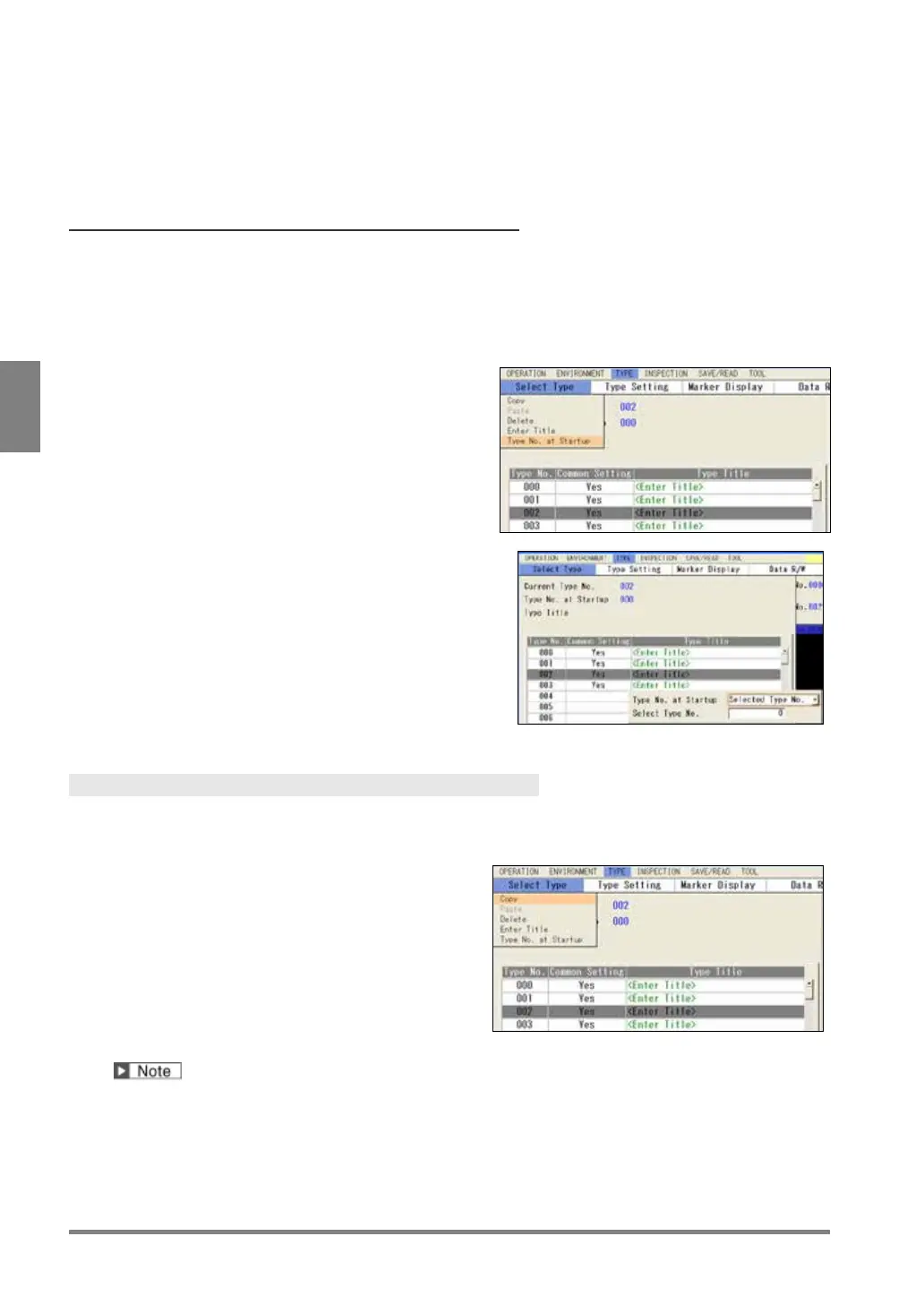
Press the FUNC key and select “Enter Title” from the displayed menu.
A software keyboard is displayed.
4.
Enter a title and select “Enter” on the keyboard at the last.
The entered title will be displayed in “Type Title” field.
Setting a Type to Be Read at Startup
The type to be read at PV500 startup can be specified. This setting can be operated from ENVIRONMENT, and
also the type switching window. If you change the setting in the window, the setting of ENVIRONMENT is also
updated.
1.
Press the FUNC key in the Type selecting window.
2.
Select “Type No. at Startup”.
The last Type No. (default):
Reads again the type selected right before turning off
the power. The setting is done if you select this.
Selected Type No.:
Reads the type No. specified after.
3.
Specify “Selected Type No.”.
4.
After setting is completed, press the CANCEL key.
5.
Save the data.
About how to save it, see page 289.
Copying Product Type
1.
In type selecting window, move the cursor onto the product type which you want to copy.
2.
Press the FUNC key and select “Copy” from the
displayed menu.
3.
Move the cursor onto the product type which
you want to paste.
4.
Press the FUNC key and select “Paste" from the
displayed menu.
The copied type is pasted.
If the type already exists in the destination, the message of overwrite confirmation appears.


 To Next Page