MAX™ Operator Manual
©
Original Printed In English
SECTION 4 - HMI SCREENS
MAIN MENU
4-1
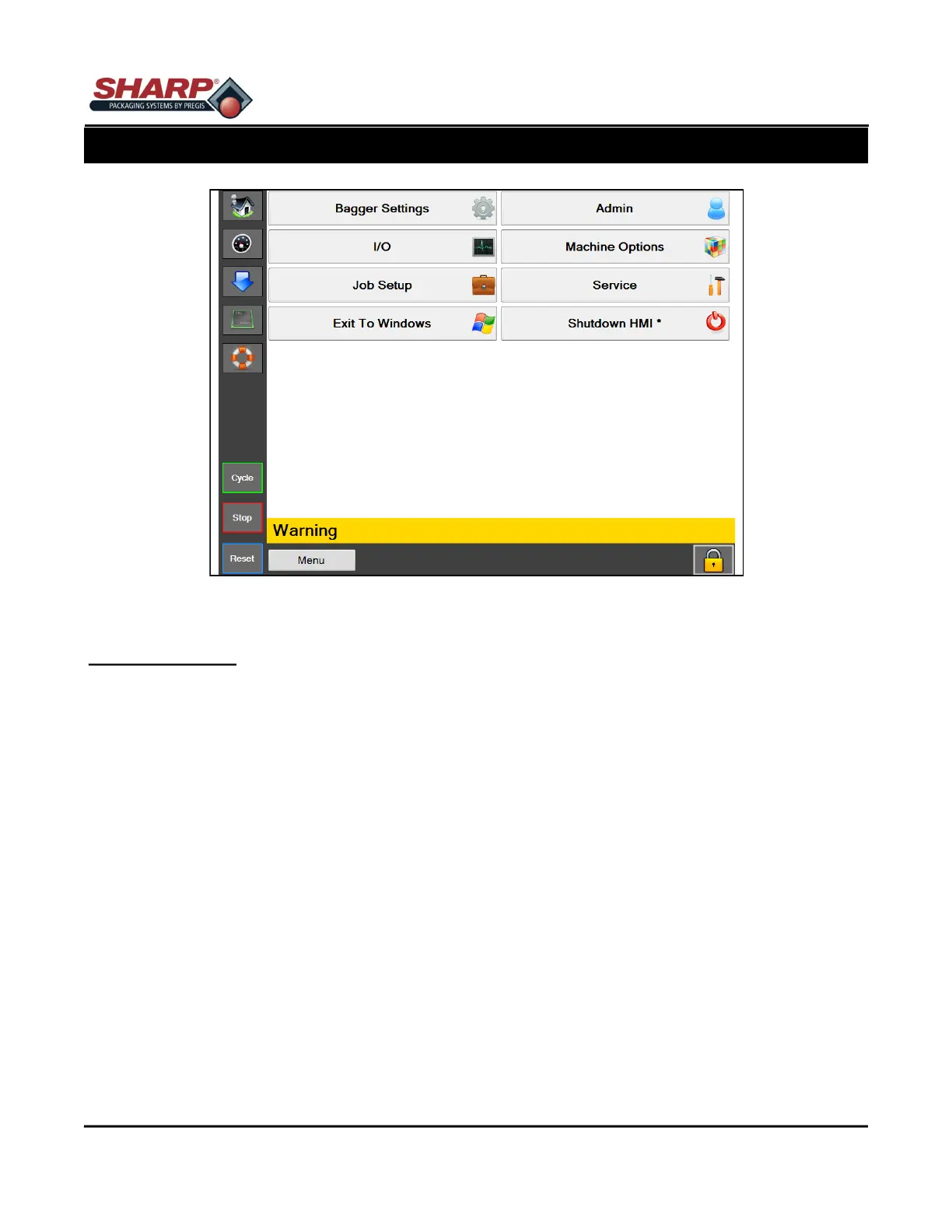
Figure 4-1A. Home Screen
HOME SCREEN
General Description
The Main Screen is accessed by pressing the Home Button on the Left Menu Bar. This screen gives access to
all of the screens not accessible through the left menu bar.
Minimum Security Access: High
Button/Label Descriptions:
Bagger Settings - This will open the Bagger Settings screen that contains bagger setup settings such as Batch
Counter, Parts Counter, and the Separate Before Sealing Toggle.
I/O - This will open the I/O screen that will display current input and output readings from the PLC.
Job Setup - This will open the Job Setup screen that allows the creation and loading of jobs.
Exit To Windows - This will safely shut down the HMI program and return to Windows.
Admin - This will open the Admin screen that contains all of the HMI admin options such as communication set-
tings, directories, dashboard setup, background color, security options, and the Event Log.
Machine Options - This will open the Machine Options Screen that allows machine option configuration.
Service - This will open the Service screen that contains machine service related actions.
Shutdown HMI - This will safely shutdown the HMI computer. This would be the correct way to shutdown the
HMI during a system power down. This procedure will safely close the HMI program and then safely shut down
windows.
Reset Factor Defaults - Resets the machine's settings to Factory Defaults. (Available only when security is off)


 To Next Page