MAX™ Operator Manual
©
Original Printed In English
SECTION 5 - MACHINE OPERATION
CREATING A JOB
The following steps will create a job. The security level
is medium for this procedure. To change security, See
Security Pass Codes, page 1-11.
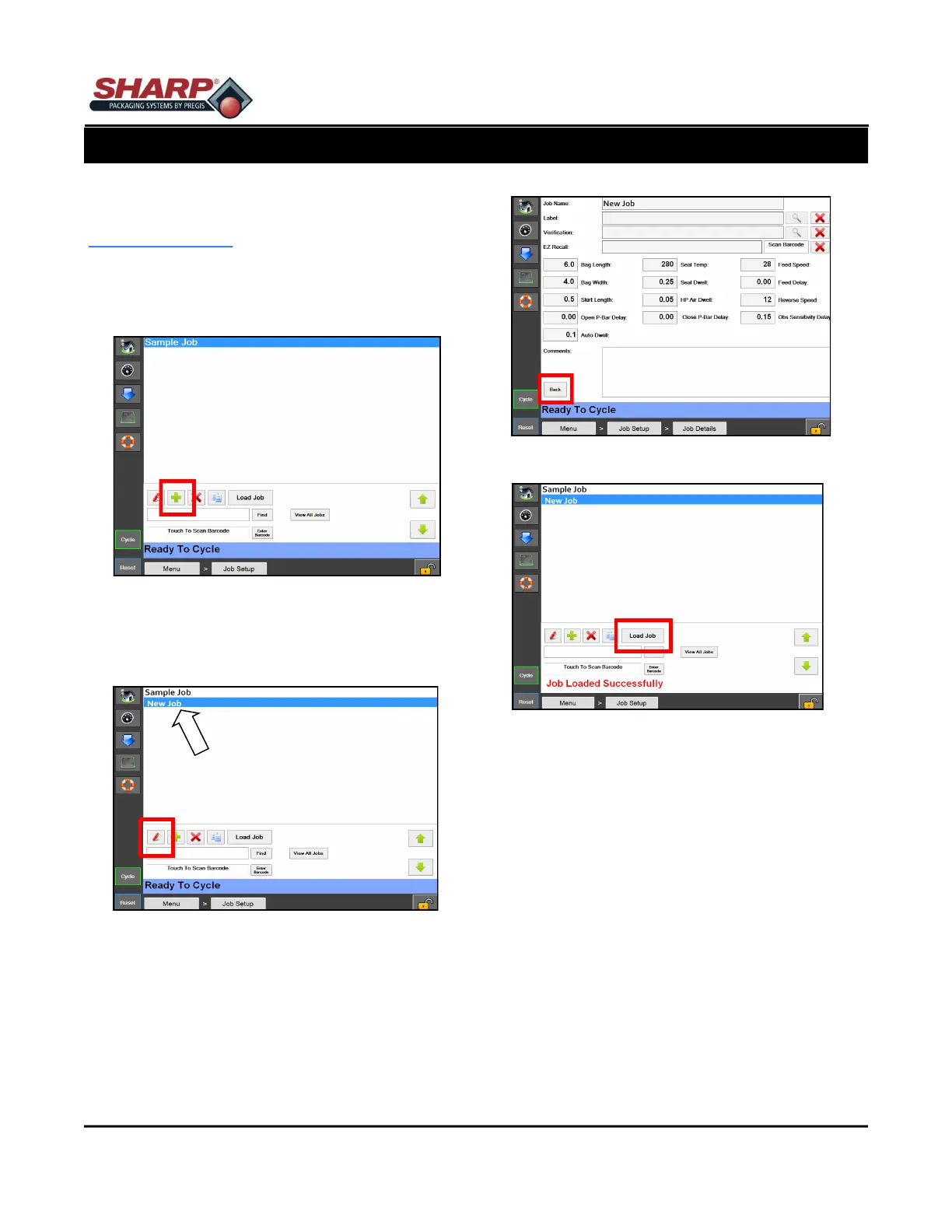
1. From the Main Menu, press the Job Setup button.
2. From the Job Setup Screen, press the Green Plus
(+) button. Figure 5-2A.
3. Highlight the New Job in the Job Details Screen.
Figure 5-2B.
4. Press the Red Pen button. Figure 5-2B.
5. Rename job in Job Details Screen, then enter the
appropriate information in each box. Figure 5-2B.
6. Press the back button.
7. Press the Load Job Button. This will send the
highlighted job to the PLC and send the label, if
applicable, to the printer. Figure 5-2D.
8.
NOTE: If temperature settings are +/- 10° from pre-
viously loaded job, a fault message will appear.
The message will automatically resolve when tem-
perature setting is reached.
Figure 5-2A. Job Setup Screen.
Figure 5-2D. Load Job Button.
5-2
Figure 5-2B. New Job Listed.
Figure 5-2C. Job Details Screen.


 To Next Page