MAX™ Operator Manual
©
Original Printed In English
SECTION 4 - HMI SCREENS
JOB DETAILS SCREEN
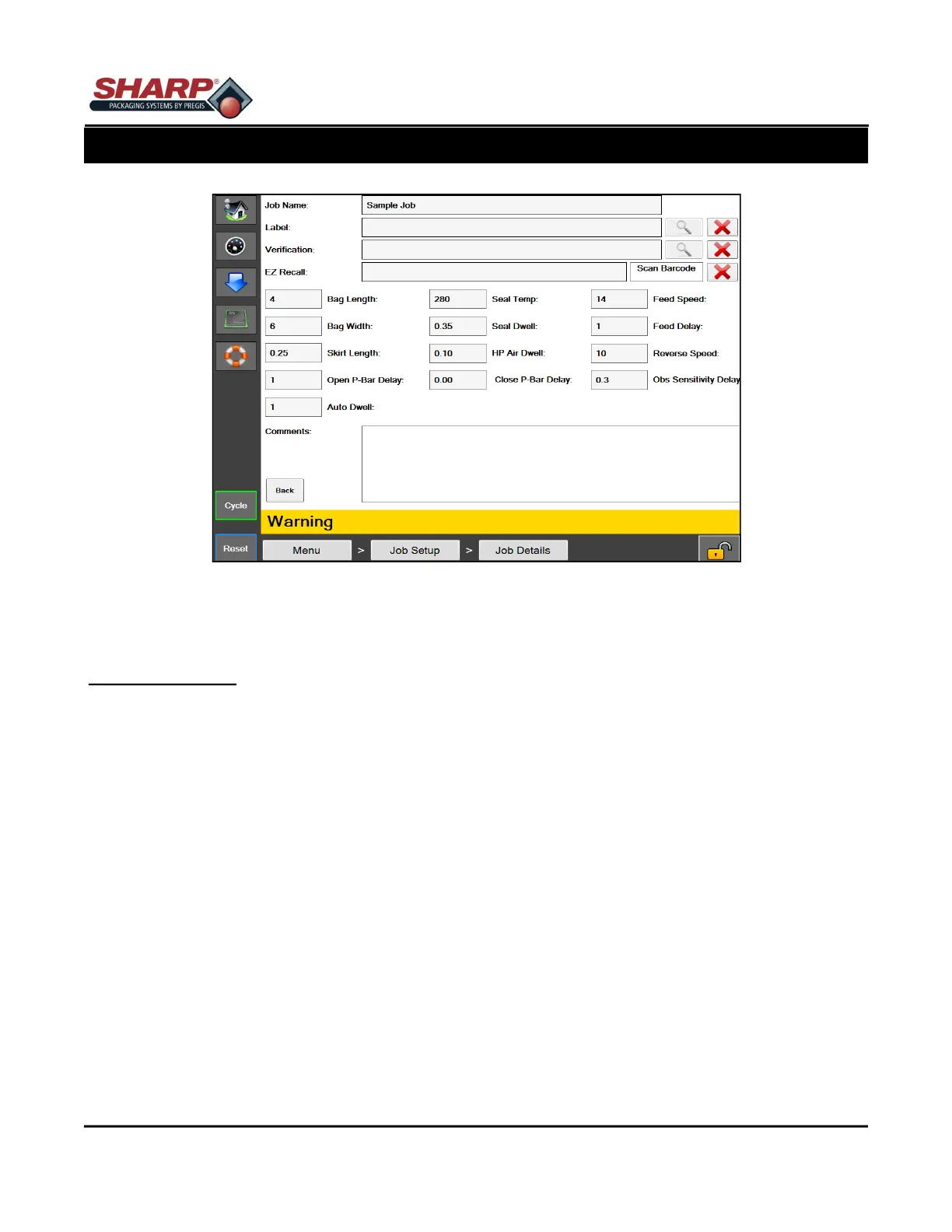
Figure 4-5A. Job Detail Screen.
JOB DETAILS
General Description
The Job Details screen displays the details of a job and allows them to be edited.
Minimum Security Access: Medium
Button/Label Descriptions:
Job Name - The name given to a job. This name will be used for job recall.
Label - This is the name of the label that is assigned to the job and will be sent to the printer when the printer
option is on and a job is loaded.
Label Magnifying Glass Button - If the label that is chosen was created using Codesoft, then this button can be
pressed to show a preview of the label.
Verification - An image assigned to a Job for purposes of job verification. This Image will be presented to the
operator when loading that job.
Verification Magnifying Glass Button - If a verification image has been selected, this button will display a preview
of the selected image.
EZ Recall - This barcode value can be used to recall the job. On the Job Setup screen, a user can scan a bar-
code to find and load a job. The barcode scanned is matched up with the value in this EZ Recall box, and if a
match is found then the job with that EZ Recall value will automatically be loaded.
Scan Barcode - An EZ recall value can be entered automatically by pressing this box to activate it and then
scanning the barcode that should be assigned to this job.
4-5


 To Next Page