MAX™ Operator Manual
©
Original Printed In English
SECTION 4 - HMI SCREENS
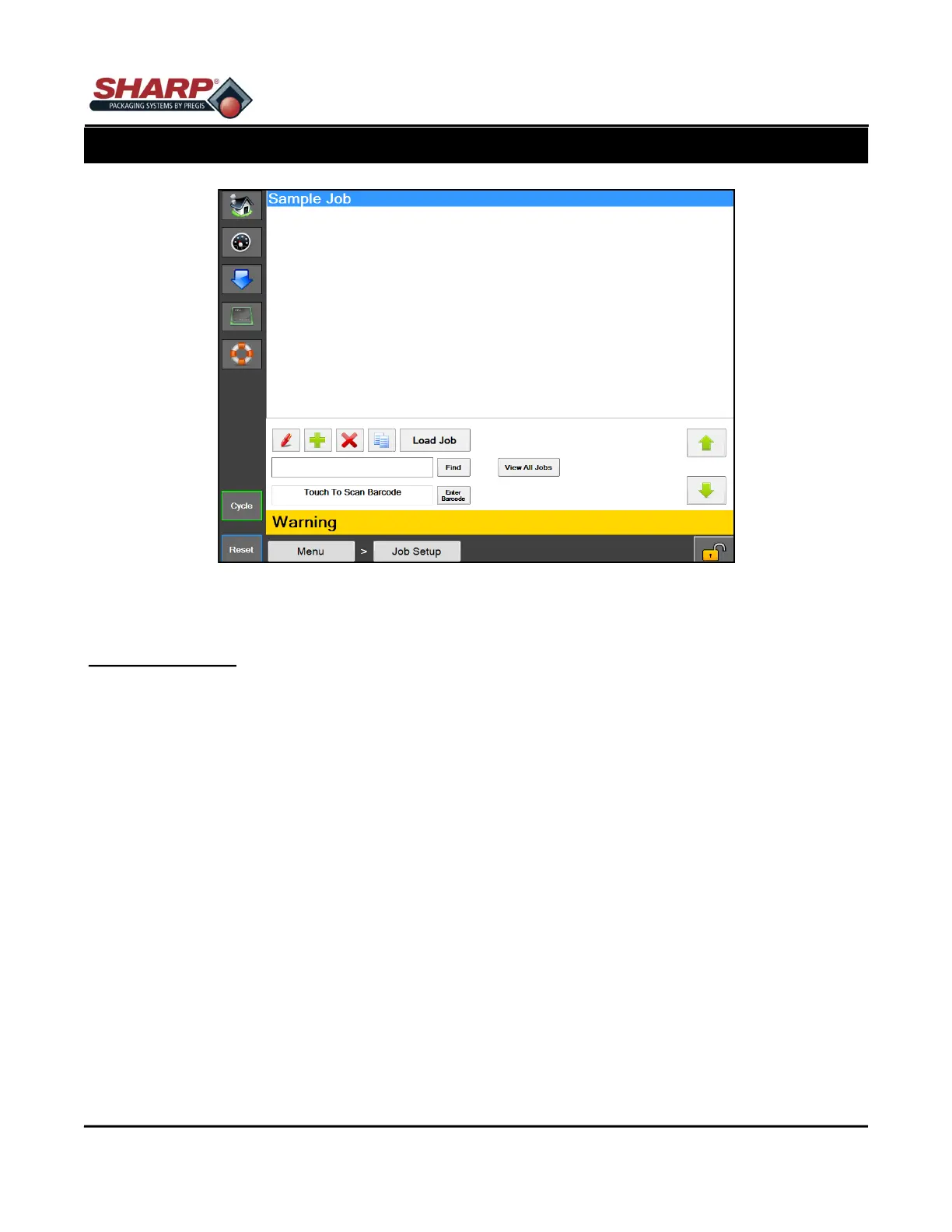
JOB SETUP SCREEN
Figure 4-4A. Job Setup Screen.
4-4
JOB SETUP
General Description
The Job Setup screen manages the machines predefined jobs.
Minimum Security Access: Medium
Button/Label Descriptions:
Pen Button - This button will display the details of the selected job in the list.
Plus Button - This will add a new job with default settings.
X Button - This will delete the selected job in the list.
Two pieces of paper button - This will make a copy of the selected job in the list.
Load Job - This will send all of the settings for the job to the PLC and send the label assigned to the job to the
printer if the printer option is on.
Find - This will find all jobs that start with the text specified in the search box.
View All Jobs - This will display all of the stored jobs on the machine.
Touch To Scan Barcode - This will activate the box and allow the operator to scan a barcode. The system will
check all of the saved jobs for an EZ Recall value that matches the scanned barcode value. If a match is found
the matching job will be loaded.
Enter Barcode - This will allow manual entry of a barcode to search for a job with an EZ Recall value that match-
es. The system will then load the matching job.


 To Next Page