MAX™ Operator Manual
©
Original Printed In English
SECTION 3 - CONTROLS
TOUCHSCREEN
The Touchscreen displays all adjustment information
along with machine diagnostic and error messages.
• Manual motion pushbuttons on Service
Screens provide both text and color cues as
to the state of the device or motion.
• Help screens show setting range and default
settings.
• Critical error messages have a red back-
ground and require the operator to manually
correct the problem and press reset.
• Notice messages have a yellow background
and do not require the operator to take any
action.
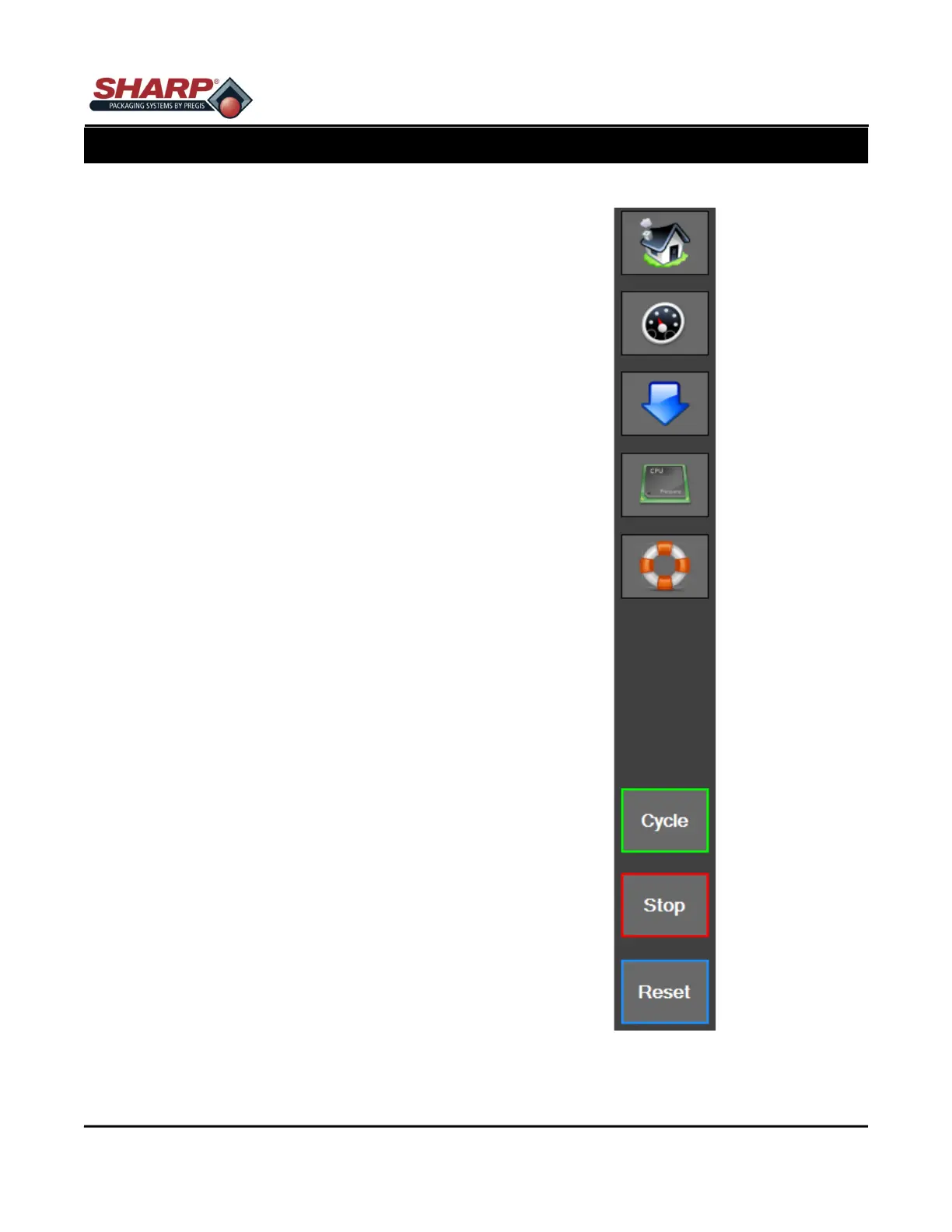
LEFT MENU BAR
The Left Menu Bar is always displayed on the left side
of the Touchscreen when HMI program is running.
House Button: Press to display the Home Screen.
Speedometer Button: Press to display the Dash-
board Screen.
Down Arrow: Press to display the Job Details screen.
CPU Chip: Press to display the PLC Settings screen.
Life Preserver: Press to display the Help Screen.
Cycle: Press to cycle the bagger.
Stop: Press to stop bagger when in Filler or Auto
modes.
Reset Faults: Press to reset faults.
3-1
Figure 3-1A. Left Menu Bar.


 To Next Page