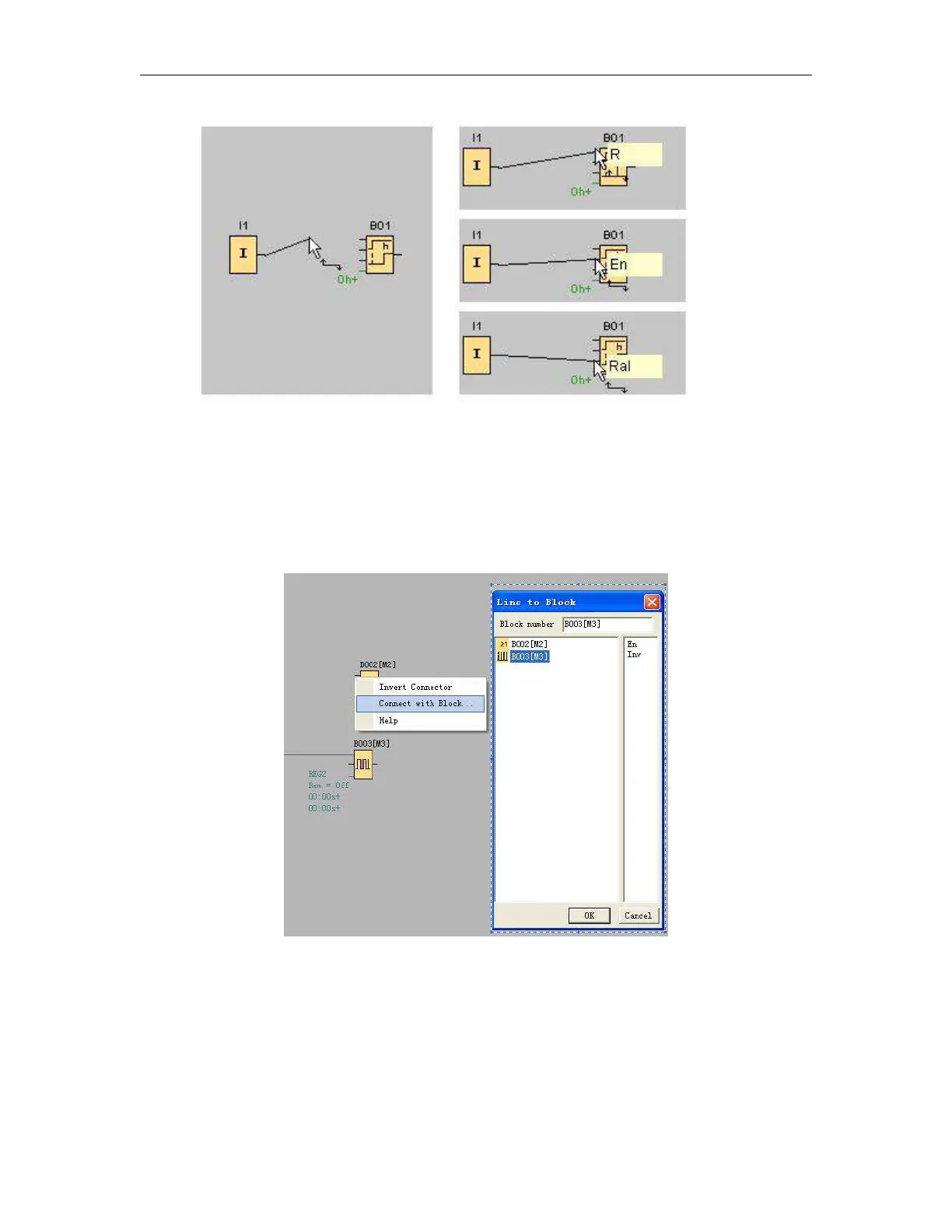
Fig. 7.10.4
eSmsConfig offers you a further option of connecting blocks when you right-click on the input or output of a
block. In the shortcut menu, click the Connect with block menu command. This calls a selection list that
contains all blocks available for your connection. Click on the relevant target block. eSmsConfig Comfort then
draws the connecting line. This method is especially useful for connecting a source to a target block over a
greater distance on the programming interface.
Fig. 7.10.5
Tips on connecting blocks
1. Move the mouse pointer over a block and briefly hold it in this position. The name of the block is shown.
The name of the block input appears when you move the mouse pointer onto the input.
2. To make it easier for you to interconnect blocks, a blue frame around the mouse pointer pops when it is
"captured" by a pin.



 To Next Page