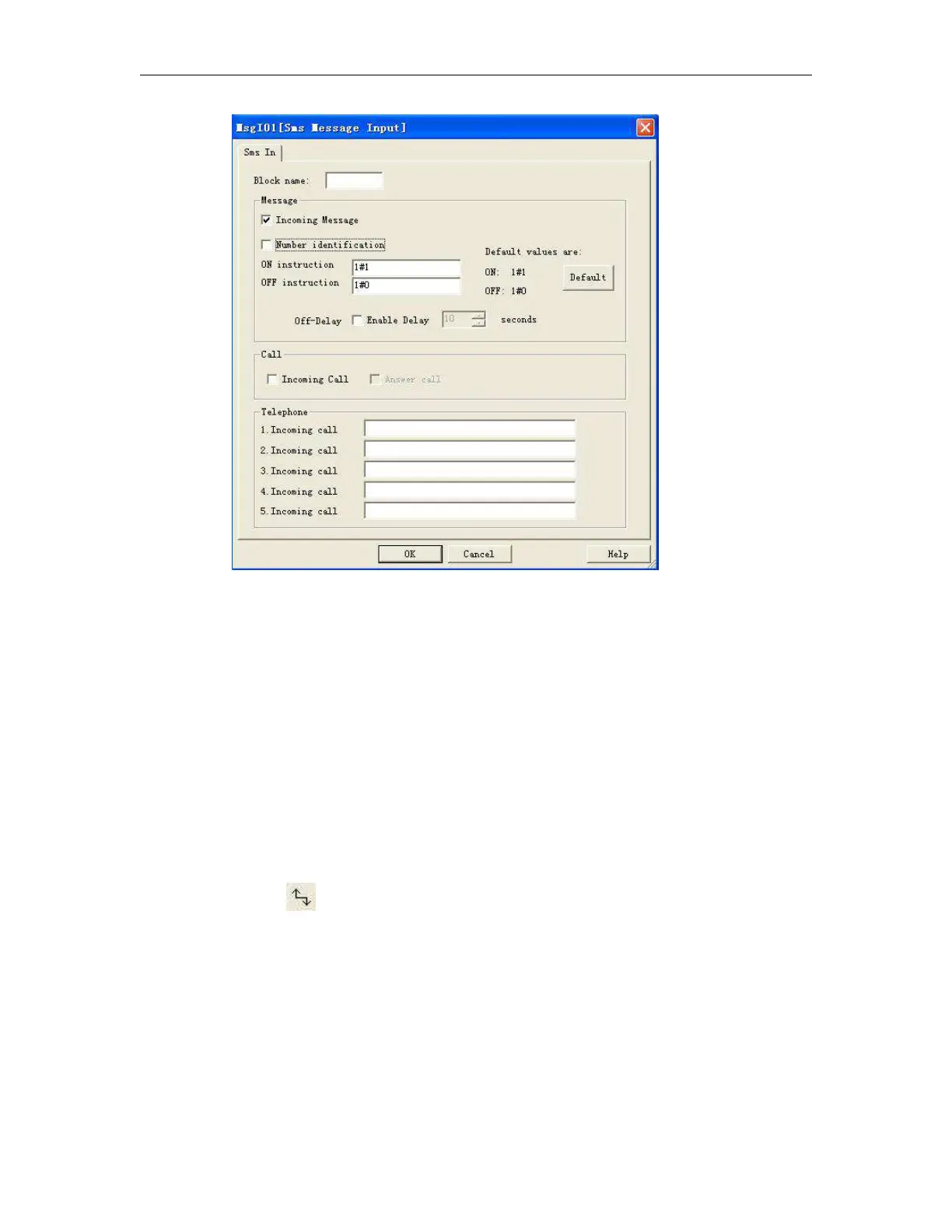
Fig 7.10.3 property box
Note: Different block has different property setup, especially the property of special function
module. Please read chapter 6, the explanation to refer the detailed setup.
6.9.2.3 Setup link
After put all the blocks needed in protracting function graph, and set up properties as needed, it’s
necessary to set up link according to logic control relation and make it an integrated function
diagram.
Operation Method:
1. Pitch on shortcut key , when the mouse becomes the shape of a pen, it can be used to link.
2. To do so, move the mouse pointer to a block input or output and press the left mouse button. Keep the
mouse button being pressed down and then drag the mouse pointer from your selected source terminal to the
target terminal. Now release the mouse button to anchor the connecting line to both terminals. While the
connecting line is being drawn, it is shown as a straight line between the first terminal and the mouse pointer.
Once it is anchored, it appears as a combination of horizontal and vertical lines, which can be manipulated
using the selection tool.



 To Next Page