Attn: In above graph, you can see “ON” or “OFF” state of input and output, and the output state and the
current state of timing and counting of all blocks. Through this simulation operation graph, you can exam the
program to see if it performs control requirement or not.
6.11 Save and Print
Operation method of file saving
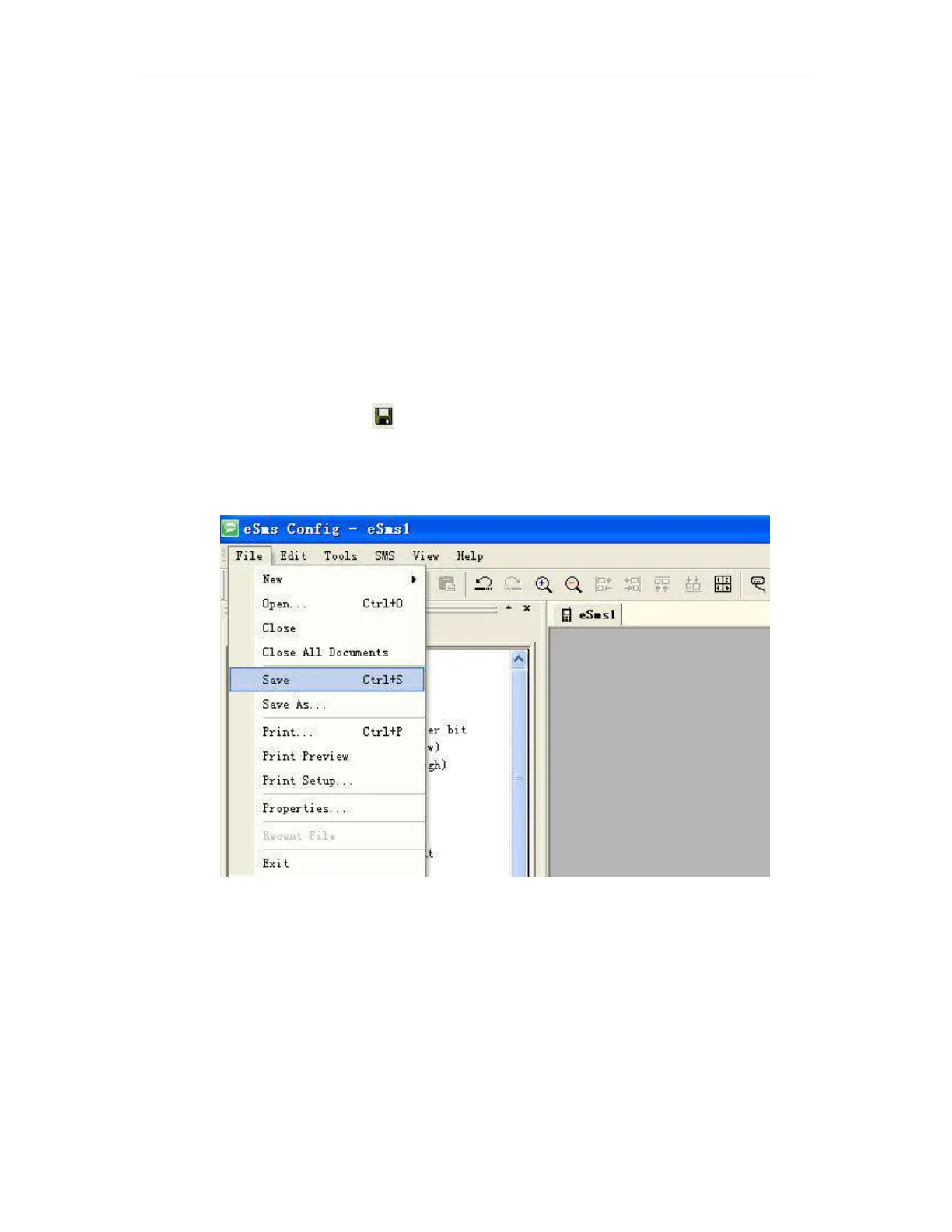
1.To save a Program, click option “save” or “Save As” under menu “File” with left button of the mouse, as
shown in Fig.7.10.8, or click button “ ”under toolbar.
2. You can set up saving path and file name in this box.
3. After the setup of the file saving path and file name, click “save” to save file in the appointed path, then
complete to save file.
Fig. 7.10.8 Save File Menu
Operation Method of Printing File
1. Click option “Print” under menu “File” with left button of mouse.
2. Dialog box as shown in Fig. 7.10.9 appears, set up your printing requirement according to the cue of dialog
box.
3. Click “confirm” with left button of mouse, then your file will be printed in your printer.



 To Next Page