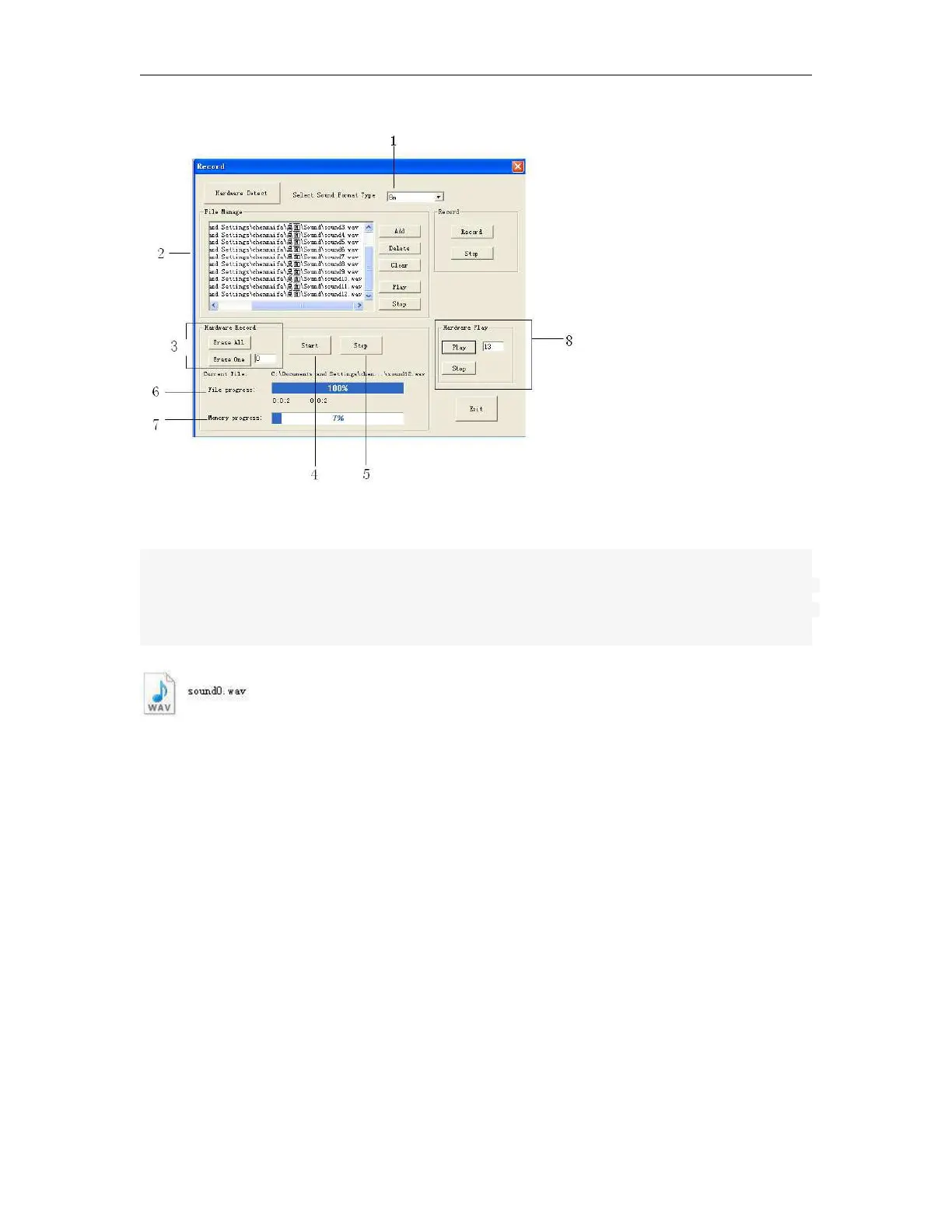
1. Sound format selection:
There are 3 options : 4m ,6m and 8m.
In total length range of the recording, the recording of the voice module can be divided into 0-99 sections .
(Note: Option1: 4 minutes, the voice sampling frequency is 3.4 K Hz, Option2: 6 minutes, sampling
frequency is 2.3 KH z, 8 minutes sampling frequency is 1.7KHz, if you want better sound quality, use a higher
sampling frequency. )
2. Voice section displayed, you can add ,delete,and clear all the file with the relevant button. The voice file
format is ".wav" Any other format file is unavailable.
3. Erase the voice section in x-Messenger.
Erase all the voice sections by clicking the "Erase all" button.
Erase one of the voice section by clicking the "Erase one" button. You can input the voice section number
in the dialog box which you want to delete.
4. Record all the voice section by click "Start".( While the "Start button" is pressed down, the voice would be
played and at the same time x-Messenger shall record one by one.)
Note: The audio wire must be connected between x-Messenger and PC, otherwise , although the voice has
been displayed, x-Messenger cannot record any voice section. In other words, the voice section is
downloaded from PC to x-Messenger by the audio wire, not via the download cable.
6. File progress: It is showing you the voice section "playing progress".
7. Memory progress: It is showing you the voice memory space status. Total memory space can be used
to store up to 4, 6 or 8 minutes voice section.
Note: 4 minutes format with the best voice quality, and 8 minutes format with the worst voice quality.
8.Hardware play: You can play any one of the voice sections in the x-Messenger(0-99 section)



 To Next Page