Troubleshooting Tips
135
Troubleshooting
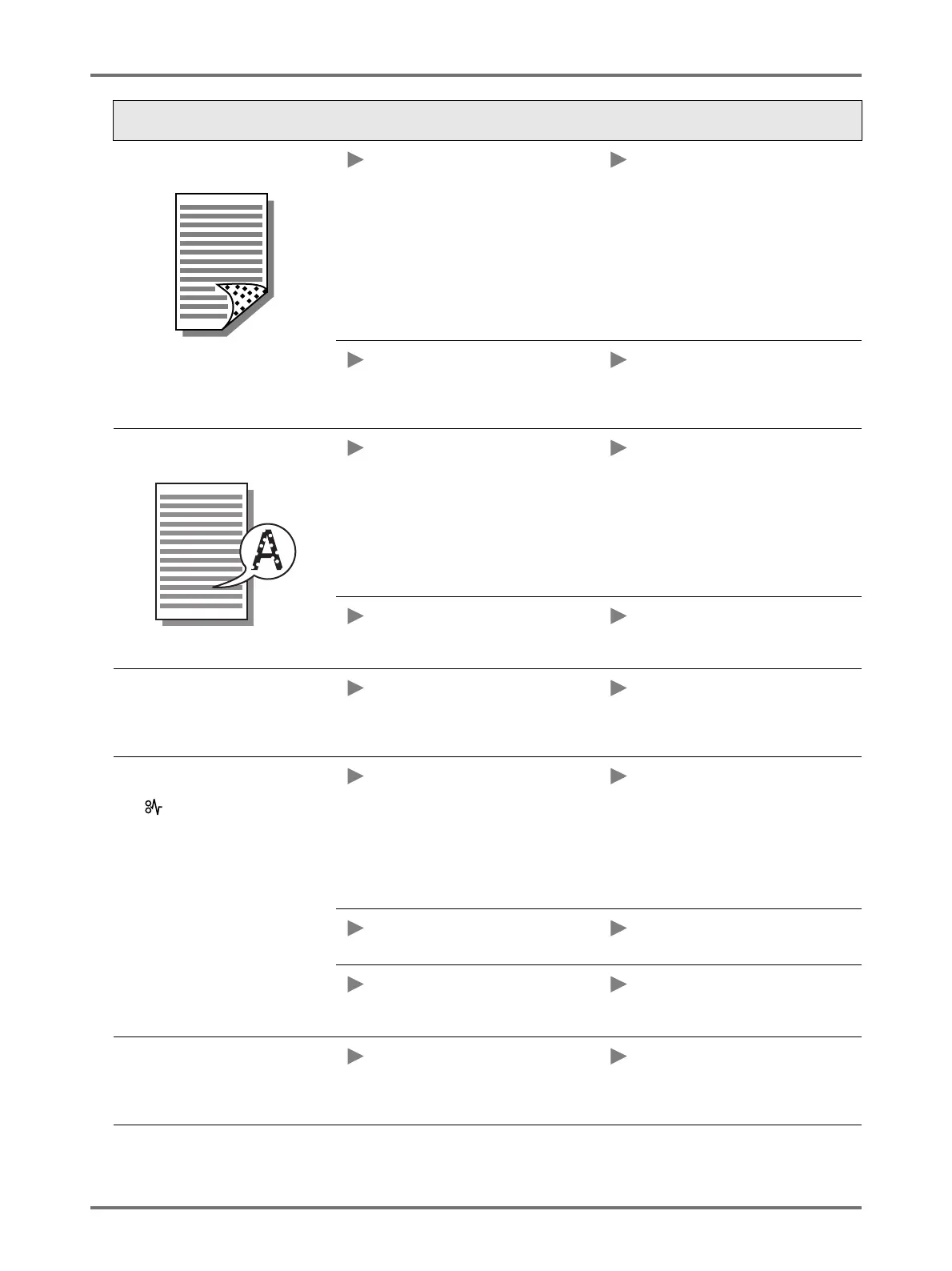
The back of the printed paper is
smudged with ink.
The Pressure Roller may be stained
with ink.
Remove the Print Drum and wipe the
Pressure Roller with a soft cloth.
p.120
If the print position is outside the
printing paper, this may cause the
Pressure Roller to be stained with ink.
Adjust the print position according to
[Print Position adjustment] so that it is
inside the printing paper.
Use the paper that is the same size or a
larger size than the original.
The paper may not be absorbing the
ink efficiently.
The next printing paper is ejected
before the ink is dry to cause the
smudge.
Change the printing paper.
Print images are faint.
Printed texts are blurred.
The machine has not been used for an
extended period of time.
If the machine has not been used for a
long time, ink on the surface of the Print
Drum may become dry. This results in
faint or blurred printing.
Press the <Proof> key and make
several copies before making copies to
be actually used. Or use the [Idling]
function.
p.70
The temperature is low (below 15ºC) in
the place where the machine is
installed or Ink Cartridges are stored.
Use the machine after keeping it at
room temperature for a while.
The left and right print positions have
been shifted.
The printing paper may not be aligned
to the center of the Paper Feed Tray.
Lower the Print Feed Tray to adjust the
position, and then perform proof copy
to check the position.
p.26
Paper sticks to the surface of the Print
Drum.
(The indicator is shown frequently.)
The margin at the top of the original or
the print may not be sufficient.
The margin of the original (top of the
print in the paper output direction) must
be 5 mm at least. Lower the vertical
print position. If this adjustment is not
possible, reproduce an original with
enough margin, and then perform the
master-making operation again.
p.17
The printing paper may not be
appropriate.
Use the recommended paper.
p.14
Paper ejection may not be adjusted
appropriately.
Press the <Paper ejection adjustment>
to select the appropriate setting to suit
the paper.
Printed copies comes out curled up. The printing paper may not loaded in
the correct direction.
Load the printing paper with a vertical
grain (flow of the paper fibre) against
the output direction of the paper.
p.14
Status Possible cause Action



 To Next Page