Wrist Camera Instruction Manual
5.2.1.3. Edit Model
Tip
At any moment during the teaching process, the user can access contextual help videos with the Play button.
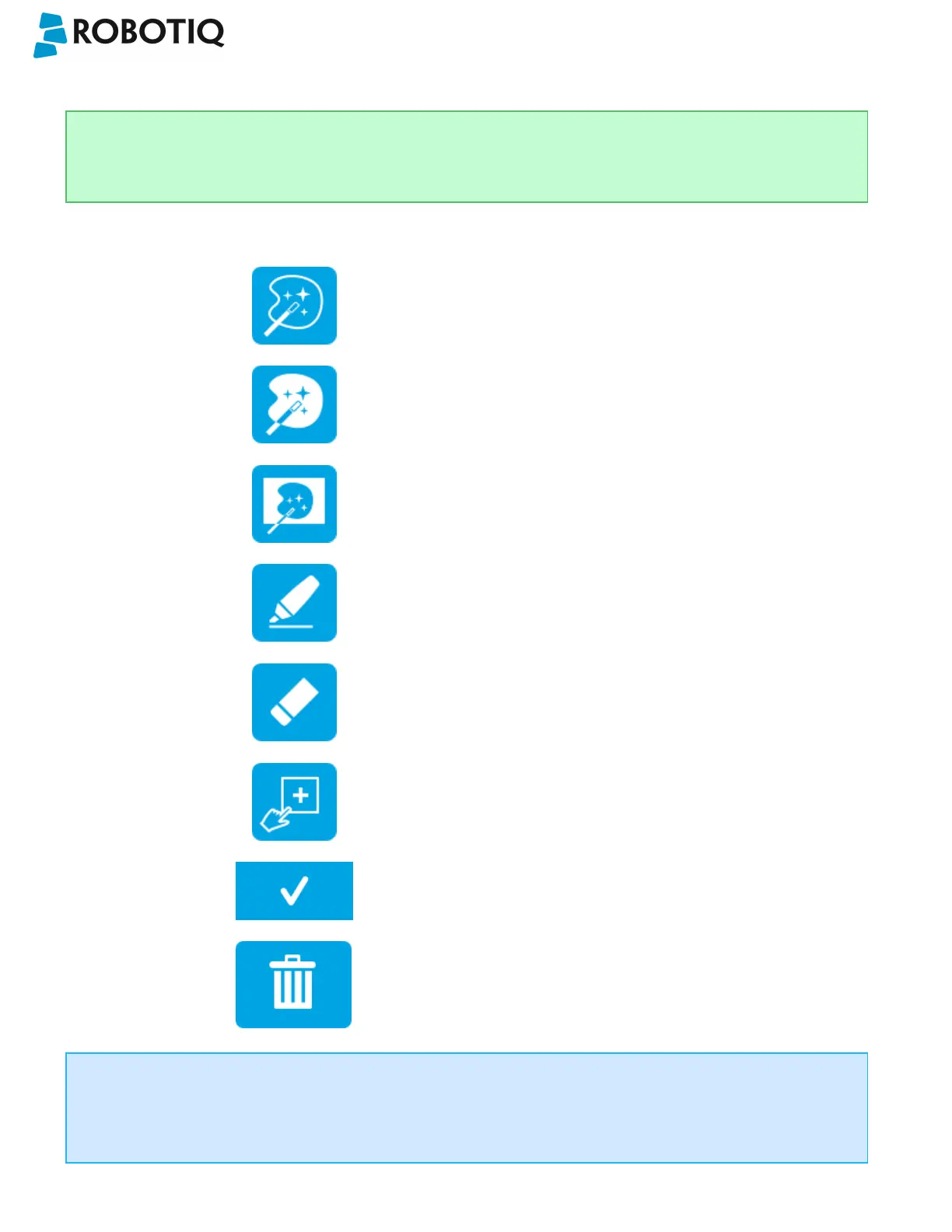
Right after accepting the model at the end of the Select Model step, the camera automatically zooms in on the object
selected. Quick selection modes and tools are made available to the user.
Outline only selection mode; please refer to the
Object Teaching section for more details.
Outline & surface selection model please refer to
the section for more details.
Rectangle selection around object please refer to
the section for more details.
Marker tool; please refer to the Object Teaching
section for more details.
Eraser tool; please refer to the Object Teaching
section for more details.
Rectangle+ (add area) tool; please refer to the
section for more details.
Accept model button; please refer to the
Accepting the model section for more details.
Delete selection area button; please refer to the
Accepting the model section for more details.
Info
The user can alternate between color and machine view while editing the model. Please refer to the Camera views
section for more details.
©Robotiq inc. 2016-2018
56



 To Next Page