Wrist Camera Instruction Manual
5.2.1.2. Select Model
Tip
At any moment during the teaching process, the user can access contextual help videos with the Play button.
Prior to selecting a model, the user will place a background on the workplane and then position the object on the
background. By default, the Select Model step displays the object to teach, automatically selected by the software,
meaning a green selection rectangle overlaps the shape of the object.
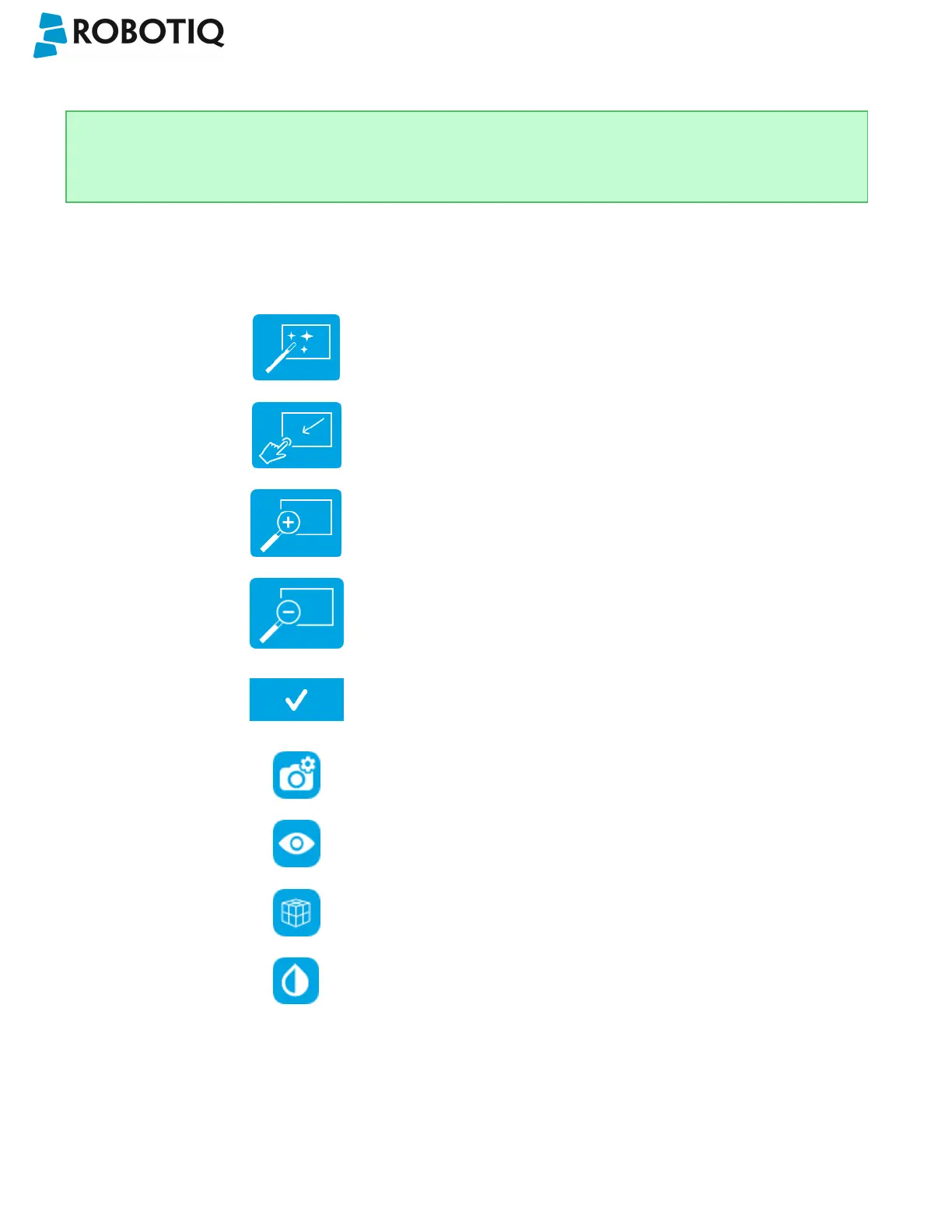
Magic Wand tool; please refer to the Automatic
area selection section for more details.
Tap and drag tool; please refer to the Manual
area selection section for more details.
Zoom in button; please refer to the Zoom in
section for more details.
Zoom out button; please refer to the Zoom out
section for more details.
Accept model button for finalizing the model
selection step; please refer to the Accepting the
model section for more details.
Camera settings button; please refer to the
Camera settings section for moredetails.
Standard view button; please refer to the
Standard view section for more details.
Machine edge view button; please refer to the
Machine edge view section for more details.
Machine color view; please refer to the Machine
color view section for more details.
©Robotiq inc. 2016-2018
45



 To Next Page