User Interface
R&S
®
GP-E/GP-S
106User Manual v16.2.1 ─ 01
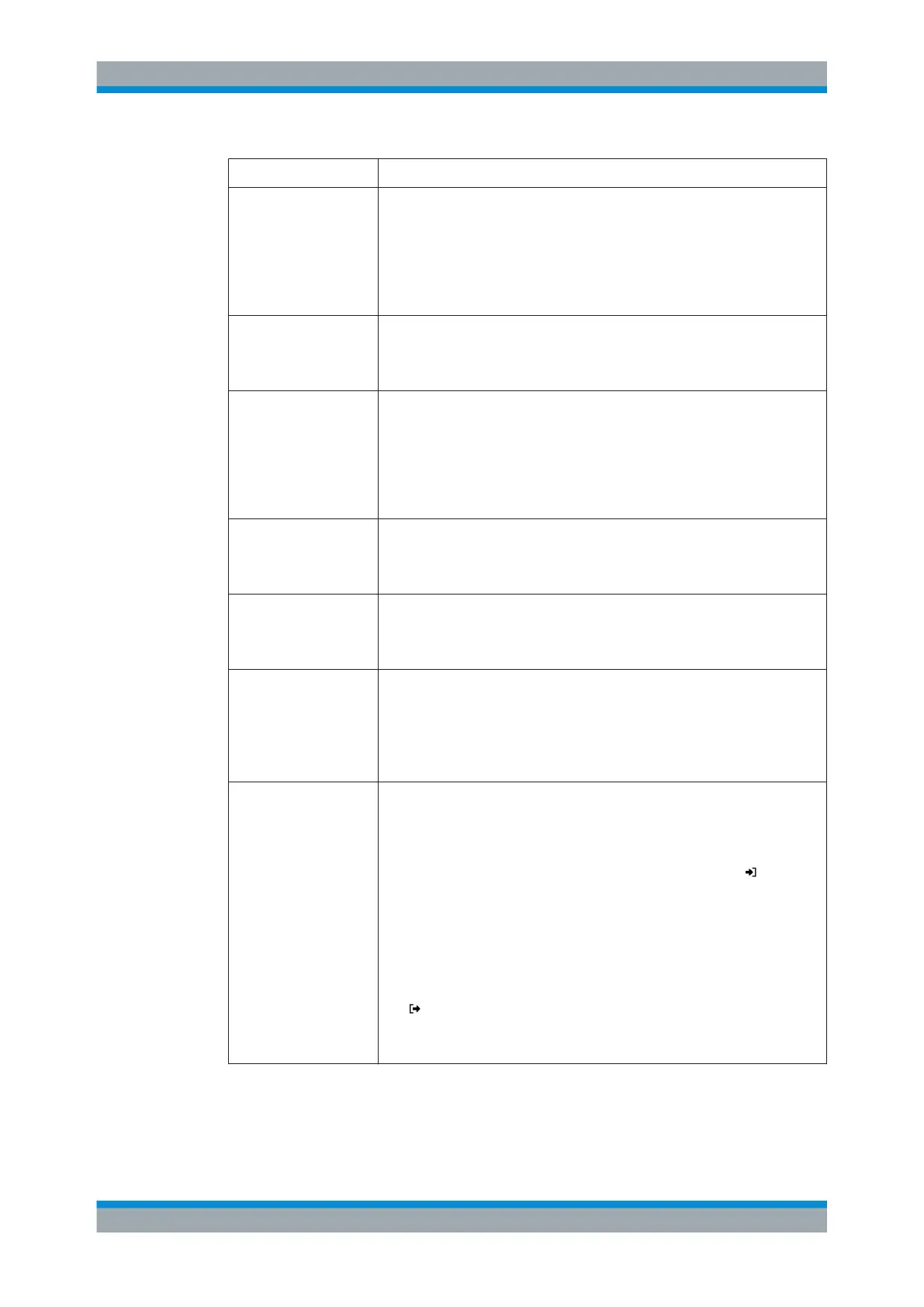
Field Description
"POP3" A slider switch indicates whether the mail filter for incoming emails that are not
encrypted is currently active ( "On" ) or inactive ( "Off" ). By clicking on the
slider switch, you can toggle the state of this service. This option is deactivated
by default.
Important: POP3 includes the STARTTLS protocol. If incoming emails are
encrypted via the STARTTLS protocol, they will be detected by the mail filter if
the POP3 service has been activated.
"POP3s" A slider switch indicates whether the mail filter for all incoming emails, including
emails received via an encrypted connection, is active ( "On" ) or inactive
( "Off" ). By clicking the slider switch, you can toggle the state of this service.
This option is deactivated by default.
"SMTP" A slider switch indicates whether the mail filter for outgoing emails that are not
encrypted is currently active ( "On" ) or inactive ( "Off" ). By clicking on the
slider switch, you can toggle the state of this service. This option is deactivated
by default.
Important: SMTP includes the STARTTLS protocol. If outgoing emails are
encrypted via the STARTTLS protocol, they will be detected by the mail filter if
the SMTP service has been activated.
"SMTPs" A slider switch indicates whether the mail filter for all outgoing emails, including
emails sent over an encrypted connection, is active ( "On" ) or inactive ( "Off" ).
By clicking the slider switch, you can toggle the state of this service. This option
is deactivated by default.
"Filter Mode" Select the radio button with the filter mode you desire. If "Blacklist" (default set-
ting) is selected, emails of all addresses in the blacklist (see below) will never
be forwarded to the mail server. Selecting "Whitelist" will forward all addresses
in the whitelist (see below) to the mail server.
"Action" Select the radio button with the action you wish to be applied to the filtered
emails. While "Reject emails" (default setting) will reject unwanted emails with
an RFC-conform answer, "Delete emails" will drop unwanted emails, letting the
sender believe the email has reached the mail server.
Important: The "Delete emails" option is NOT RFC-conform. Misconfiguration
can delete important emails.
"Blacklist" / "Whitelist" Depending on the selected filter mode, you can add as many email addresses
as you like to a blacklist or a whitelist.
There are two possibilities to add email addresses to either list:
●
Email addresses can be manually added by entering an email address in
the input field and clicking "Add" .
●
Email addresses can be imported from a text file by clicking "
Import"
and opening the file. The default maximum file size for imports is 10 mega-
bytes. Each non-empty line of the selected text file adds an entry to the
list.
You can edit or delete each single entry in the list by clicking the appropriate
button next to an entry. For further information, see Chapter 3.2, "Icons and
Buttons", on page 21.
You can export the complete mail filter list as a text file to the local disk by click-
ing " Export".
Tip: The email addresses in either mail filter list can contain wildcards: * for
whole words, ? for single characters (for example *@example.*).
The buttons at the bottom right of the editor panel allow you to shut ( "Close" ) the edi-
tor panel as long as no changes have been made and to store ( "Save" ) or to discard
( "Reset" ) your changes.
Menu Reference



 To Next Page