Application Examples
R&S
®
GP-E/GP-S
136User Manual v16.2.1 ─ 01
4.1.6 Using DHCP in Bridge Mode
Bridge two zones and create the firewall rules required to allow DHCP requests.
1.
On the desktop, click the icon in the circular menu of the first zone in the bridge.
2. Deactivate the zone using the slider switch.
The "Bridged" checkbox becomes selectable.
3. Select the "Bridged" checkbox.
4. Click "Save" to store the settings of the zone.
5.
Click the
icon in the circular menu of the second zone in the bridge.
6. Activate the "Bridged" checkbox.
The "Bridge Target" drop-down list appears.
7. Select the first zone as "Bridge Target" from the drop-down list.
8. Click "Save" to store the settings of the zone.
This action reactivates the first zone automatically.
9. Create a connection between the two zones.
a)
Click the icon in the toolbar at the top of the desktop.
b) Click successively on the desktop nodes of both zones.
The "Firewall Rules" panel opens.
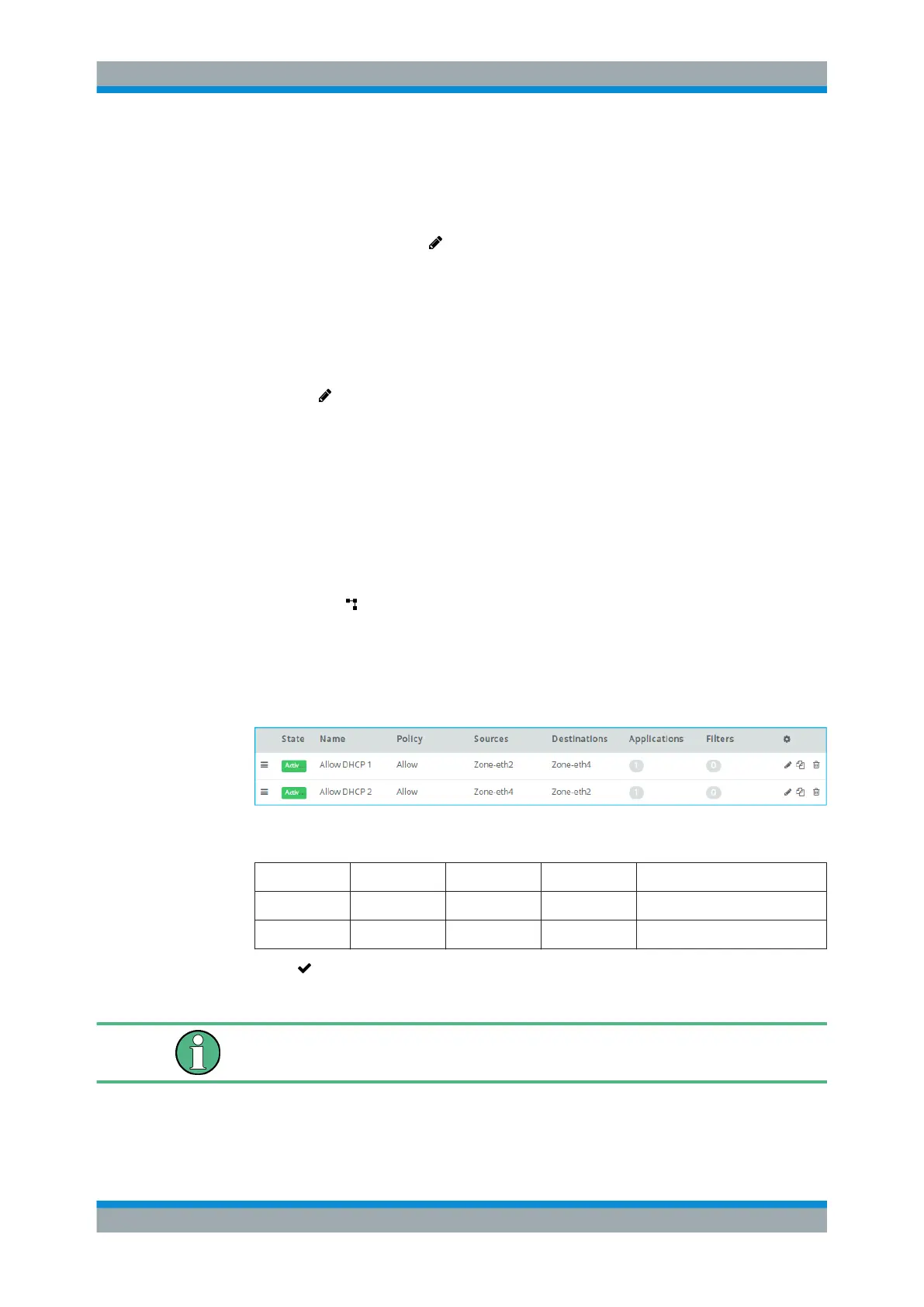
10. For each connection direction, create one firewall rule that allows DHCP requests
(see Chapter 3.3, "Firewall Rule Settings", on page 22 for further information).
Figure 4-11: Sample firewall rules settings to allow DHCP requests between bridged zones.
Position Policy Source Destination Applications/Protocols
1 Allow Zone-eth2 Zone-eth4 DHCP
2 Allow Zone-eth4 Zone-eth2 DHCP
11.
Click "
Activate" in the toolbar at the top of the desktop to apply your configura-
tion changes.
If the firewall still blocks DHCP requests after creating the required firewall rules, you
need to reboot your gateprotect Firewall.
Firewall Rule Examples



 To Next Page