User Interface
R&S
®
GP-E/GP-S
38User Manual v16.2.1 ─ 01
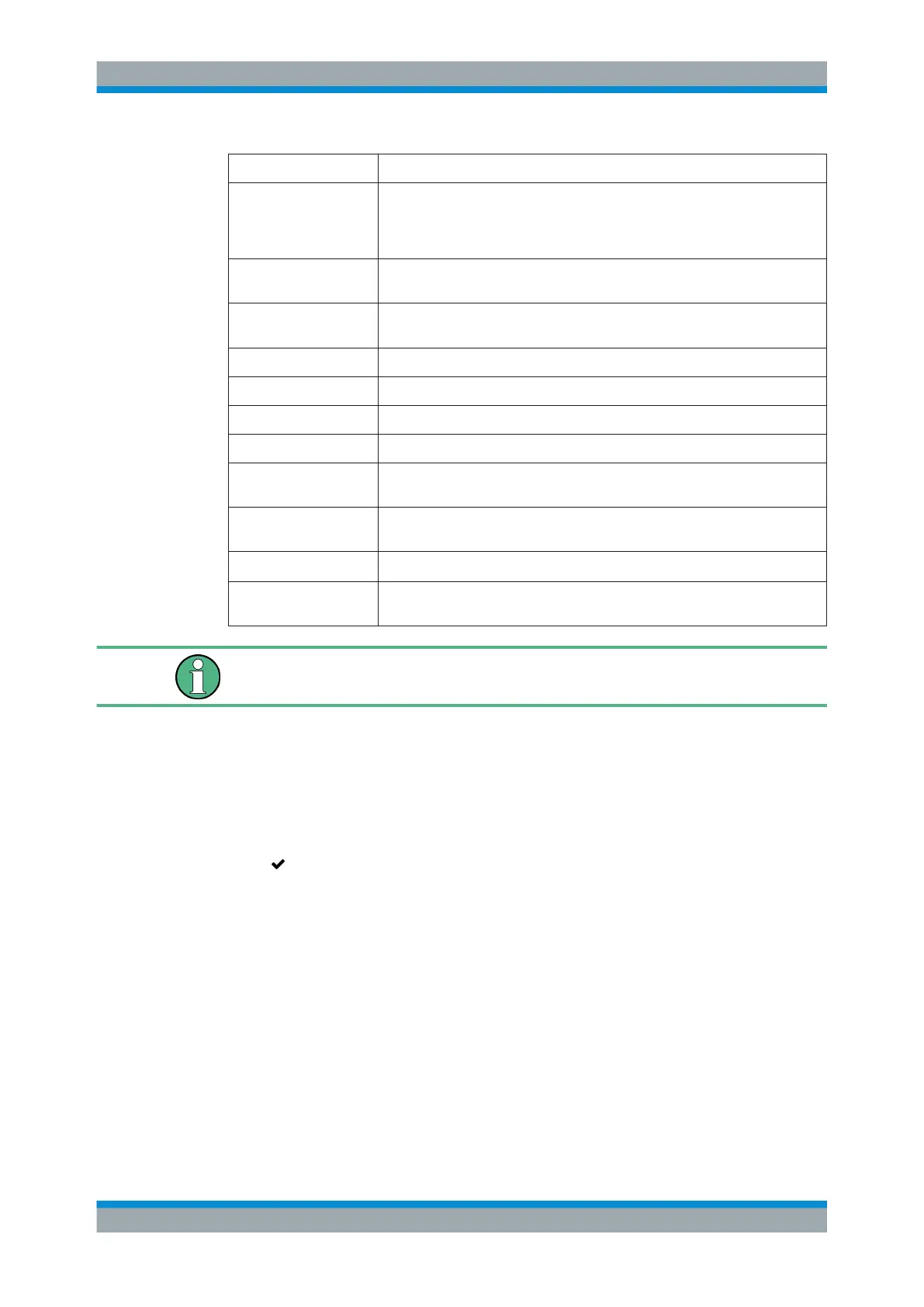
Field Description
"Number of Backups
stored"
From the drop-down list, select how many backups should be stored locally if
the "Store Locally" checkbox has been selected. The option is set to Last 5 by
default. The oldest backups are automatically deleted if the selected number is
exceeded.
"Upload" This checkbox is cleared by default. Select this checkbox if you wish to store
backups on a remote server.
"Protocol" From the drop-down list, select the network protocol used to upload the back-
ups. The option is set to SCP by default.
"Username" Enter the name of the user on the remote file service.
"Password" Enter the user's password for the remote file service if required.
"Show Password" Optional: Select this checkbox to verify the password.
"Server" Specify the IP address or domain name of the host that will store the backups.
"SSH fingerprint" If the SCP protocol was selected, enter the SSH fingerprint of the remote
machine.
"Zone" From the drop-down list, select the zone that contains the host specified in the
"Server" field.
"Port" Enter the port number (from 1 to 65535) of the file service.
"Directory" Specify the directory on the remote server where the backups will be stored. If
the directory does not exist, it will be created.
Backups have to be stored locally or uploaded to a remote server. That means at least
one of the two checkboxes has to be selected.
The buttons at the bottom right of the editor panel depend on whether you add a new
backup profile or edit an existing profile. For a newly configured profile, click "Create"
to add the profile to the list of available backup profiles or "Cancel" to discard your
changes. To edit an existing profile, click "Save" to store the reconfigured profile or
"Reset" to discard your changes. You can click "Close" to shut the editor panel as long
as no changes have been made on it.
Click " Activate" in the toolbar at the top of the desktop to apply your configuration
changes.
3.4.1.5 Local Logs
gateprotect Firewall stores records of system events, status information, errors and
other communication in a log database. The "Local Logs" panels display the contents
of the logs. If a problem occurs, you may be able to find technical details about the
cause of the problem by viewing these logs.
The logs are automatically reloaded to get the latest entries by default. You can disable
the automatic reload to focus on older entries by clicking the "AUTORELOAD ON"
slider switch. Then you can manually update the list of items in the logs by clicking
Menu Reference



 To Next Page