User Interface
R&S
®
GP-E/GP-S
87User Manual v16.2.1 ─ 01
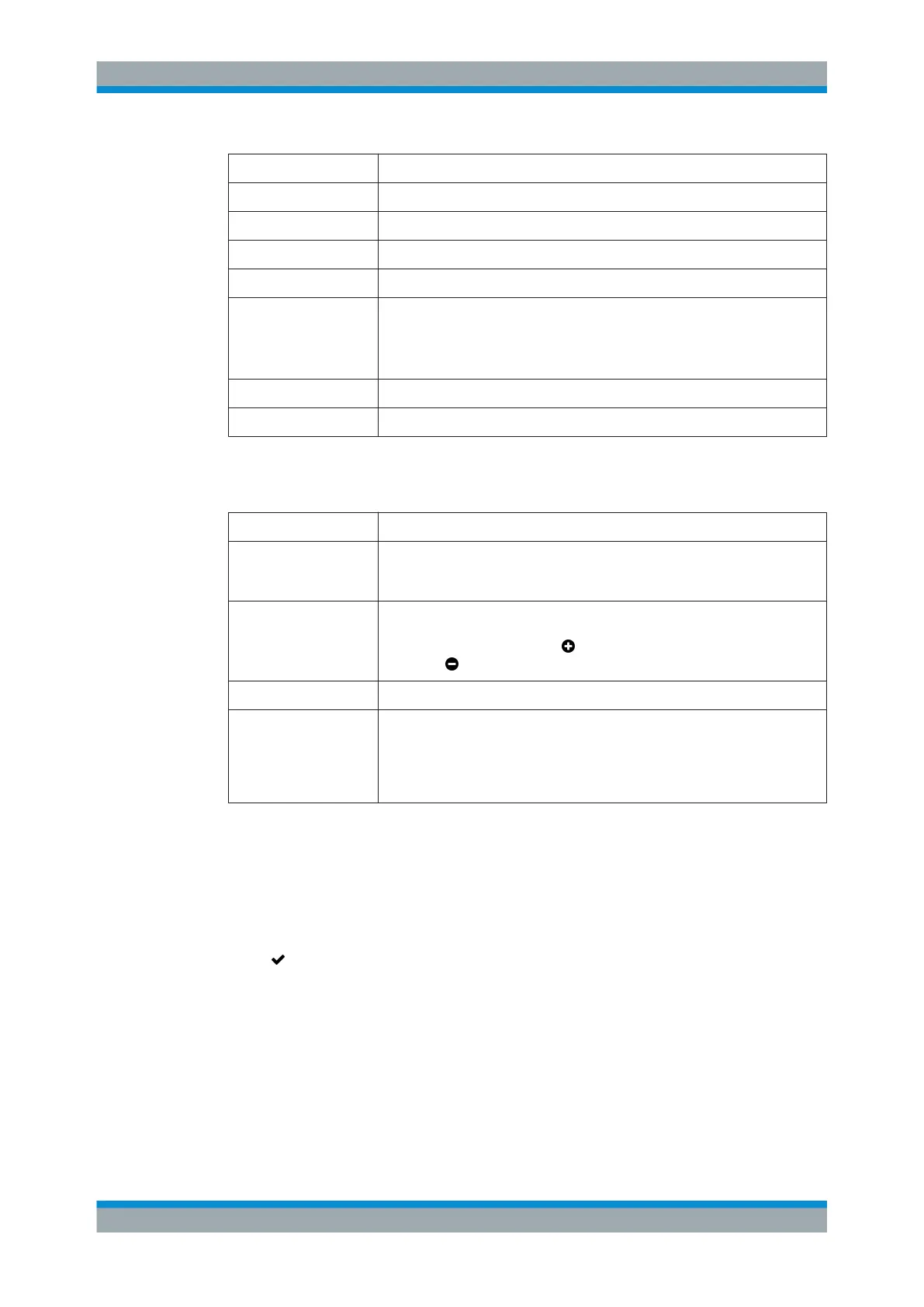
Field Description
"Local IP" Optional: Enter your local IP address.
"Peer IP" Optional: Enter the IP address of the peer.
"MRU" Optional: Set the maximum receive unit.
"MTU" Optional: Set the maximum transmission unit.
"LCP" This checkbox is cleared by default. Select the checkbox to enable the Link
Control Protocol to check and configure the connection.
Important: This option has to be enabled to be able to establish the PPP con-
nection.
"LCP Ping" Optional: Set the LCP ping frequency.
"LCP Timeout" Optional: Set the LCP time after which the LCP protocol is terminated.
Use the Static mode to specify a fixed IP address, subnet mask and gateway
address for your connection to the wide area network.
Field Description
"IP Address" Enter the static IP address that will be used for the WAN zone in CIDR notation
(IP address followed by a slash »/« and the number of bits set in the subnet
mask, for example 192.168.50.1/24 ).
"Alias IP Addresses" Optional: Once you have entered the static IP address to be used for the WAN
zone, you can enter as many alias IP addresses in CIDR notation for the static
WAN interface as desired. Click behind the input field to add a new alias IP
address or to remove an alias IP address.
"Gateway" Specify the gateway address to be used.
"DNS Server 1"/
"DNS Server 2"/
"DNS Server 3"
Optional: When DHCP or PPPoE mode is selected for the WAN zone, gatepro-
tect Firewall automatically uses the DNS settings provided by the external
DHCP server or the PPP-Peer. For Static mode, you can specify up to three
custom Domain Name System servers that resolve requests for host and
domain names and provide the corresponding IP address.
The buttons at the bottom right of the editor panel depend on whether you add a new
physical interface to the WAN zone or edit an existing interface. For a newly configured
physical interface, click "Create" to add the interface to the list of available physical
interfaces or "Cancel" to discard your changes. To edit an existing interface, click
"Save" to store the reconfigured interface or "Reset" to discard your changes. You can
click "Close" to shut the editor panel as long as no changes have been made on it.
Click "
Activate" in the toolbar at the top of the desktop to apply your configuration
changes.
Interface Groups
If your license allows you to use multi-WAN, you can configure WAN load balancing by
creating WAN interface groups.
Menu Reference



 To Next Page