Application Examples
R&S
®
GP-E/GP-S
145User Manual v16.2.1 ─ 01
10. Click "OK" to store your settings.
The "Properties" dialog disappears.
11. Double-click the edited shortcut to establish the connection.
The connection is established. A successfully established connection is indicated
by a green connection icon in the system tray, located in the Windows taskbar at
the bottom of the desktop.
4.3 Setting Up a Static Route
gateprotect Firewall can be used to define custom routes that are used to reach com-
puters on a given destination network.
The following example shows how to set up a new static route.
1. Navigate to "Network > Static Routes" .
2.
Click the plus button in the item list header.
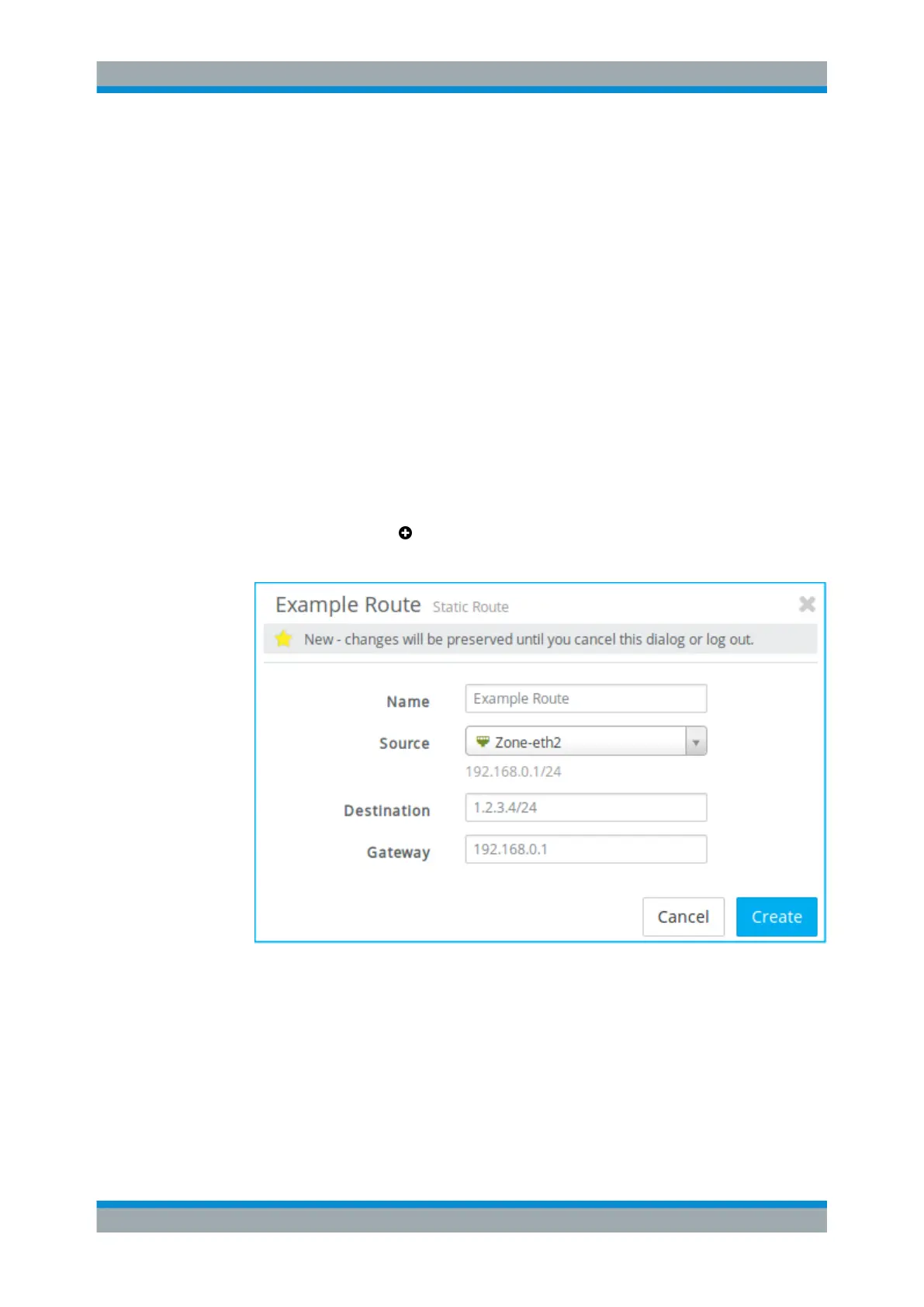
An editor panel is opened, allowing you to configure a static route.
Figure 4-16: Sample static route settings.
3. Specify a "Name" for the new static route.
4. From the drop-down list, select the "Source" zone to determine the portion of the
network to which the route should be applied.
5. Enter the "Destination" IP address in CIDR notation (IP address followed by a
slash »/« and the number of bits set in the subnet mask, for example
192.168.50.1/24).
Setting Up a Static Route



 To Next Page