User Interface
R&S
®
GP-E/GP-S
72User Manual v16.2.1 ─ 01
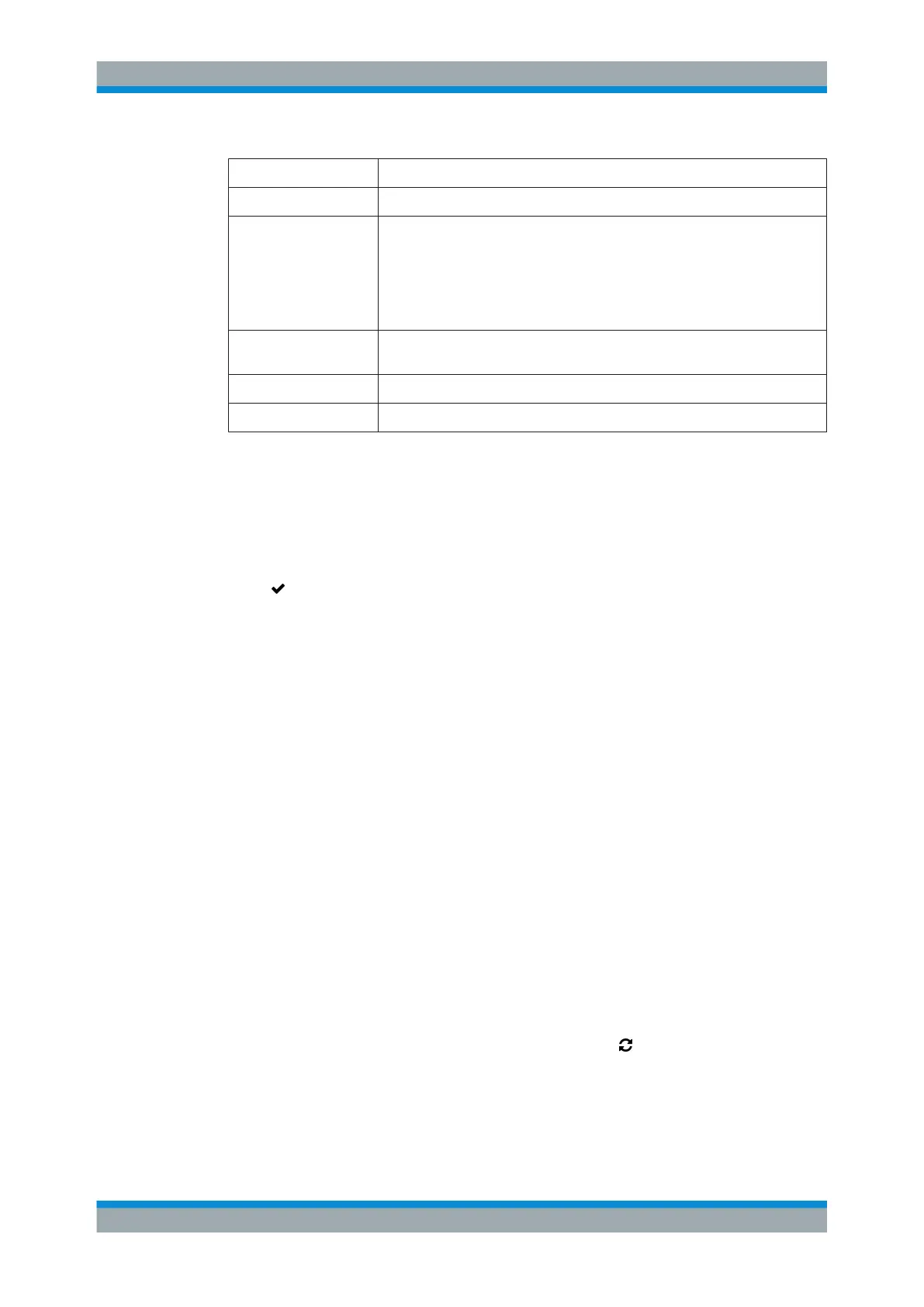
Field Description
"Web Admin Access" Select the checkbox to enable HTTP(S) access to the web admin frontend.
"HTTPS" This option determines whether an encrypted connection is used to access the
gateprotect Firewall web interface. The option is set to "Off" by default but you
can turn it "On" or use the "Force" setting.
Note: When "HTTPS" is set to "Force" , subsequent requests from your
browser to the web interface must be preceded by https:// or you will be
unable to connect.
"Certificate" From the drop-down list, select a webserver certificate to be used for the
HTTPS connection.
"Certificate Password" Enter the corresponding password for the certificate.
"Show Password" Optional: Select the checkbox to verify the password.
The buttons at the bottom right of the editor panel depend on whether you add a new
Ethernet zone or edit an existing zone. For a newly configured Ethernet zone, click
"Create" to add the zone to the list of available Ethernet zones or "Cancel" to discard
your changes. To edit an existing zone, click "Save" to store the reconfigured zone or
"Reset" to discard your changes. You can click "Close" to shut the editor panel as long
as no changes have been made on it.
Click "
Activate" in the toolbar at the top of the desktop to apply your configuration
changes.
Configured Ethernet zones are displayed as nodes in the network overview on the
desktop and are, therefore, available for use in connections and firewall rules.
3.4.3.2 WLAN Zones
Some gateprotect Firewall models can be enhanced with a wireless USB flash drive to
create a wireless access point in your network.
Connect a compatible wireless USB adapter to the USB port of your gateprotect Fire-
wall to configure a wireless access point. A successful configuration allows wireless cli-
ents to connect to this access point to join the wireless local area network (WLAN).
For more detailed information on WLAN zones, see the following sections.
WLAN Zones Overview
Navigate to "LAN > WLAN Zones" to display the list of WLAN zones that are currently
defined on the system in the item list bar.
In the expanded view, the columns of the table display the "Name" of the WLAN zone,
its status ( "Enabled" or not), the "Mode" , and the "IP Address" of the WLAN zone. The
buttons in the last column allow you to view and adjust the settings for an existing
WLAN zone or delete a zone from the system. Click the "
Refresh" button above the
table to obtain updated information on the WLAN zones.
For further information, see Chapter 3.2, "Icons and Buttons", on page 21.
Menu Reference



 To Next Page